Generate an AI render from an image or view
Last updated: September 16, 2026
Visualizing your designs with AI in Motif Review is simple — no prior rendering knowledge or skills required. This article walks you through generating a render and the settings you can adjust before you do.
What can you render?
Renderings can be made from almost anything placed on your board, as well as Text to Image/Video:
A saved camera view of a 3D model
An imported image or photo
A sketch created in Motif Review or any other app
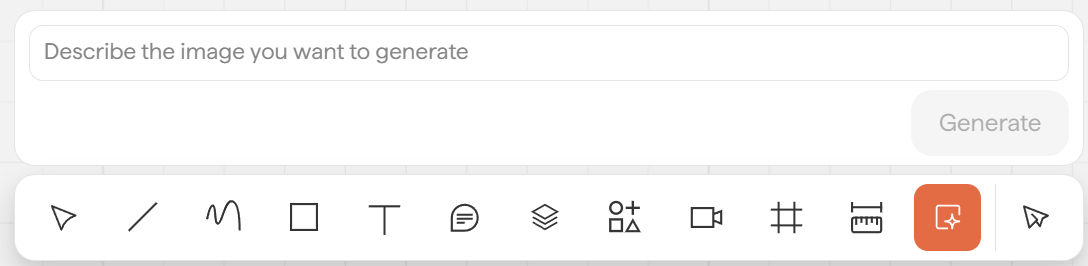
A plain-text prompt from the toolbar
For guidance on each input type, see →📄 AI rendering workflows
Generate a render in one click
Click any image or view on the board to open the AI rendering toolbar
Press the up arrow on the right side of the toolbar — you don't need to select any presets
The details fill in automatically and produce an architectural visualization, even if the original input has no defined colors or materials yet.
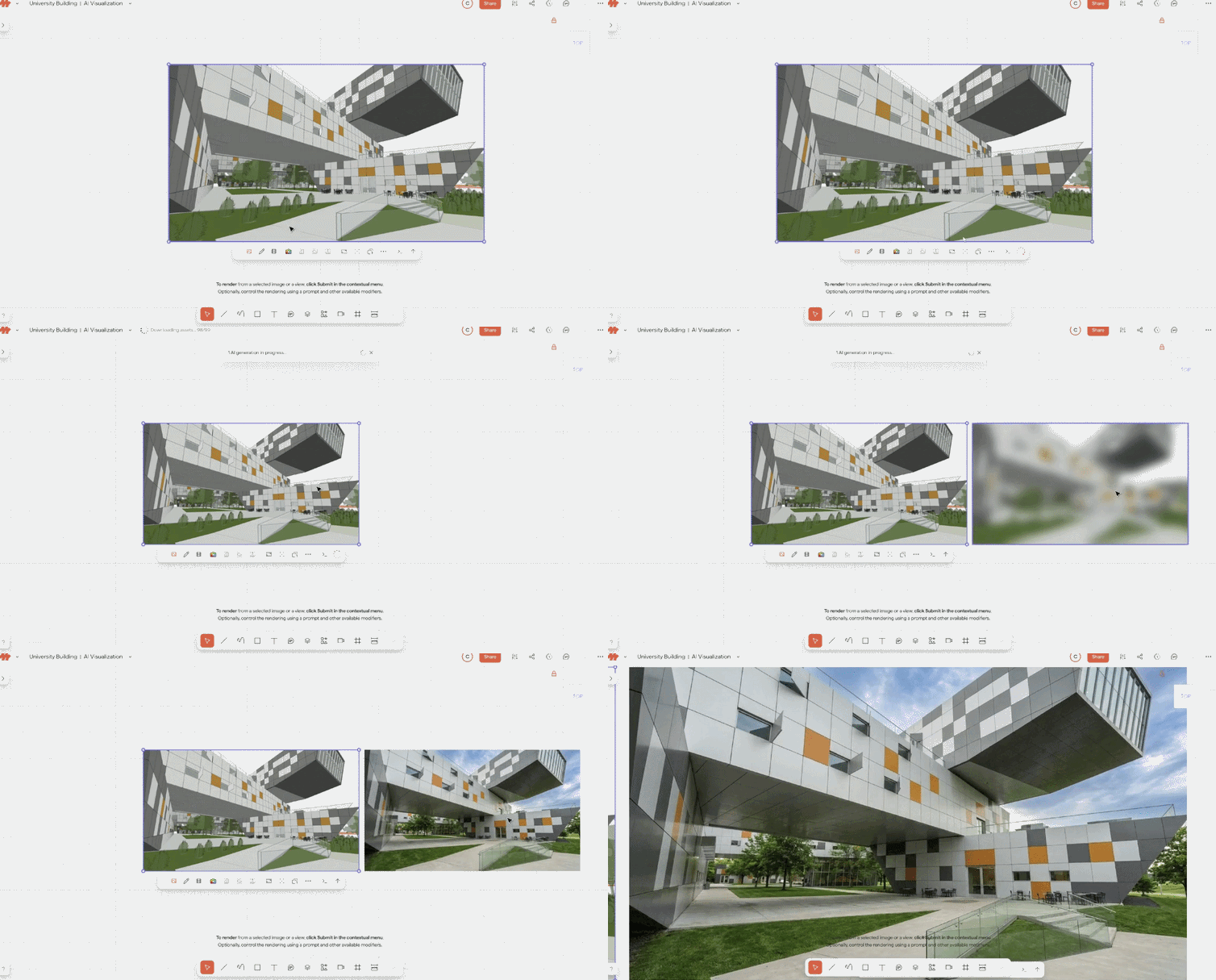
Note: AI renders are fast, but each render still takes a moment to complete.
Adjust settings before you render
When you want more control, set any of these before you press submit:
Setting | What it does | Learn more |
|---|---|---|
Visualization style | Photorealistic, architectural sketch, watercolor, marker, and more | |
Scene modifiers | Environment, weather, and time of day | |
Resolution & number of renders | Balance detail against credit cost | |
AI model | Choose the model that best fits your goal | |
Prompt | Describe materials, building type, or atmosphere in plain language |
What to do after you render
Refine it — adjust materials, windows, or a specific region → 📄 Edit rendered images
Animate it — turn a render into a short video → 📄 Make videos from images
Finalize it — upscale to 4K for presentation → 📄 Resolution, upscaling & credits
Text-to-Image/Video prompting
Create an image or video from scratch using the prompt box to describe your vision. Simply type a description of the image you want to generate, and it will create it from scratch.

Next steps
Need help? Reach out to us at community.motif.io