Scene Modifiers: Environment, Weather & Time of Day
Last updated: September 16, 2026
Beyond visualization styles, Motif Review gives you four scene control modifiers to shape the mood and context of your render: Environment, Weather, and Time of Day. You can select one or combine all three to define the scene — or leave them unset and let Motif decide.
Render with different scene modifiers
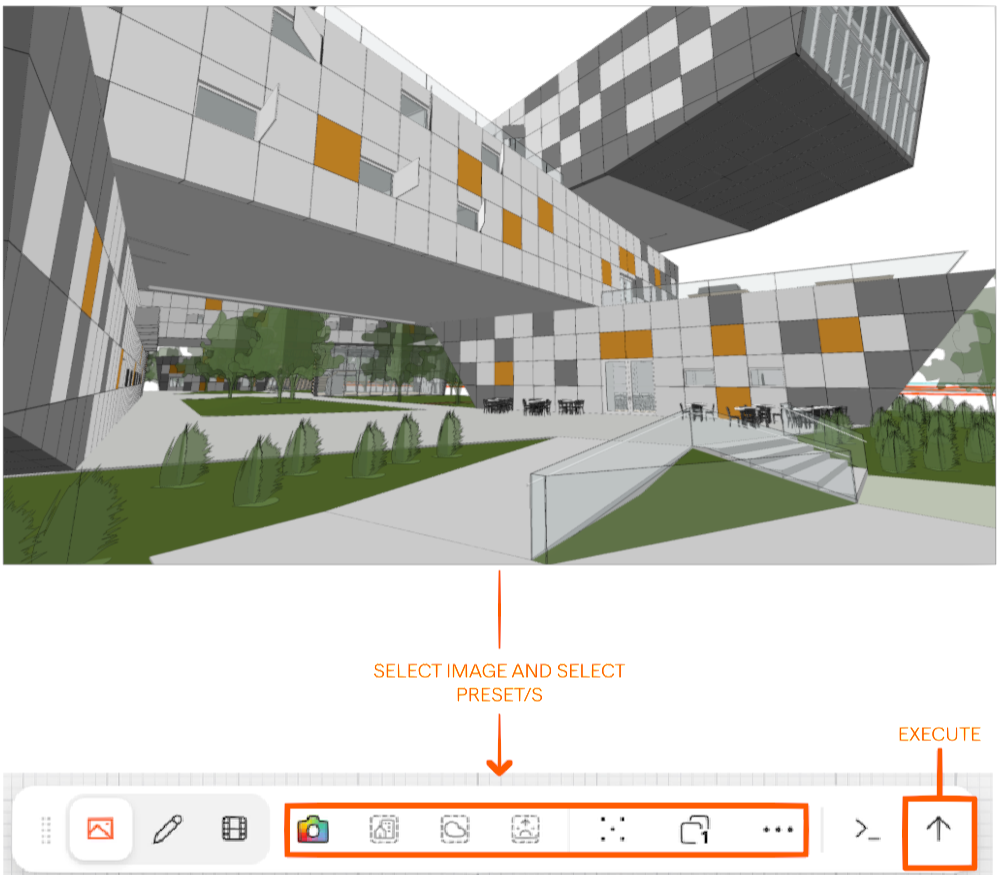
Start by clicking on an image to bring up the toolbar, and then select your preferred presets, and execute.
Environment
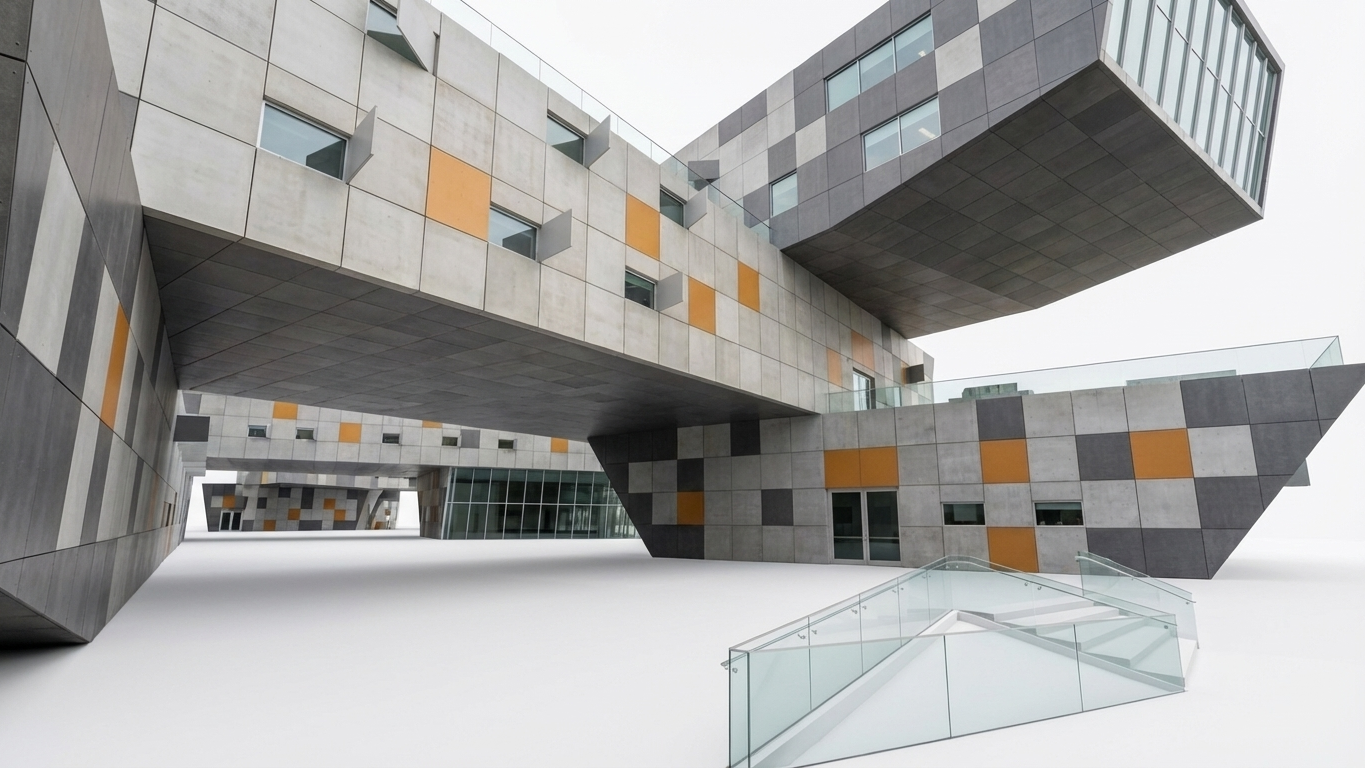
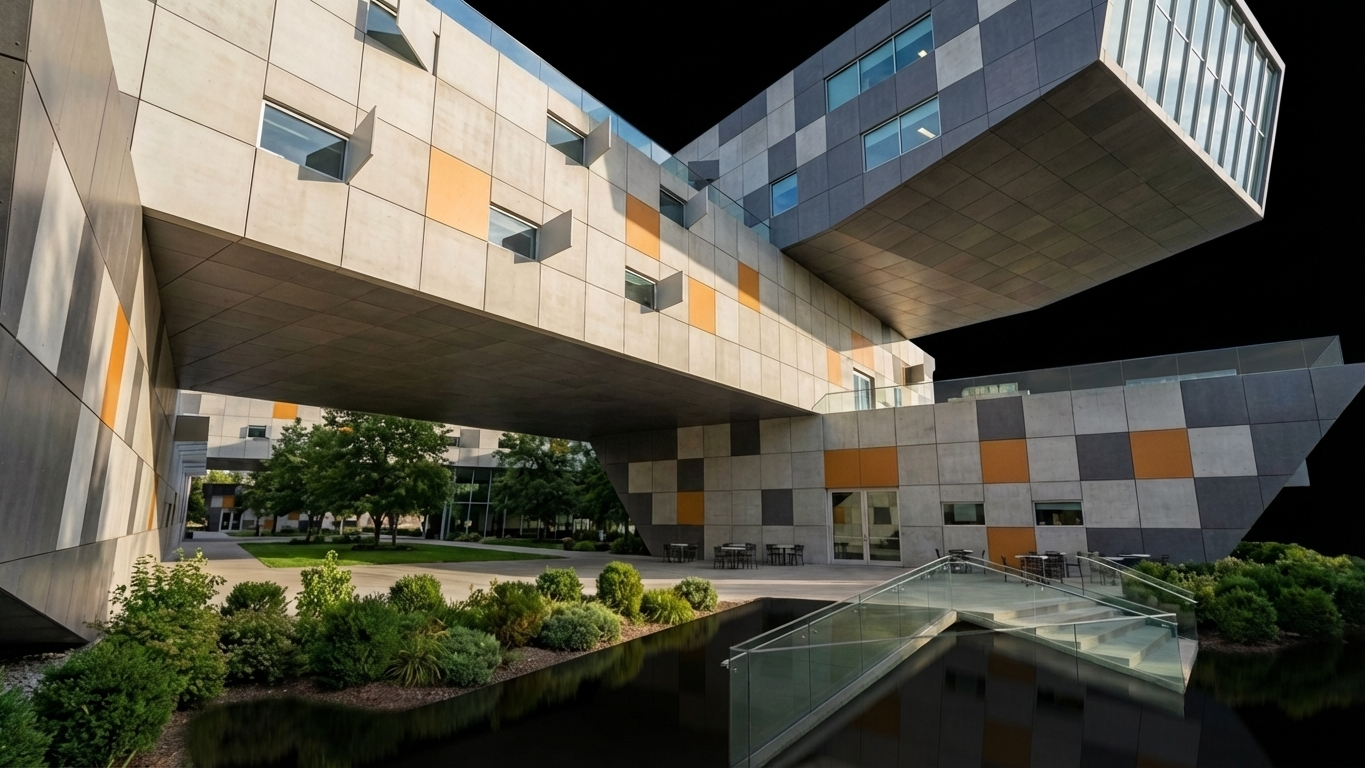
When no environment is selected, designs are rendered in a minimal, natural, realistic setting that keeps focus on the design. Choose from light background, dark background, rural, forest, mountain, or desert.
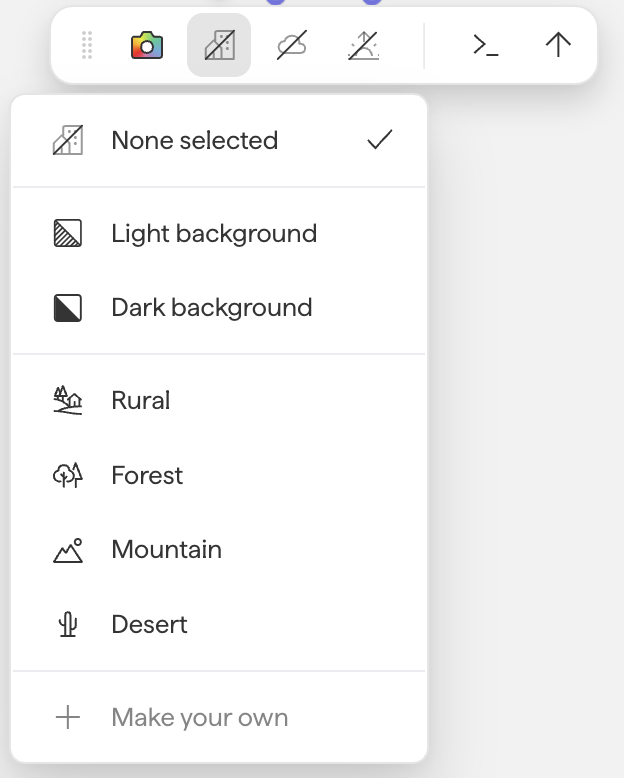
💡 Can't find the environment you want? Select None selected in the Environment menu and describe the desired environment in the prompt box instead.
Weather
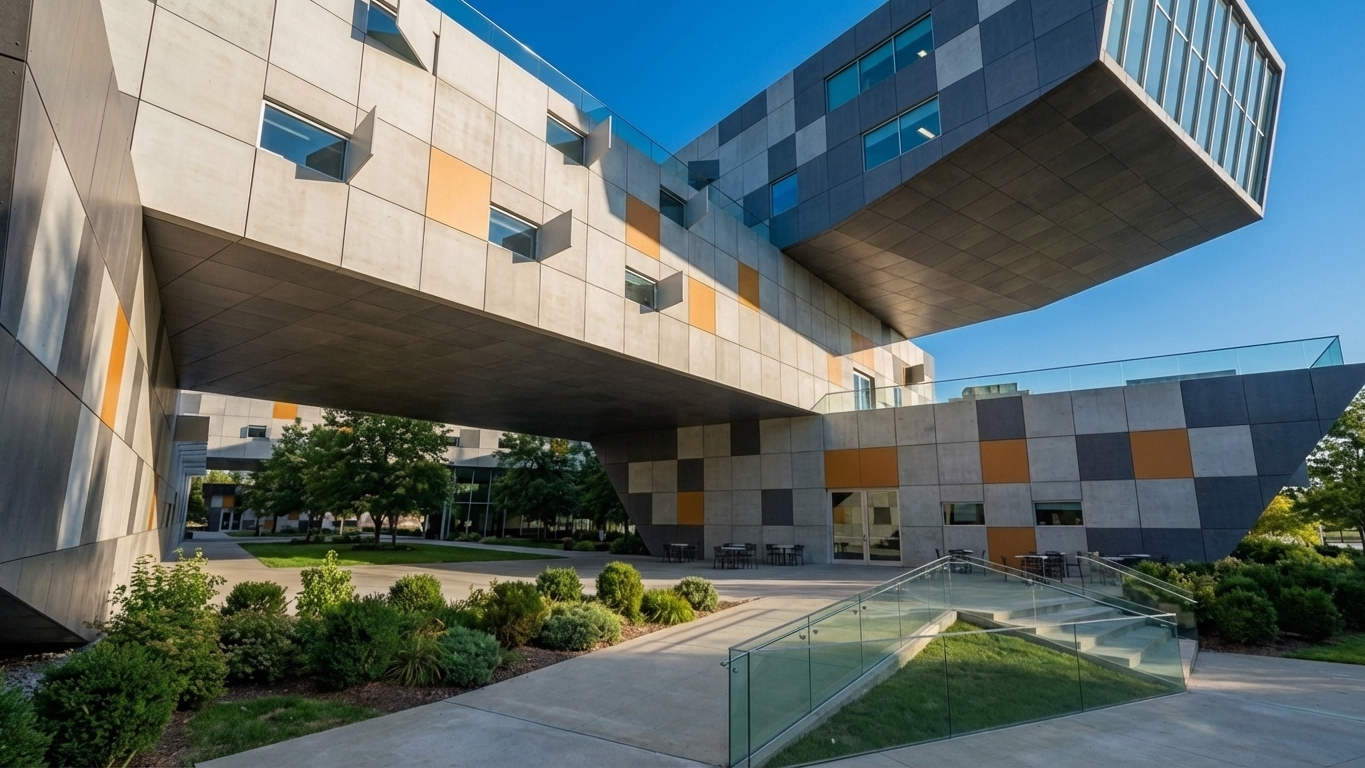
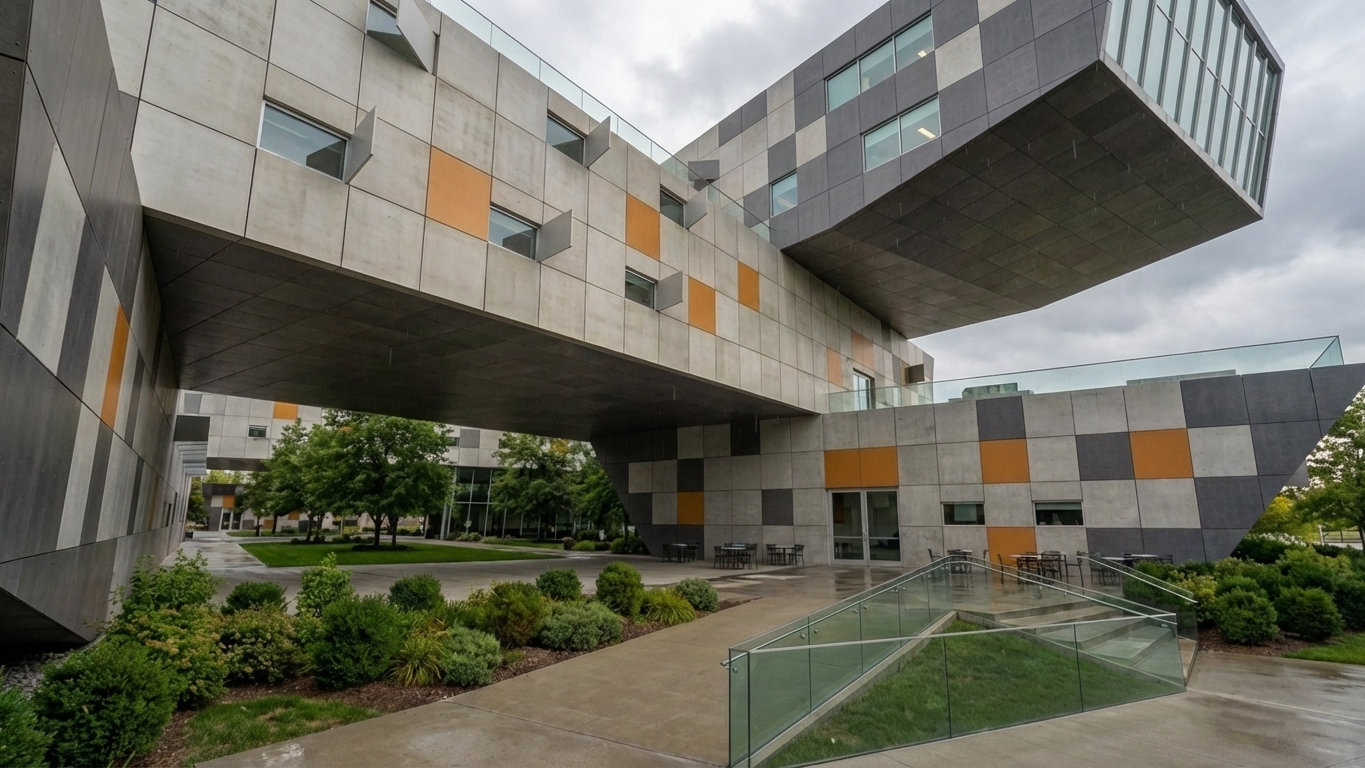
Weather settings can dramatically influence the mood of a visualization. If no weather modifier is selected, the system will choose conditions that complement your design. Choose from clear, cloudy, after the rain, foggy, and snowy.
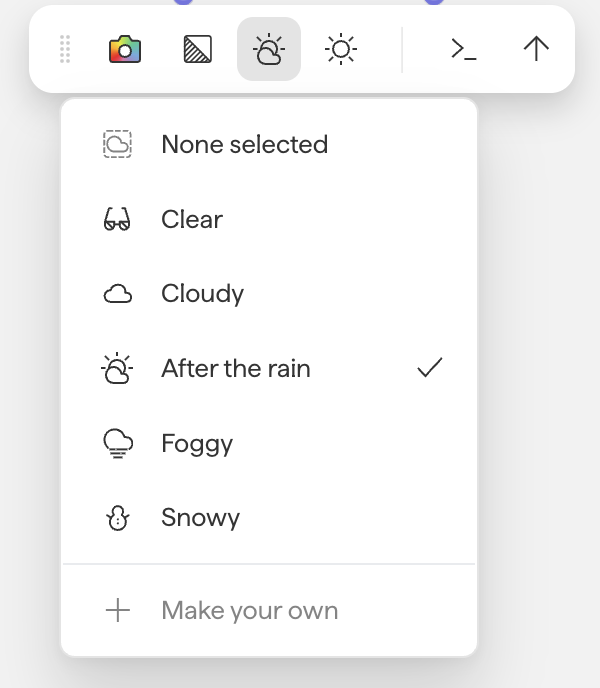
💡 If a specific weather condition isn't available as a modifier, describe it in the prompt box.
Time of Day
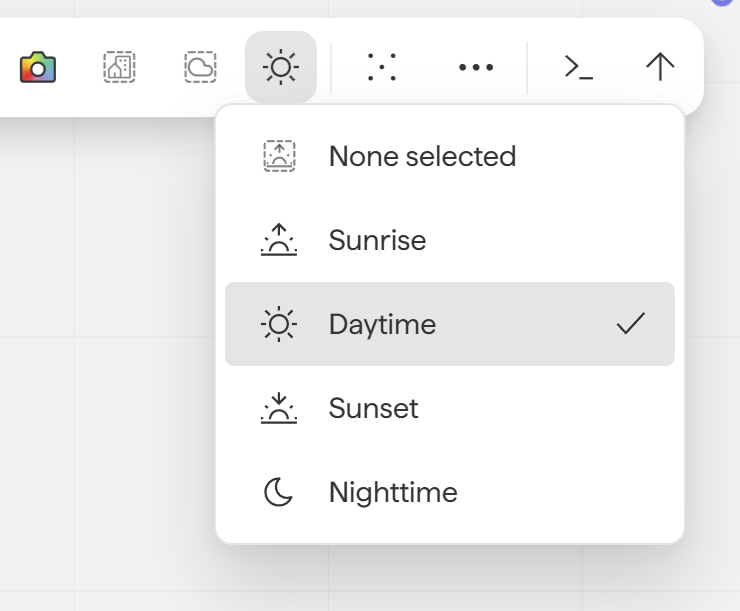
If no time of day is selected, the AI makes its own choice. Choose from sunrise, daytime, sunset, and nighttime.
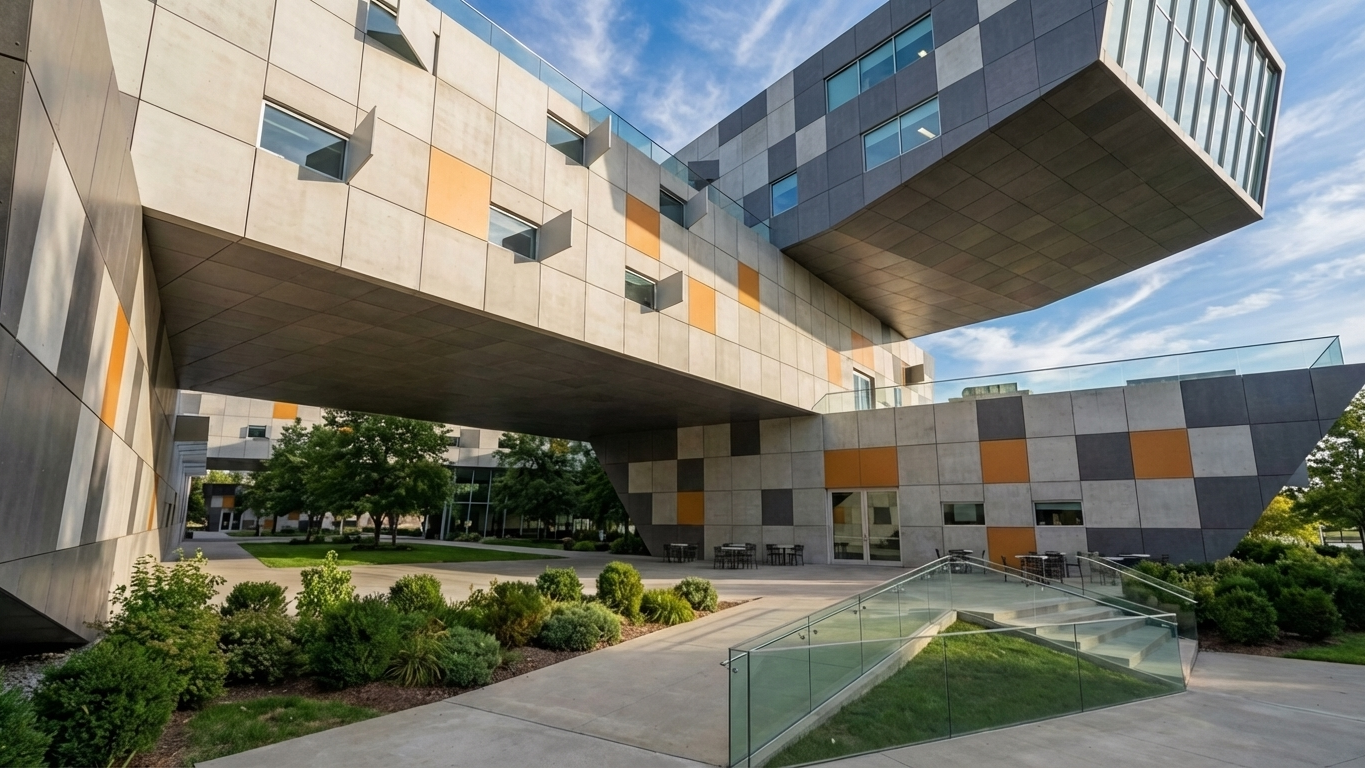
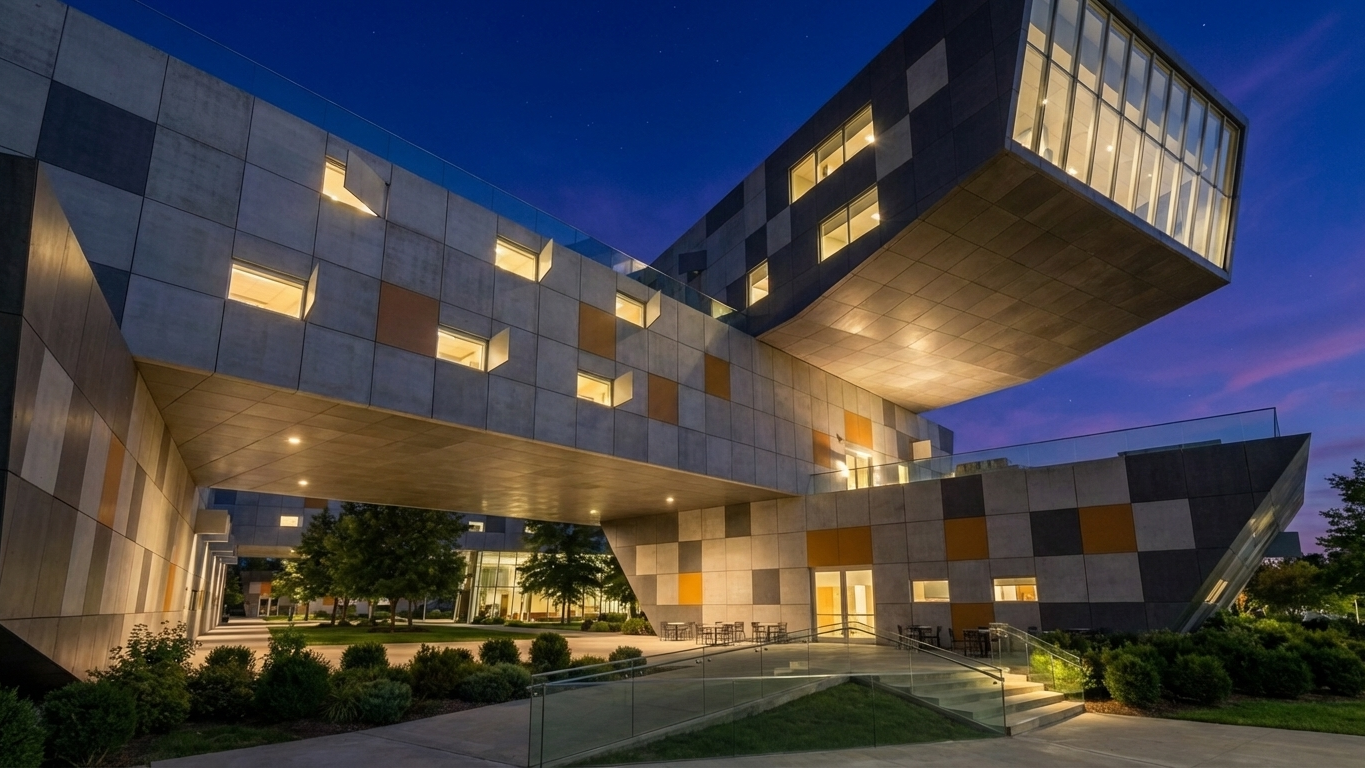
Combining modifiers
Modifiers are designed to be mixed. For example, pairing Dark background with Foggy weather and a Nighttime setting produces dramatically different results than each modifier alone. Experiment freely, the combinations often yield surprising and inspiring output.
Next steps
Need help? Reach out to us at community.motif.io