Resolution control & upscaling AI renderings
Last updated: September 16, 2026
Control the resolution of generated images at the time of generation and after via upscaling.
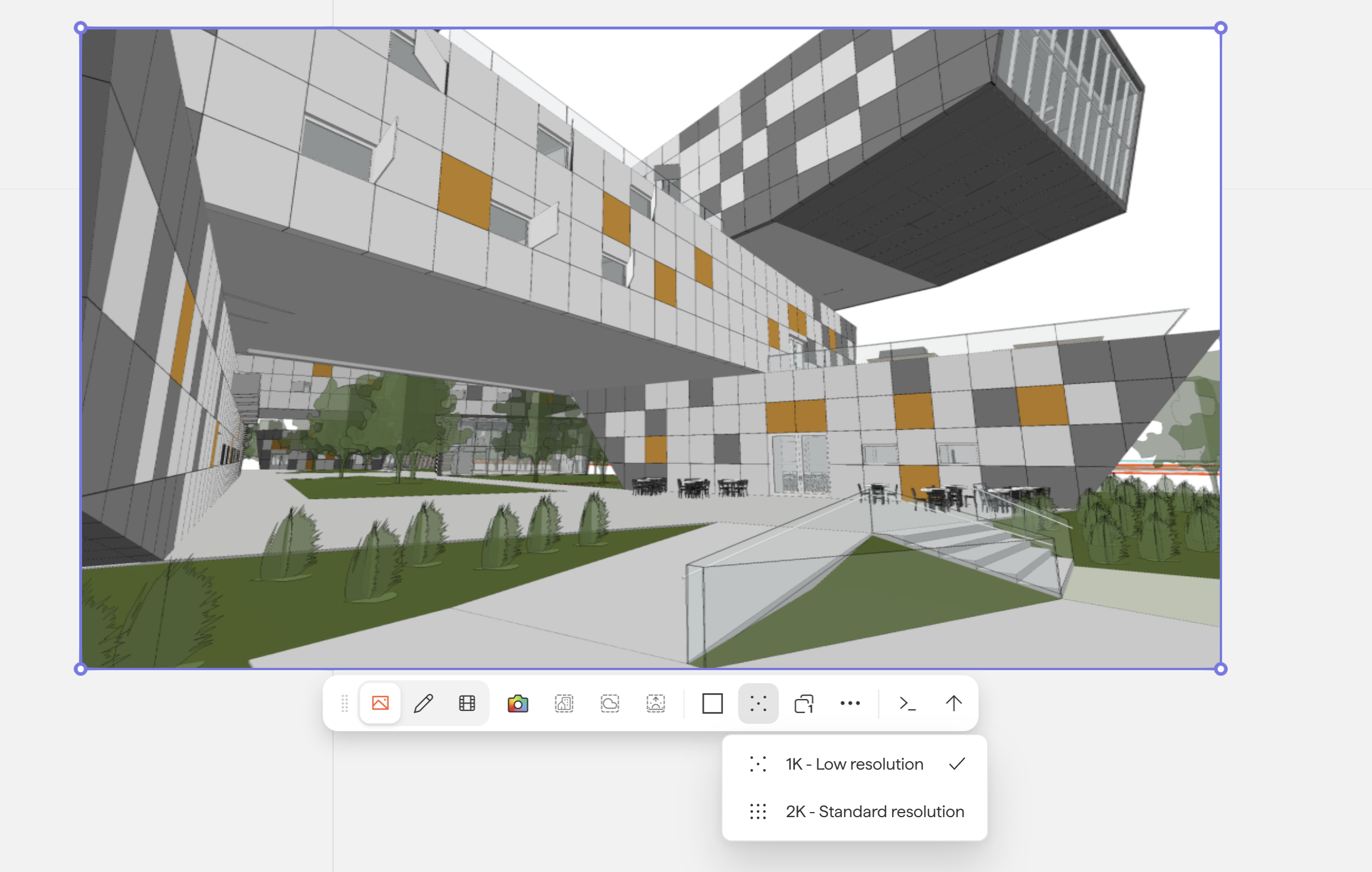
Resolution at generation
You can set the resolution of your render to 1k or 2k before generating. To access this setting, click the image you want to render to open the rendering toolbar, then select your desired resolution.
Upscaling after generation
You can upgrade a rendered image to 4k resolution:
Select the generated image on the board
Open the Properties panel for the image
Scroll to the bottom and click Upscale
Note: If the Upscale option is greyed out, the image is already at 4K.

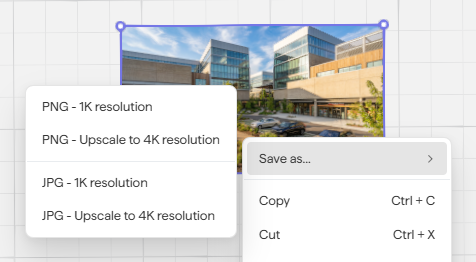
Saving at a specific resolution
You can also save a rendered image at a custom resolution:
Select the rendered image
Right-click and choose Save As
Select your desired output resolution
Recommended workflow
For efficiency, generate at 1K while exploring different renders, styles, and prompts. Once you've found the render you want to keep, use Upscale to bring it to 4K for final output.
Next steps
Need help? Reach out to us at community.motif.io