Visualization styles
Last updated: September 16, 2026
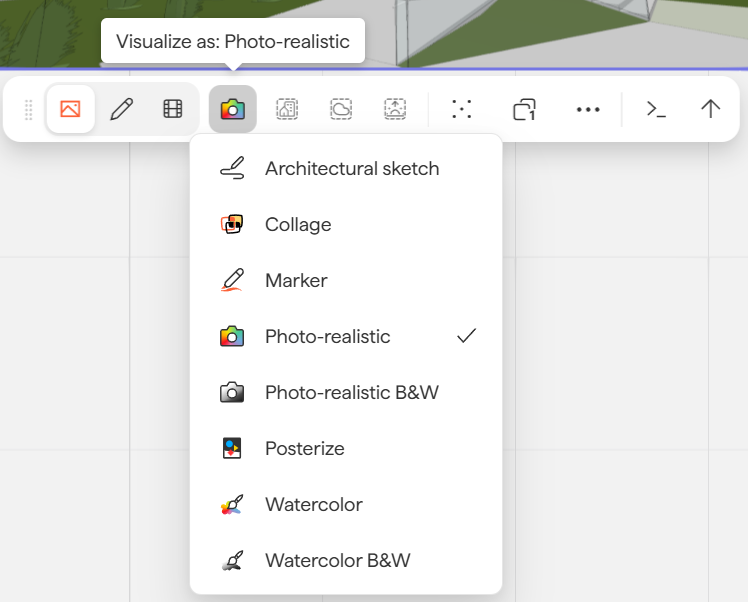
Motif Review offers carefully crafted visualization styles. By default, one-click rendering produces a photorealistic color visualization, but you can select any style from the rendering toolbar before submitting.
Render in different visualization styles
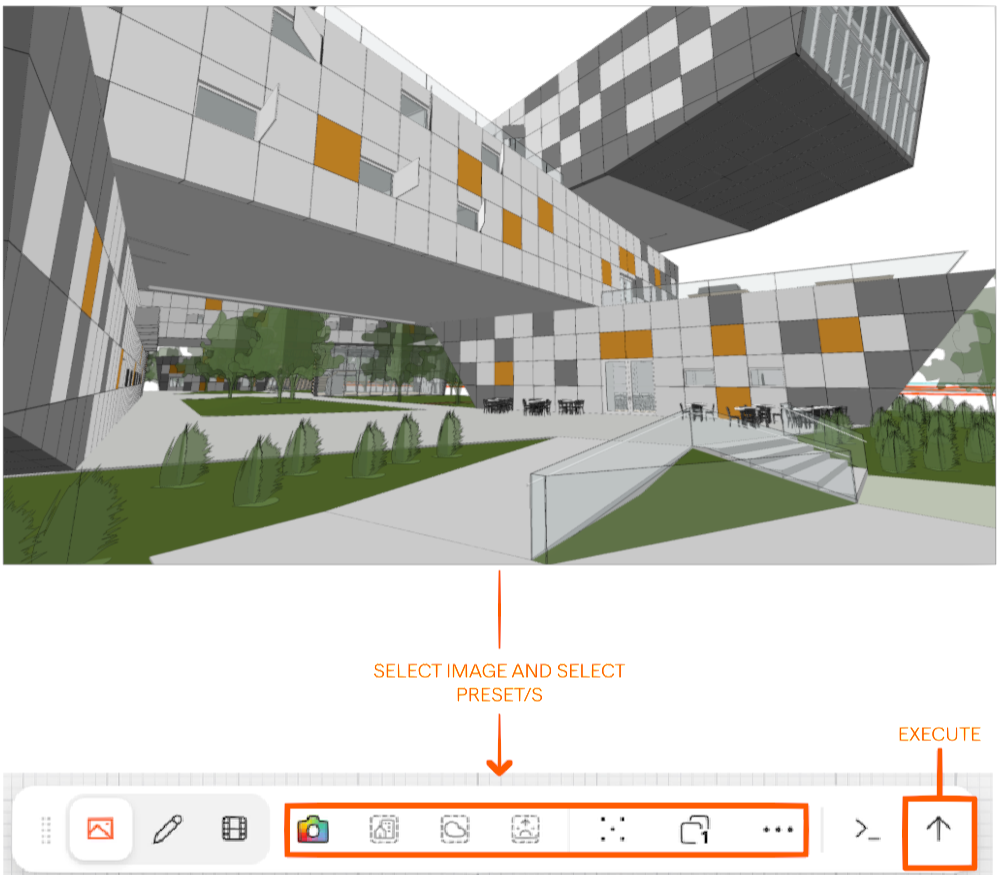
Start by clicking on an image to bring up the toolbar, and then select your preferred presets, and execute.
Choosing the right style
Phase | Recommended styles |
Early concept | Architectural Sketch, Watercolor, Rough sketch input |
Mid-design | Marker, Collage, Watercolor |
Client presentation | Photorealistic, Photorealistic B&W |
Graphic / editorial | Posterize, Photorealistic B&W |
Style examples
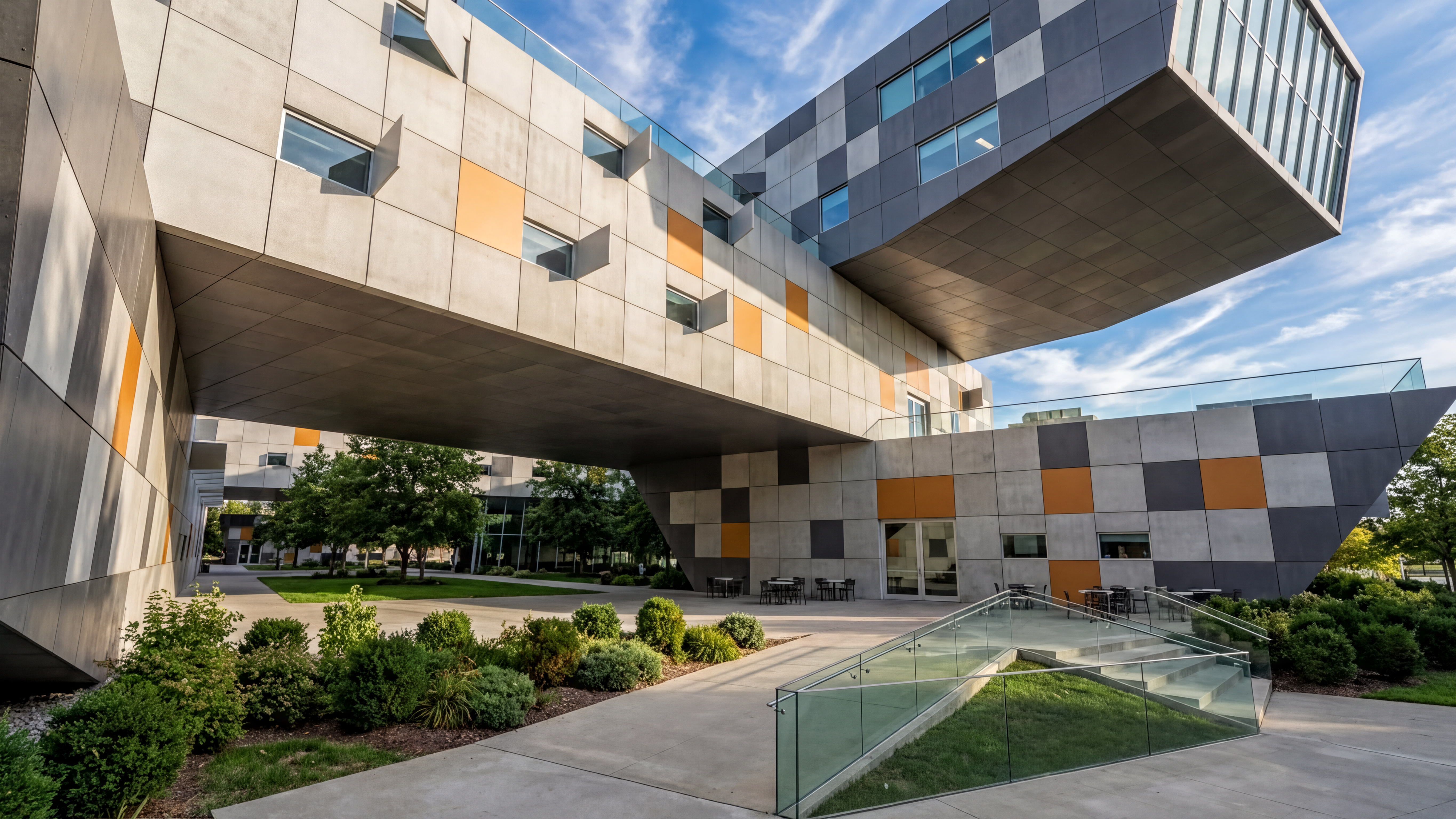
Photorealistic
Creates lifelike, engaging visualizations that resemble professional architectural photography. Ideal for client presentations and final-stage design reviews.
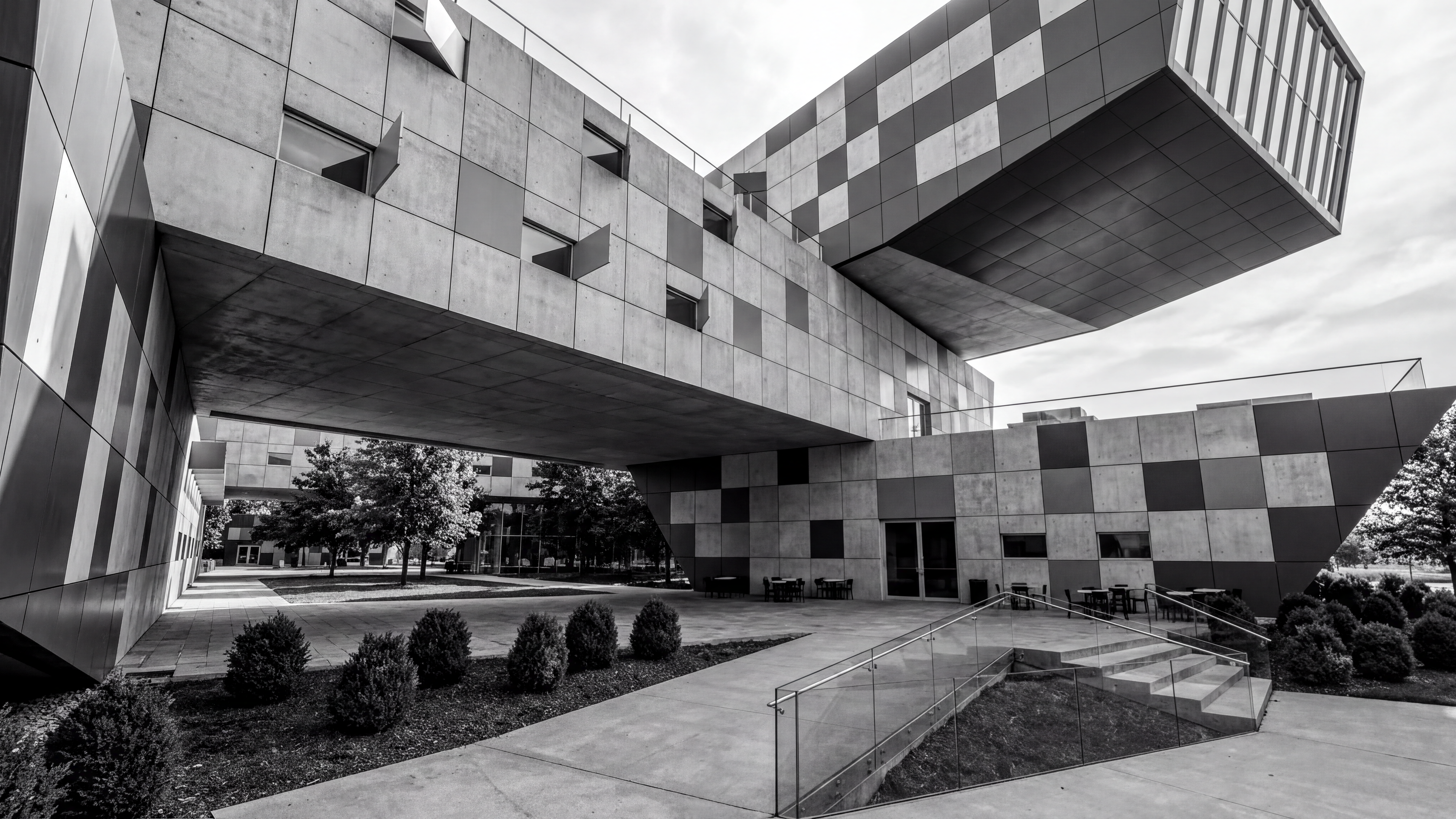
Photorealistic Black & White (B&W)
A striking, dramatic black-and-white version of the photorealistic style. Commands attention and works especially well for bold, graphic compositions.
Tip: Select Photorealistic B&W and specify a strong color in the prompt box — the color will often "break through" the black-and-white rendering with stunning results.
Architectural Sketch
Renders any view, photo, or existing render into an architectural sketch style. Useful when the fidelity of a photorealistic render feels too polished for the current design stage.
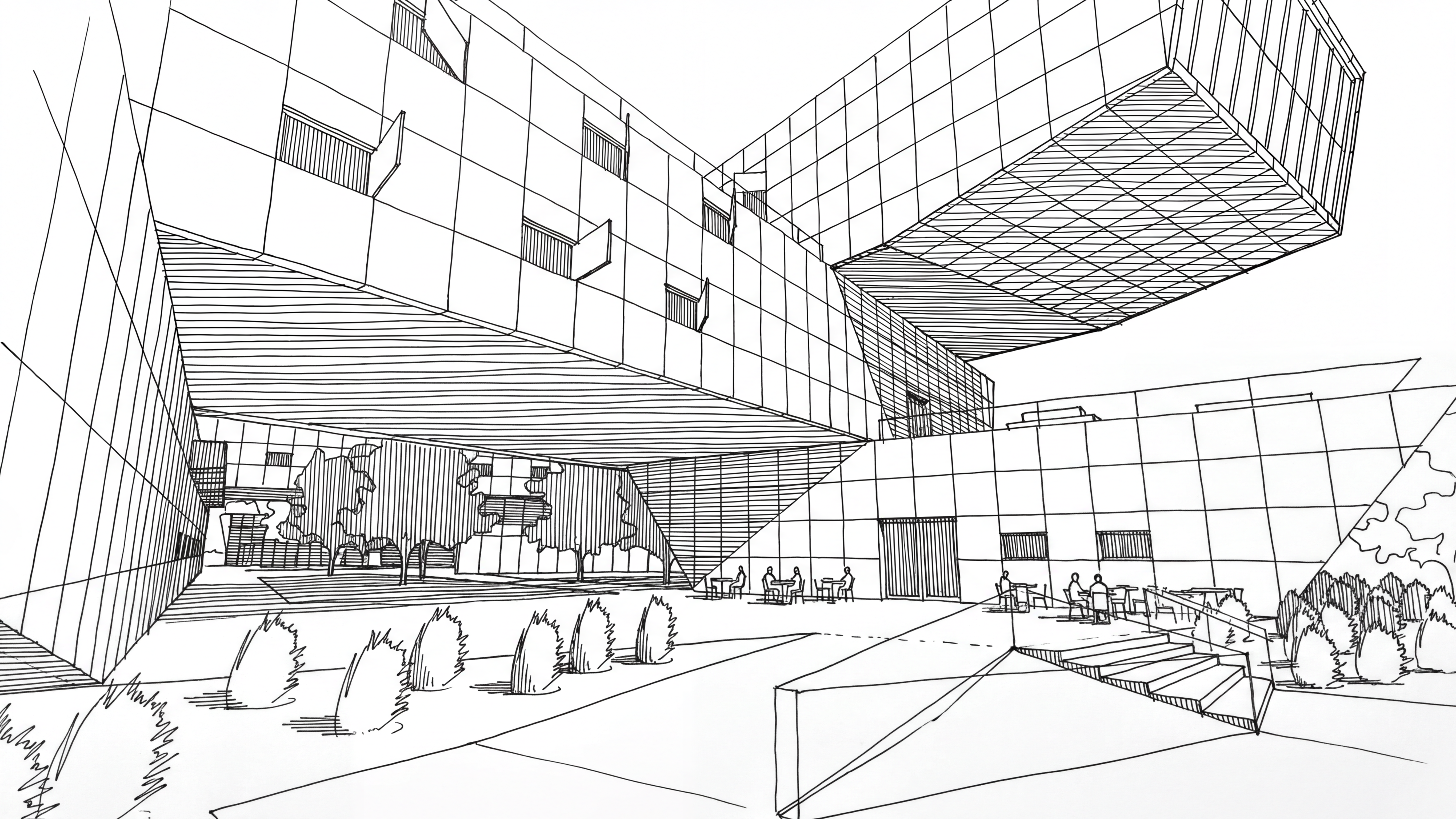
Marker
Renders any sketch, view, photo, or render into a concept-style marker illustration — reminiscent of hand-drawn design drawings.
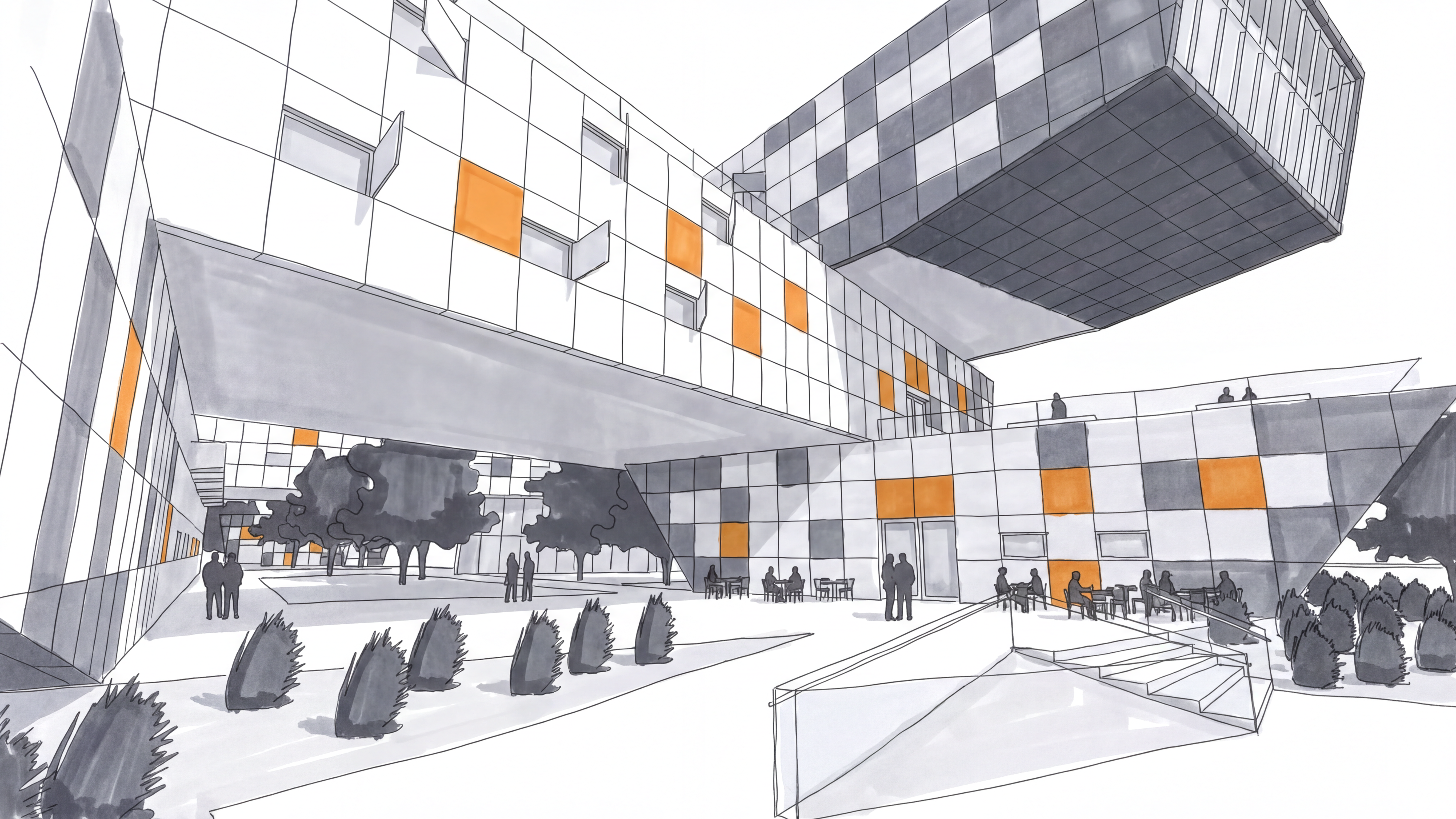
Watercolor
Colorful, "hand-drawn" interpretations of your designs. Perfect for presenting conceptual work and early-stage ideas.
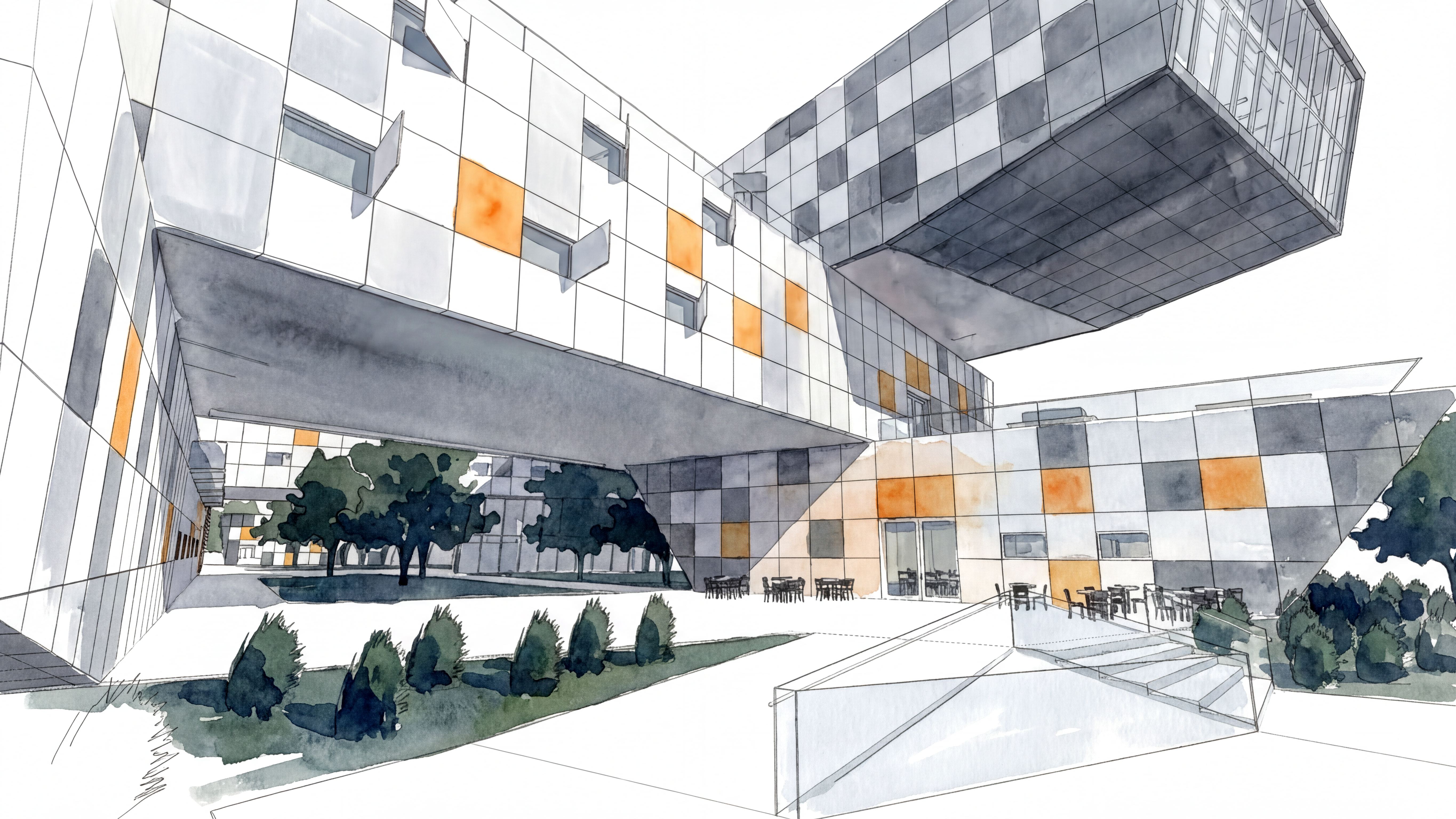
Watercolor Black & White (B&W)
A black-and-white version of the watercolor style. Works well for early design concepts or as a cover image.
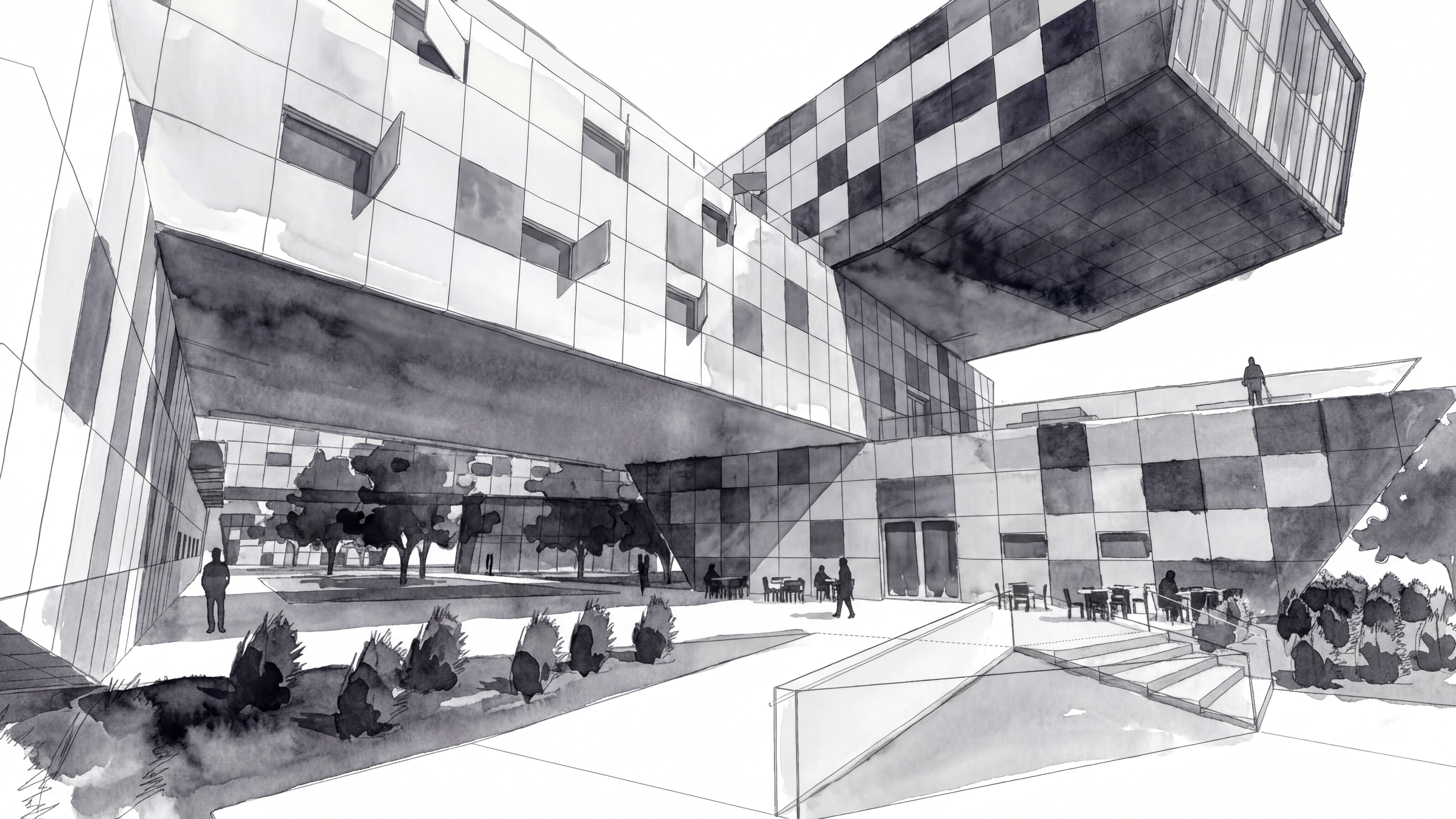
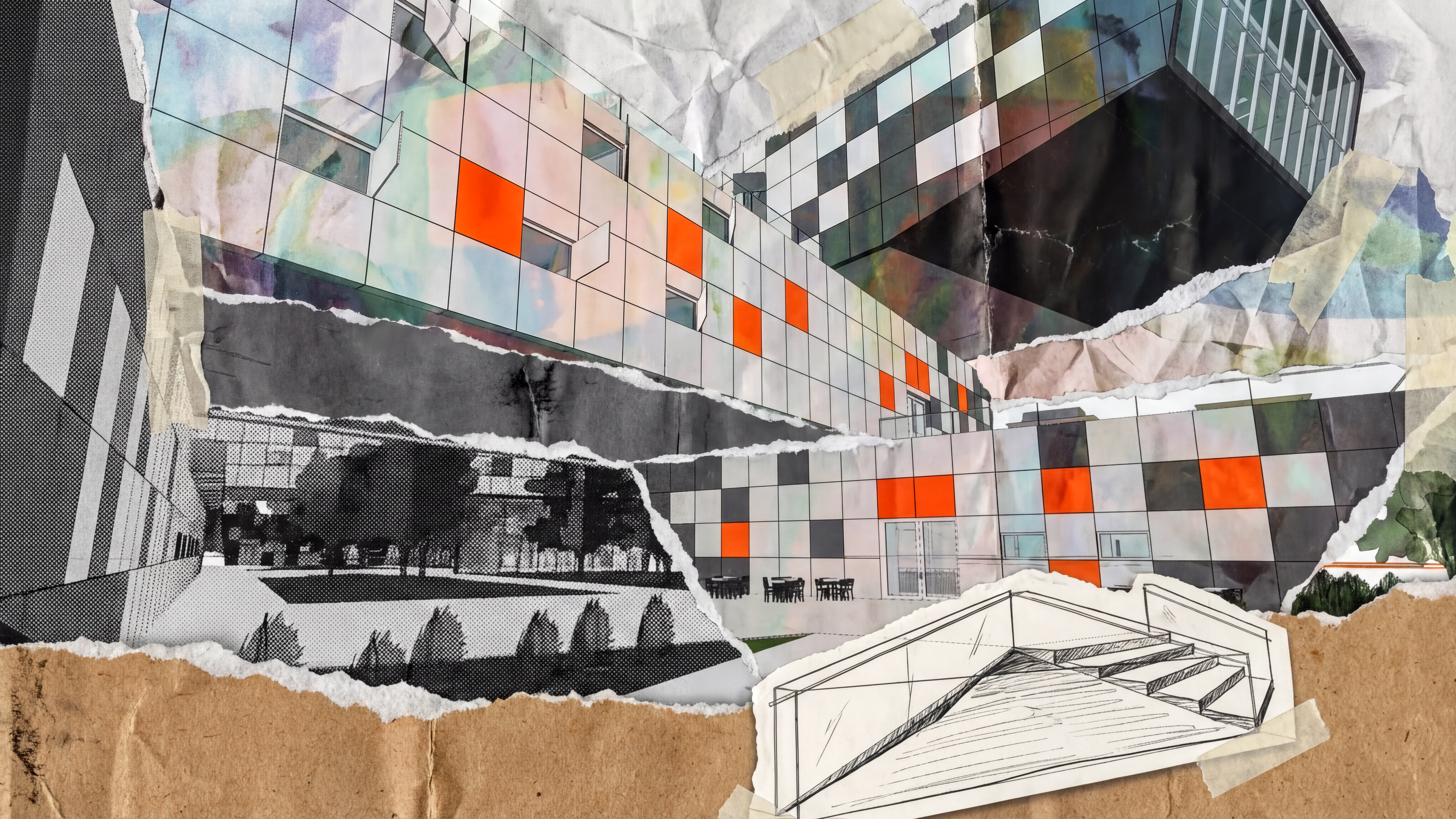
Collage
Generates fun, unexpected collage-style illustrations with a single click. Can be guided further with a prompt for more specific outcomes.
Posterize
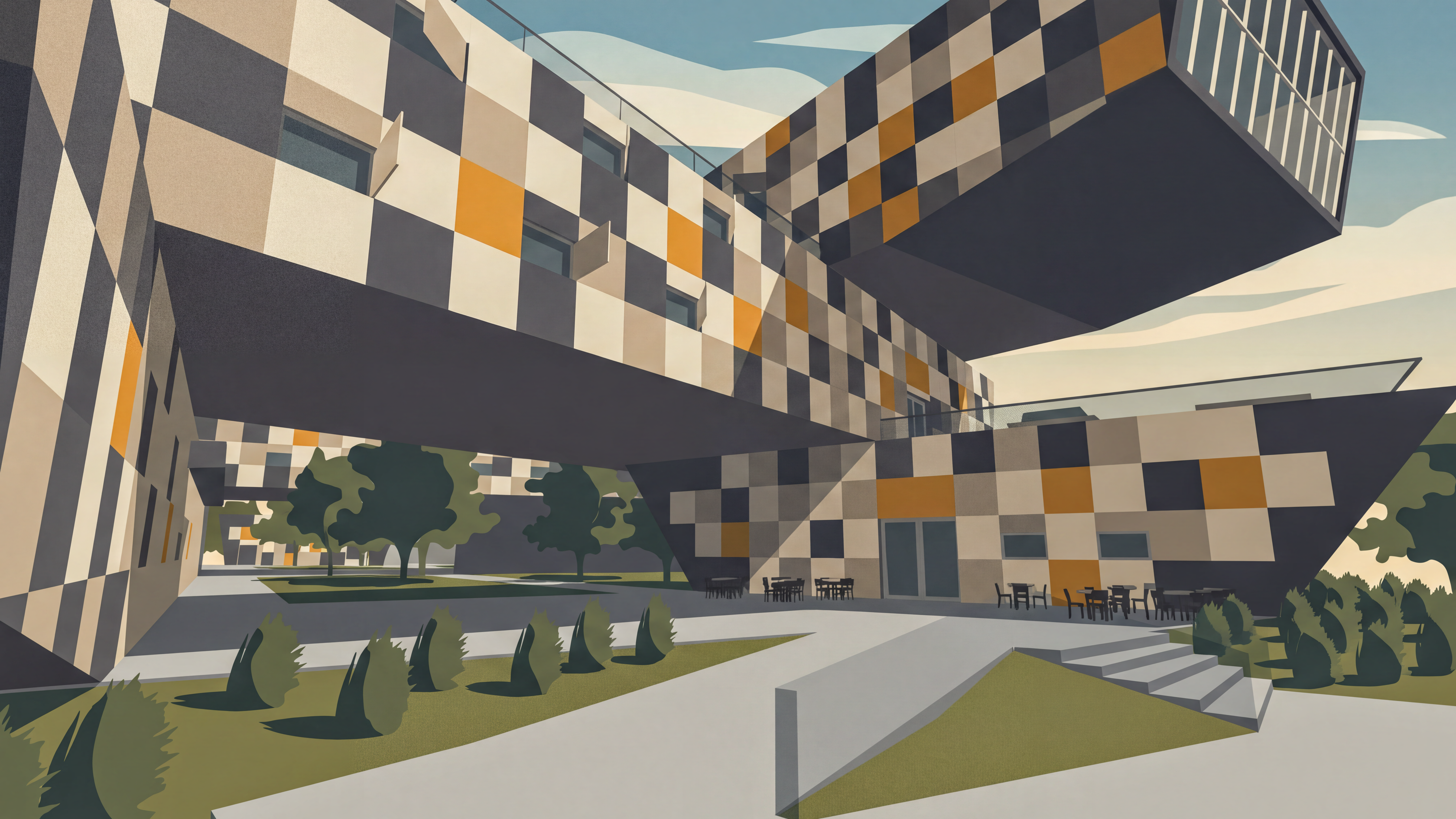
A minimalist illustration style using a limited palette of strong colors. Works best when applied to a photorealistic image — for example, a previously rendered image rather than a raw model view.
Next steps
Need help? Reach out to us at community.motif.io