Working with sheet sets and PDFs in Motif Review
Last updated: September 16, 2026
Sheets are the drawings you bring into Motif Review — plans, elevations, sections, and details published from Revit, plus any PDFs you add. Sheet sets and PDFs are objects you can arrange, markup, and measure right on the board, so your team can review drawings together without leaving the browser.
Getting sheet sets and PDFs into Motif Review
Publish from Revit — send a sheet set directly from the Motif Revit plugin. Best for coordinated drawing sets that update as your model changes. See Stream and publish from Revit.
Import a PDF — drag a PDF onto the board to place drawings that live outside Revit. See Upload and place 2D + 3D assets for the full upload workflow.
Managing your sheet sets and PDFs
Reshape a set to fit your space
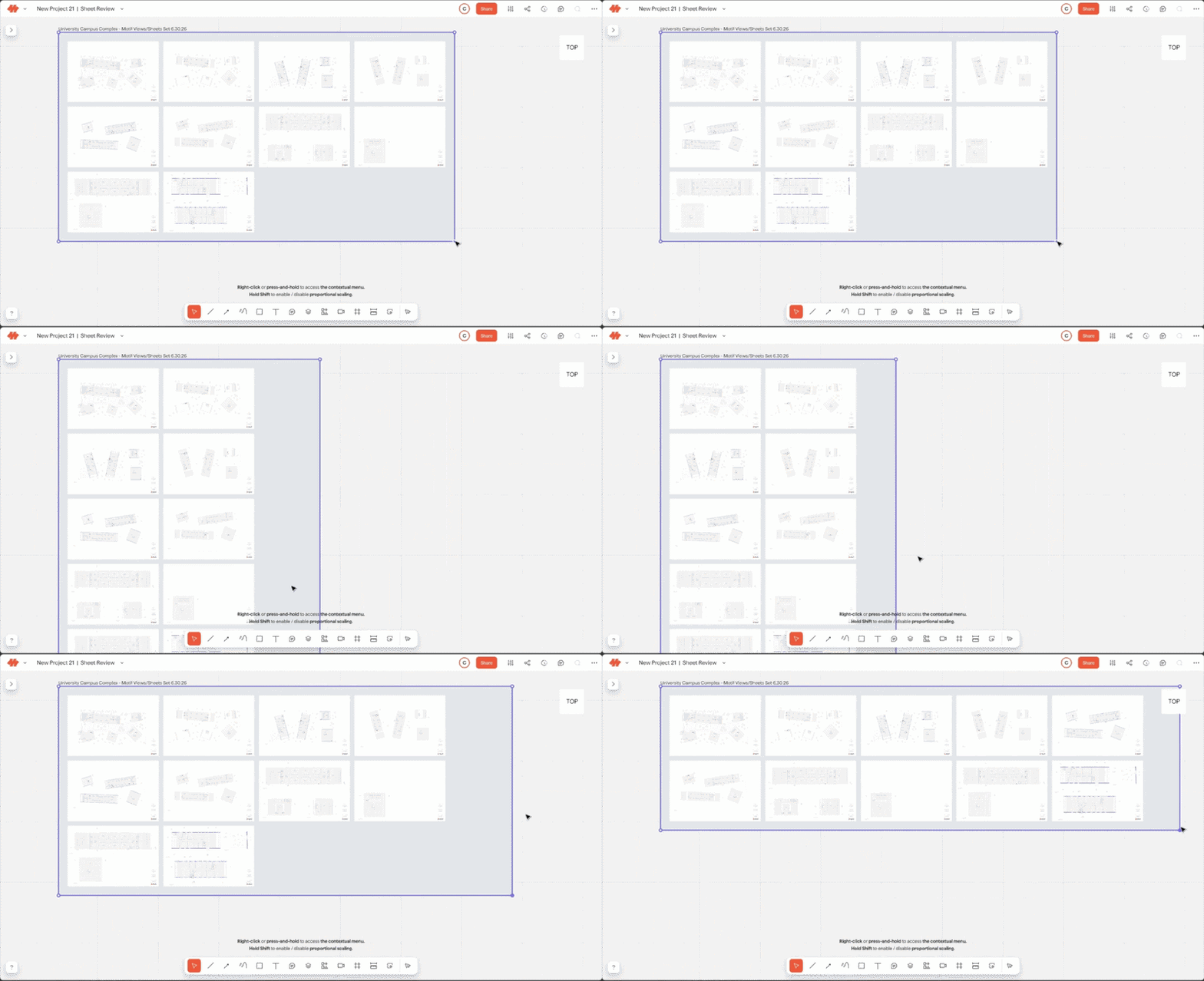
Grab a corner handle and Shift+drag to redistribute the set — the sheets automatically reorder and reflow to fit the new shape. A click+drag will scale the set.
Give a set its own background color
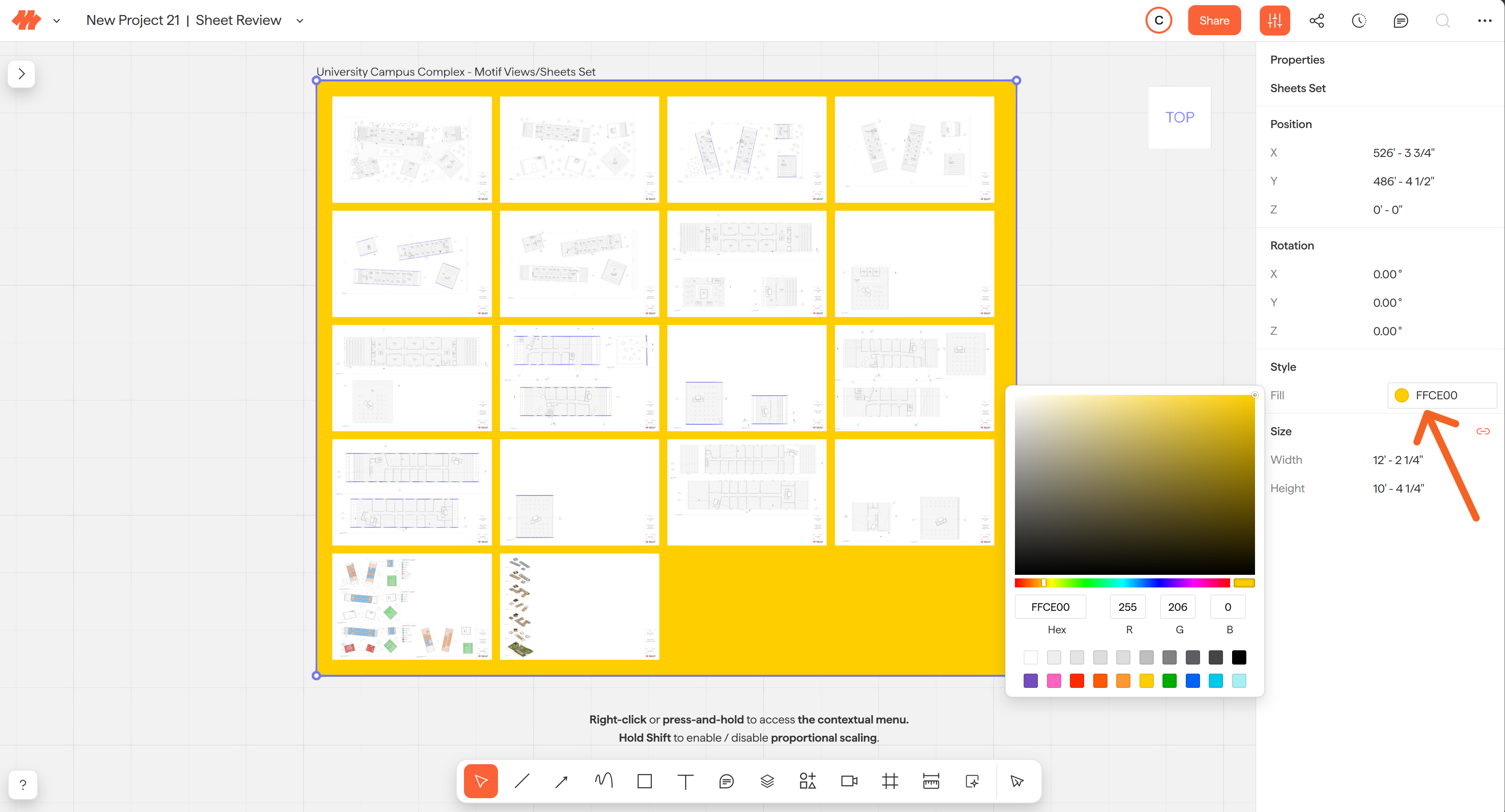
Set a background fill for a set from the properties panel. It's a simple way to tell your published sets apart on a busy board — color-code by discipline, design option, or review round so the sheets you need are easy to spot at a glance.
Update or publish a new sheet set
When your drawings change, re-publish from Revit to update the whole set in place, or publish a new set.
Markup and measure on sheets
Markup — add markups and text directly to a sheet. Markups stay attached and move with the sheet. See 📄 Sketch, markup, and comment
Measure — the Measure tool reads real-world distances from a sheet at its drawing scale. See 📄 Measure on sheets
Sheets as individual assets
To place sheets as individual assets, either ungroup a set, or place an individual sheet from the asset library. Once a sheet is placed on the board, select a sheet to reveal its handles, then:
Move — drag the sheet anywhere on the board.
Scale — drag a corner handle to resize. The aspect ratio stays locked, so drawings never stretch or distort.
Fine-tune — use the properties panel to adjust the sheet precisely. Each sheet carries its published size and scale.
💡To ungroup - right click on a set then select "ungroup".
⚠You won't be able to re-group an ungrouped set. If you ungrouped by accident, CTRL+Z will undo the action.
Find sheets in the Asset Library and Scene Browser
Published sets are grouped in both the Asset Library and the Scene Browser, with each individual sheet nested under the set it belongs to. Expand a set to jump to the sheet you need, or collapse it to keep things tidy.
Legacy sheet sets and upgrading
If you published sheets prior to June 26, 2026, your existing sets are marked Legacy. To get the new sheet experience, re-publish the set from the latest Motif Revit plugin. Once re-published, the set picks up the full set of capabilities above.
Need help? Reach out to us at community.motif.io