Transitioning from Legacy Sheets
Last updated: September 16, 2026
We've upgraded sheet sets in Motif Review!
Sheets can now be ungrouped and rearranged more flexibly
Smarter markups stick to sheets and transform with them
You can measure to scale on any view placed on a sheet
Sheets you published before the upgrade still work — they're labeled Legacy — and this article explains how to bring them up to date.
Your legacy sheets keep working
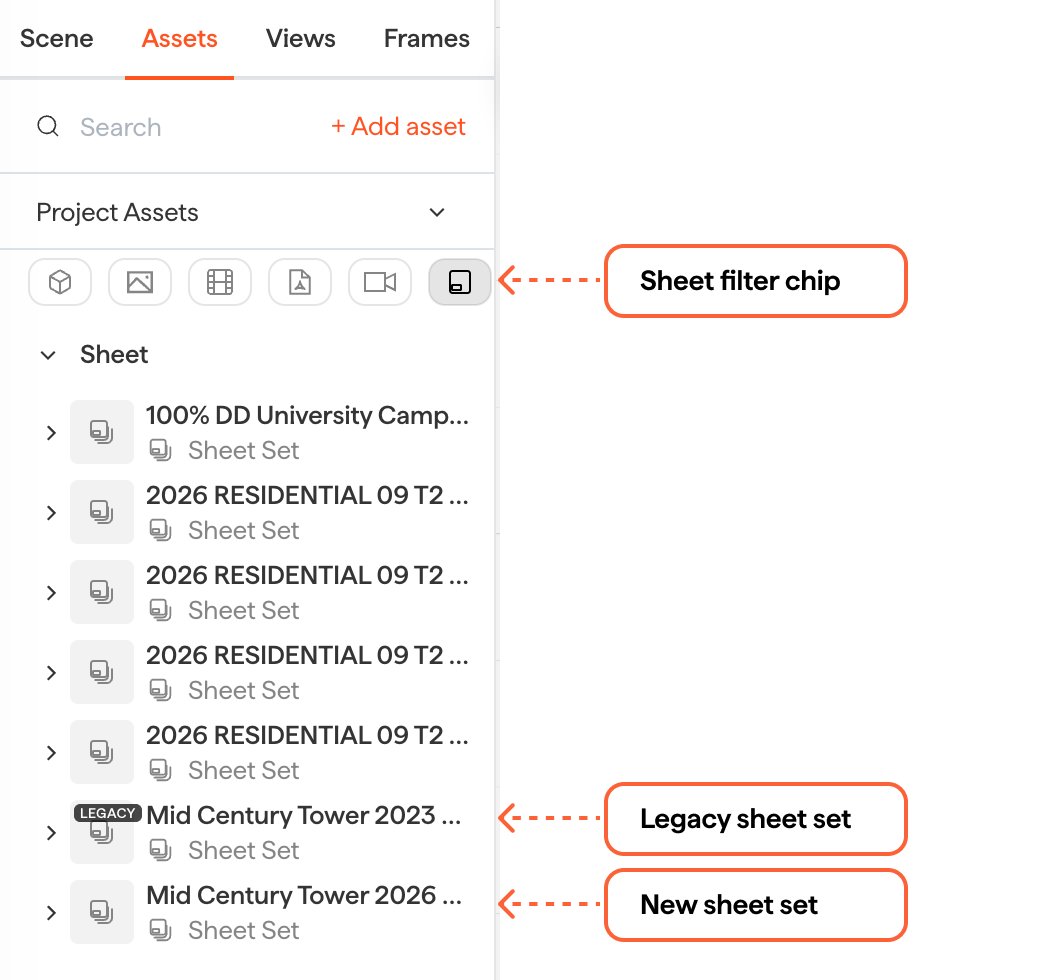
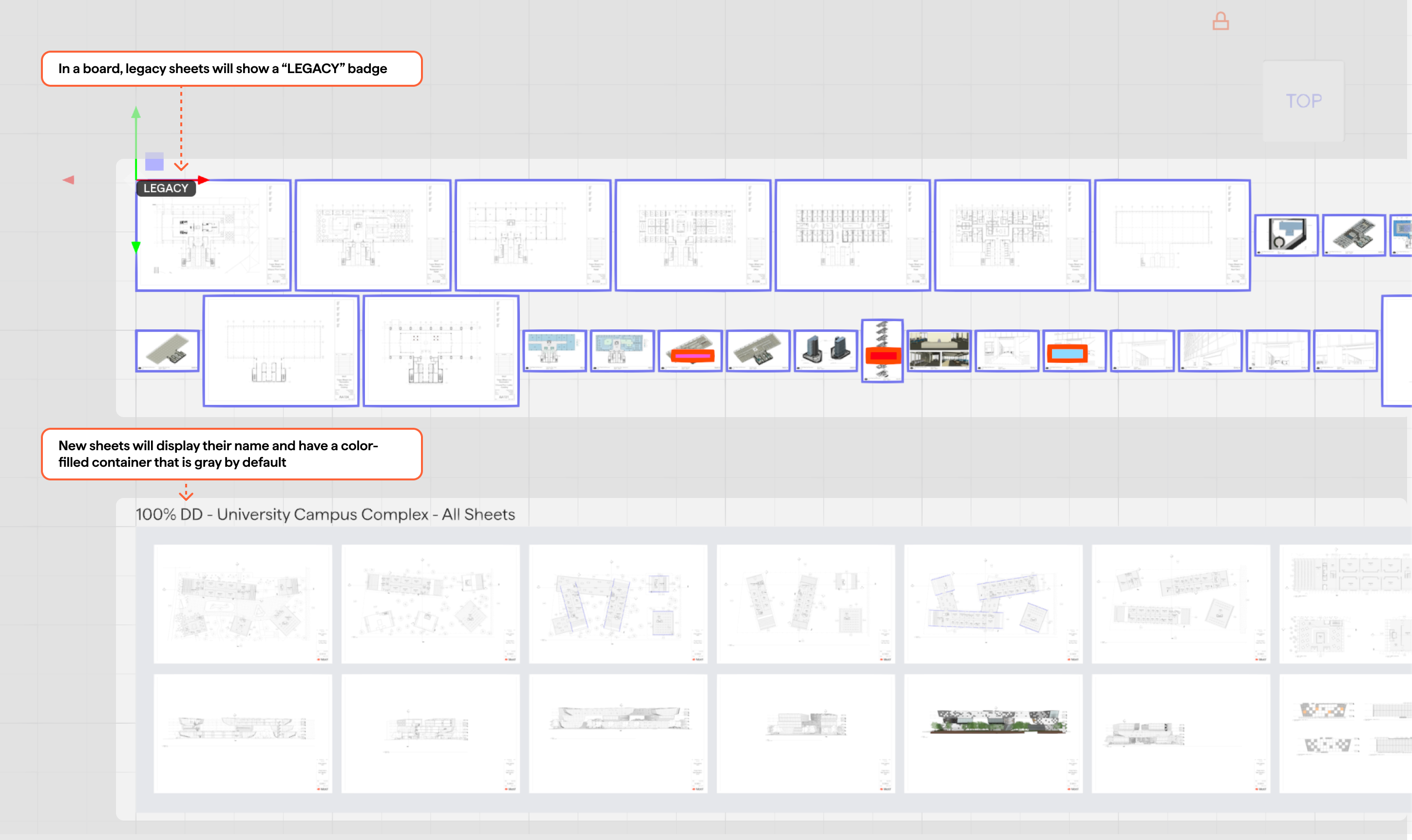
Legacy sheet sets stay on your boards and keep functioning, with their comments and markups intact. You can add them from the asset library, move and scale them, and view, reply to, resolve, and add comments. They simply won't gain the new sheet features.
There's no forced upgrade. If you're on the previous Revit plugin, it keeps working unchanged, and re-publishing from it stays legacy.
Moving a legacy set to the new format
The updated Motif plugin publishes new-format sheets only, so it can't update a legacy set in place. To use the new features:
Update your Motif Plugin to the latest version
Open your project in Revit and launch the Motif plugin
Publish the set as a new sheet set.
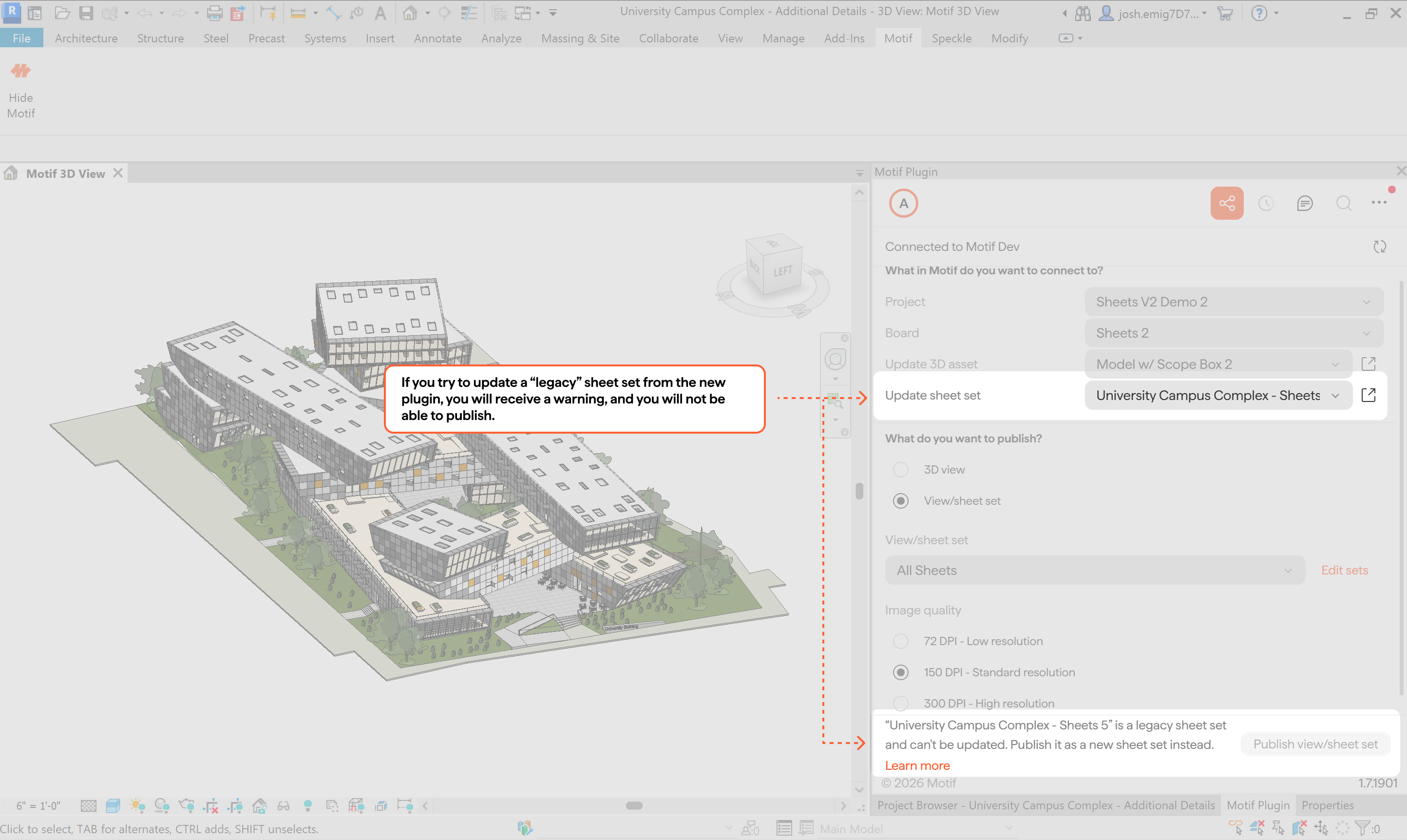
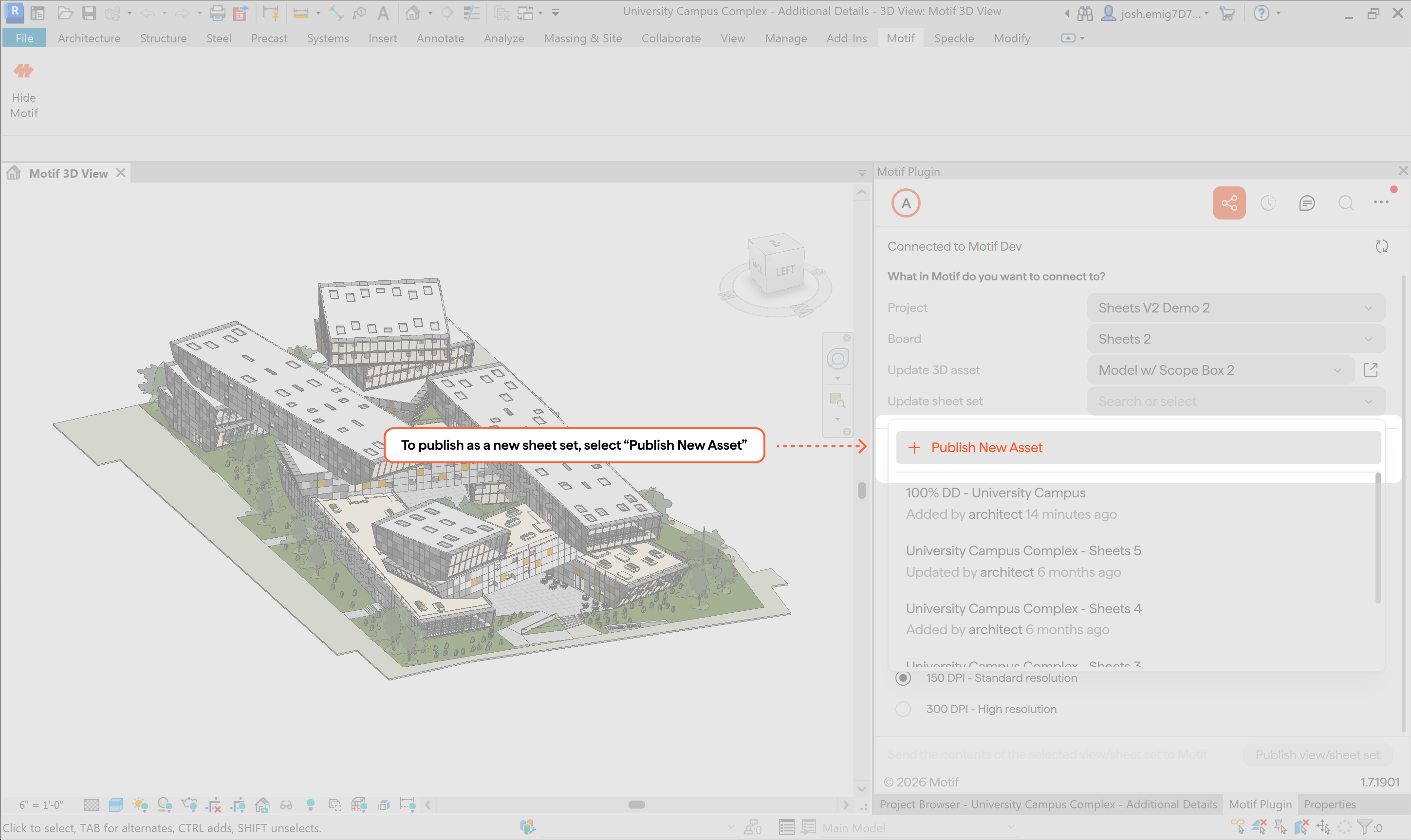
This adds a new, up-to-date sheet set to your project. Your legacy set isn't changed or removed — it stays on the board with its comments and markups until you delete it. Once you've confirmed the new set looks right, remove the legacy one to avoid duplicates.
Need help? Reach out to us at community.motif.io