Sketch, markup, and comment
Last updated: September 16, 2026
Leave feedback via markups or comments directly on assets or the board. You can draw on 2D content, on 3D geometry faces, work planes positioned anywhere in the scene, or directly on the board.
Markup tools
Markup tools are available in the toolbar:
Line — draw straight lines
Arrow — draw a filled or open arrowhead, or a dot, and add it to one end of the line or both
Polyline — draw polylines with the ability to add and remove endpoints
Sketch — draw freehand
Rectangle — draw rectangular shapes (single click for a default size; click and drag to set dimensions)
Text — place a text label
Use a markup tool
Select a tool from the toolbar.
Create your markup
You can change the color, line weight, line style, or fill (on rectangles and polylines) of your markups by selecting the markup tool and changing the setting in the properties panel. To edit after placing: select the markup first, then change the settings.
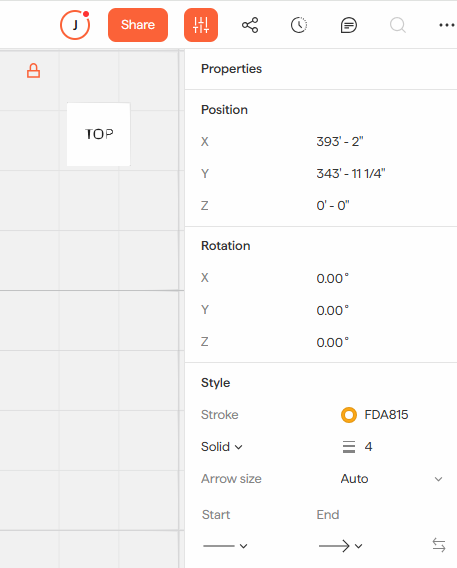
💡 Hover over a geometry face or image and press Space to orient your view to that surface before marking up.
💡Markups you add to a sheet or frame stay attached to it: move, rotate, or scale the sheet and the markup travels with it.
⚠ Text objects do not display transform properties (scale, rotate, etc.) in the Properties panel.
Comments
Comments let you and your team leave feedback directly on the board, either floating freely or attached to a specific asset or markup.
To add a comment:
Click the Comments button in the toolbar.
Click anywhere on the board to place a free-floating comment, or click directly on a 2D or 3D asset to anchor it to that object.
View all comments in the expanded Comments panel. Clicking a comment in the panel navigates to it on the board.
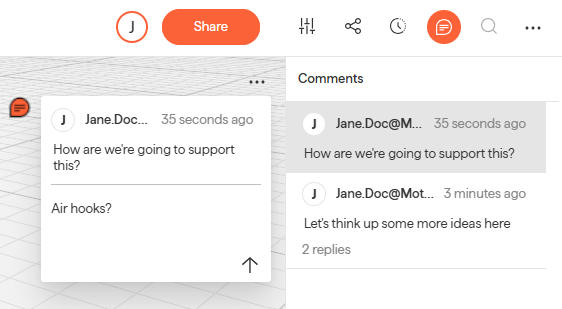
💡 Toggle comment visibility on/off via Logo menu > Show/Hide > Comments.
💡Comments attached to an asset will move with it if the asset is repositioned.
💡 If a 3D asset was streamed from Revit or Rhino, comments placed on it in Motif Review will also appear at the same location in the source application.
Need help? Reach out to us at community.motif.io