Stream and publish from Revit
Last updated: September 16, 2026
Send your Revit model — or specific views and sheets — to a board. Models can be streamed live or published as a static snapshot.
Before you start: The Motif plugin must be installed. See📄 Install the Motif Plugin (Revit & Rhino)
Steps to publish or stream
Open your Revit project.
Navigate to the Motif tab in the top ribbon, then click Show Motif to open the plugin panel.
Click Sign in if prompted. A browser tab will open for authentication.
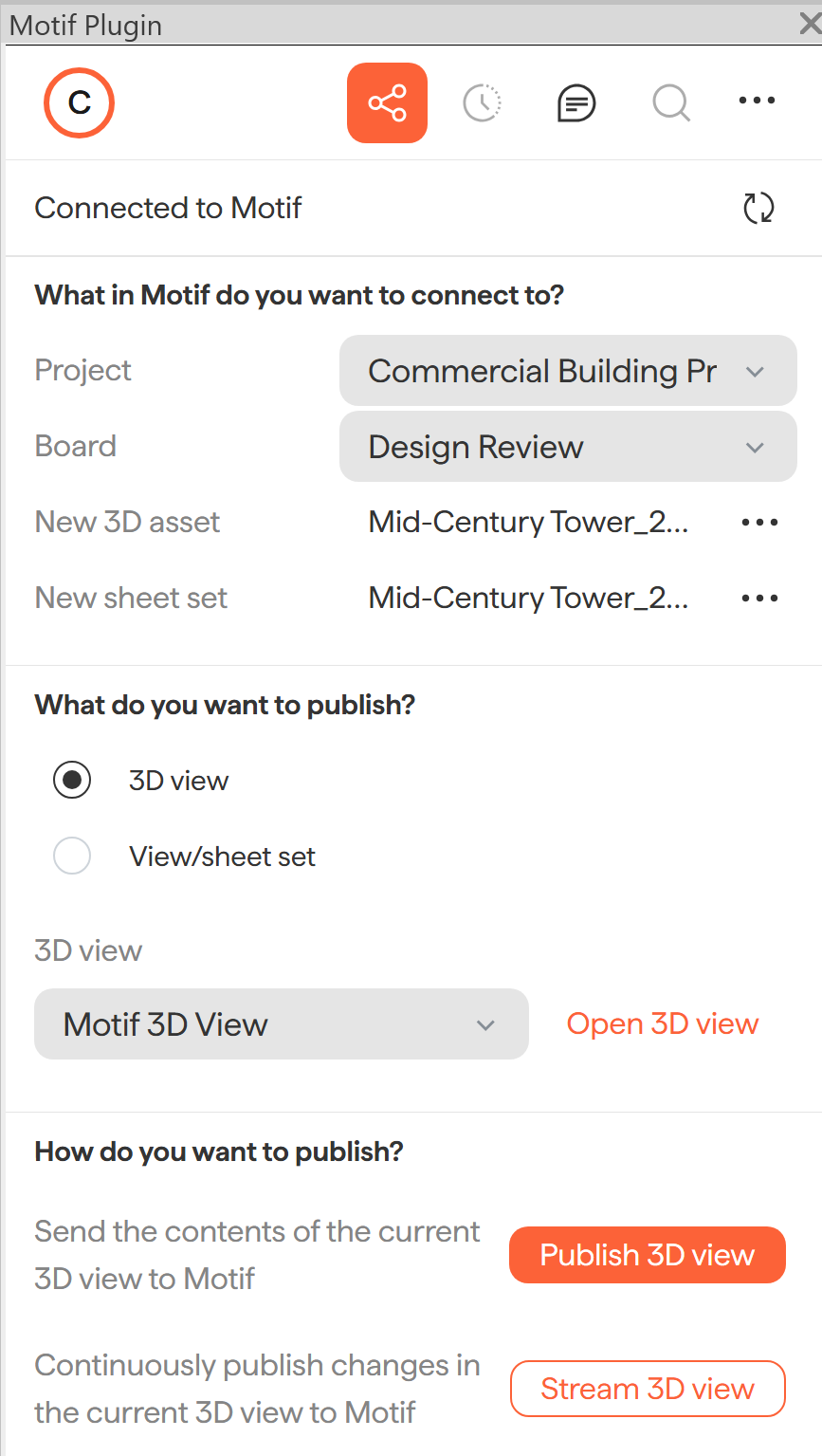
In the Motif plugin panel, select the Project and Board you want to publish to.
Define what gets published:
To publish a 3D model: Select an existing Revit 3D view from the dropdown, or click Open Motif 3D View to configure a new view.
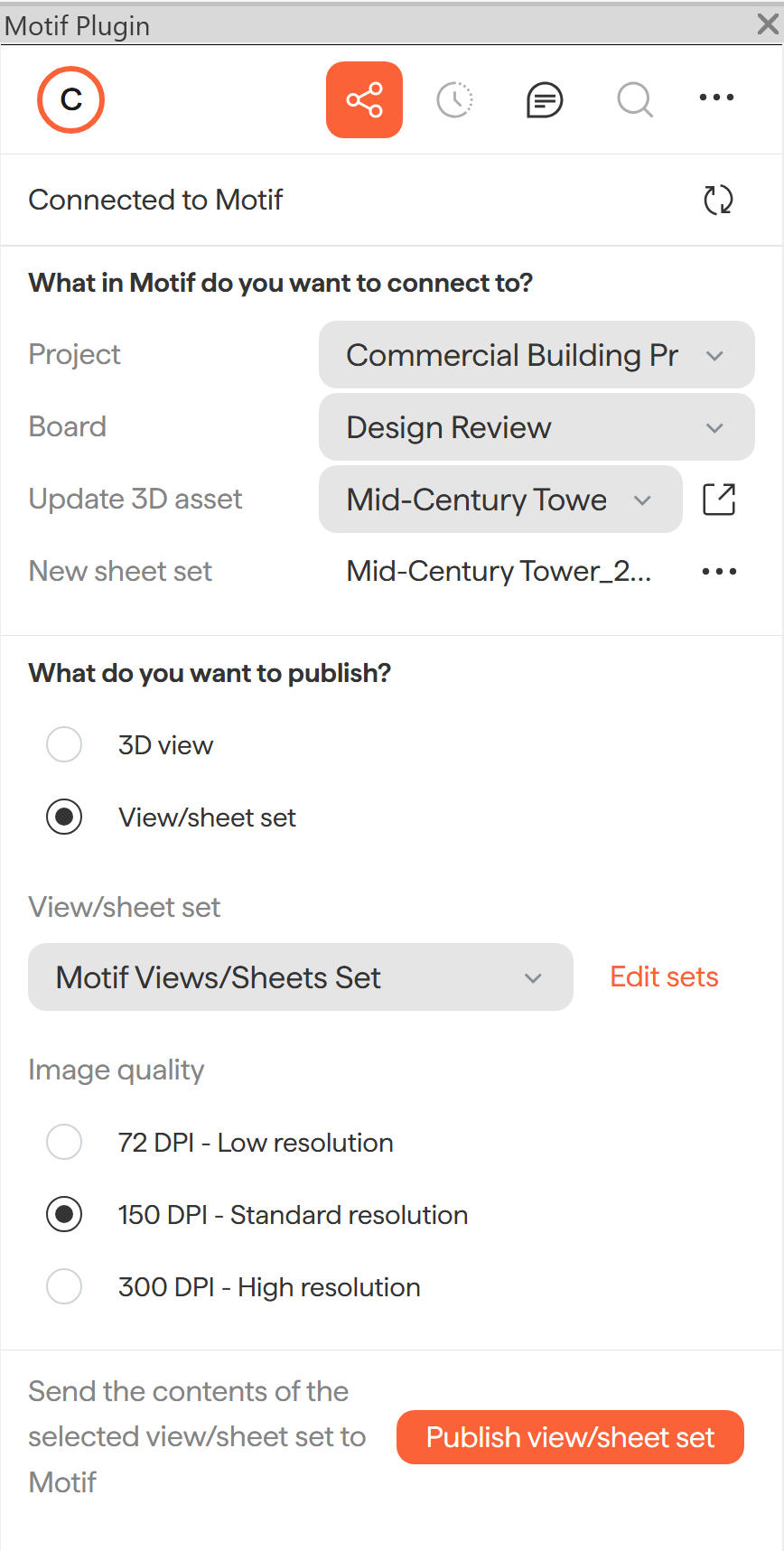
To publish sheets or views: Select View/Sheet Set, then choose an existing set or click Edit Sets to define one. You can set the export resolution to 75, 150, or 300 DPI. 150 DPI is recommended.
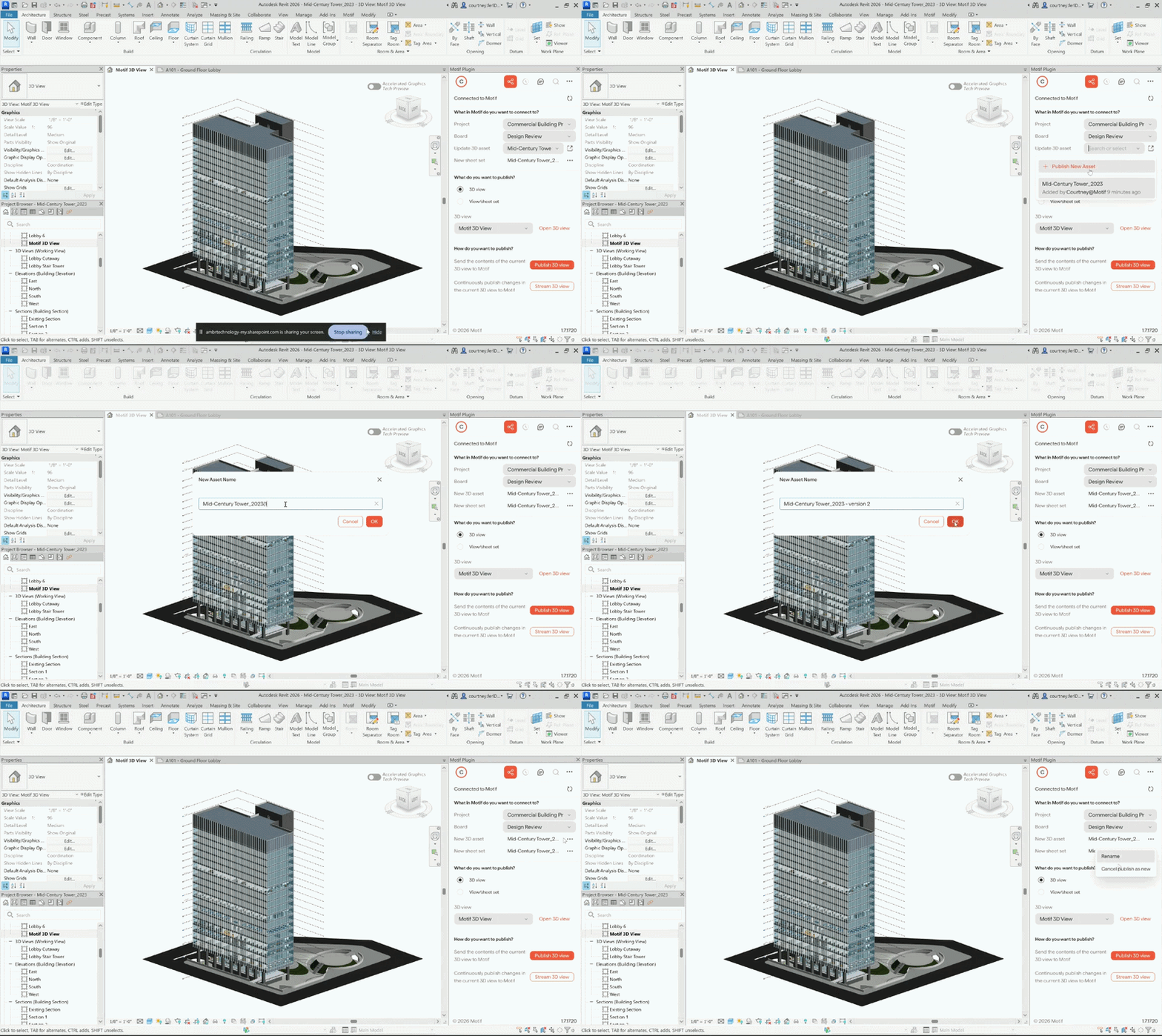
Optionally rename the asset using the three-dot menu next to the asset name. You cannot rename an asset after it has been published.
Choose your method:
Publish — sends a static snapshot at that point in time.
Stream — sends a live, continuously updating connection (3D models only).
Click Publish (or Stream). The model will appear on your selected board in Motif Review.
⚠ Refresh your browser after publishing for the asset to appear on the board.
💡 You can publish directly to the Project Asset Library instead of a board. The asset will be available to place on any board in the project at any time.
Update an existing asset or publish a new one
Use the dropdown under Update 3D Asset or Update Sheet Set to either overwrite an existing published asset or create a new one. The three-dot menu lets you rename the asset before publishing.
What streams from Revit
Most Revit categories stream to Motif Review, including walls, floors, ceilings, roofs, structural elements, furniture, stairs, railings, and more. Revit materials stream with their original colors and transparency.
What does not stream:
Textures in materials (will display color/tint only)
View cameras
RPC elements (plants, people) — use Entourage geometry instead
💡 If your model uses linked files, make sure to sync with central in Revit before streaming to ensure Motif Review receives the latest version.
⚠ If your Revit project references geometry from Rhino, STEP, or OBJ files, that linked geometry will also appear in Motif Review when published.
Need help? Reach out to us at community.motif.io