Measure on sheets
Last updated: September 16, 2026
Need to check a dimension during a review? The Measure tool reads real-world distances directly from your sheets, so you can confirm sizes and clearances without opening Revit. Measurements respect each sheet's drawing scale — including different scales across viewports on the same sheet.
Measure a distance
Select the Measure tool from the toolbar.
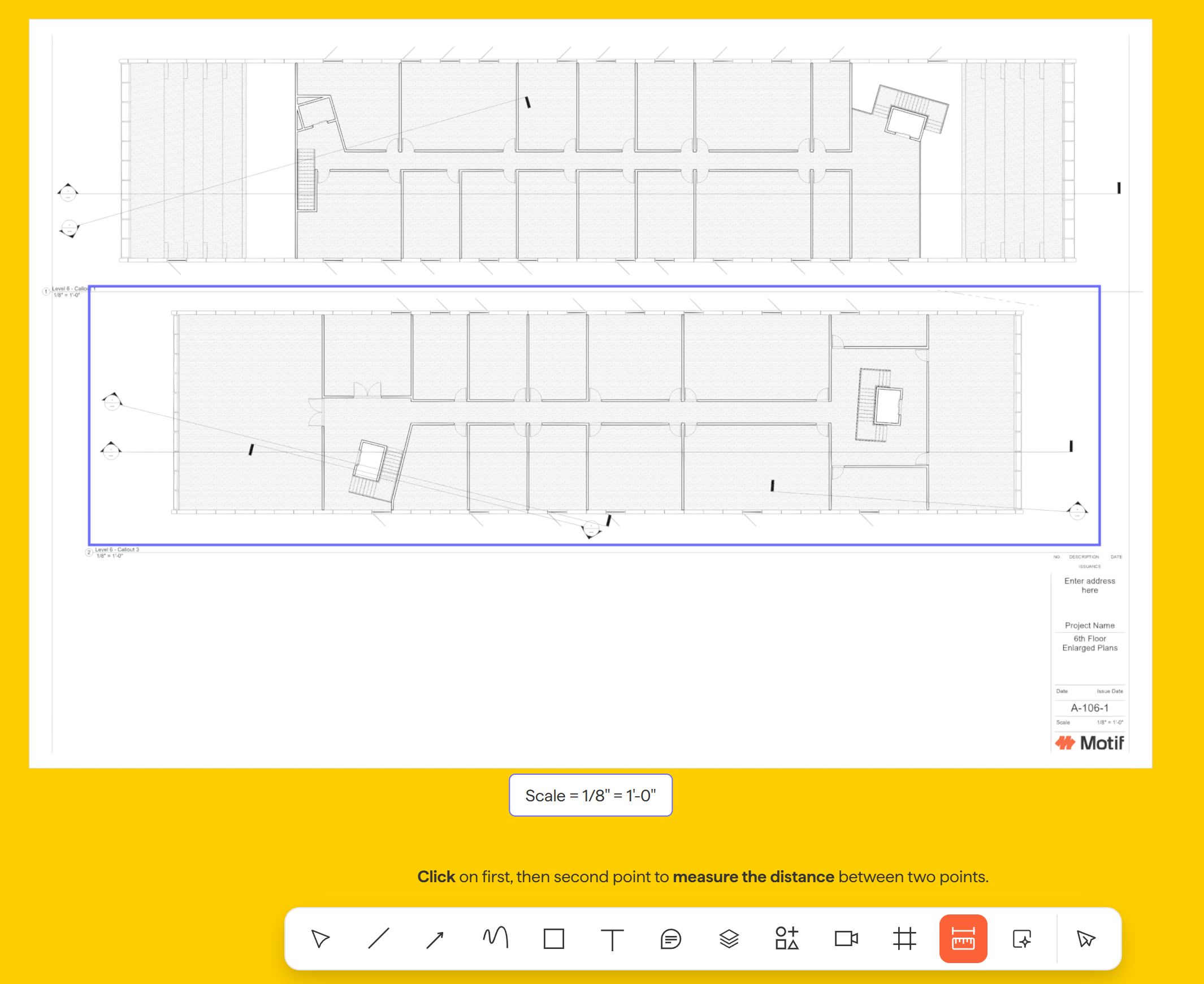
Click a start point on the sheet, then click an end point.
See the real-world distance, along with the active scale it used (for example,
1/8" = 1'-0").
The active scale tells you exactly what your measurement is based on, so you always know whether you're reading a scaled drawing or measuring at full size.
How scale works on a sheet
A single sheet can hold drawings at different scales, and the scale based on where you measure:
Inside a viewport — That viewport's drawing scale is used, so the distance matches the real-world dimension of the model.
Outside a viewport — anywhere on the sheet that isn't a viewport measures at 1:1, the sheet's own (paper) size.
The readout updates to show whichever scale is active as you move between viewports, so you can measure a detail at one scale and the sheet border at another without changing any settings.
Need help? Reach out to us at community.motif.io