Quick Start: Publish your first model
Last updated: September 15, 2026
Get your Revit or Rhino model into Motif Review in minutes. This guide walks you through installing the plugin and publishing your first 3D model to a board — the starting point for design review, AI rendering, and real-time collaboration with your team.
Install the Motif plugin and sign in
Download the latest Motif Plugins Installer from motif.io/plugins-installer.
Locate the downloaded file
MotifPluginsSetupand double-click it to run the installer.The installer automatically detects your installed versions of Revit and Rhino. Click Next to proceed.
Once installed, open (or relaunch) Revit or Rhino.
Open your Revit or Rhino project.
Open the Motif Plugin panel
In Revit, navigate to the Motif tab in the top ribbon, then click Show Motif to open the plugin panel.
In Rhino, activate the Motif plugin using the command “MotifPlugin”.
In the Motif plugin panel, click Sign In. A browser tab will open with sign-in instructions. Complete sign-in and return to Revit — the panel will confirm you're logged in.
Publish or stream your model
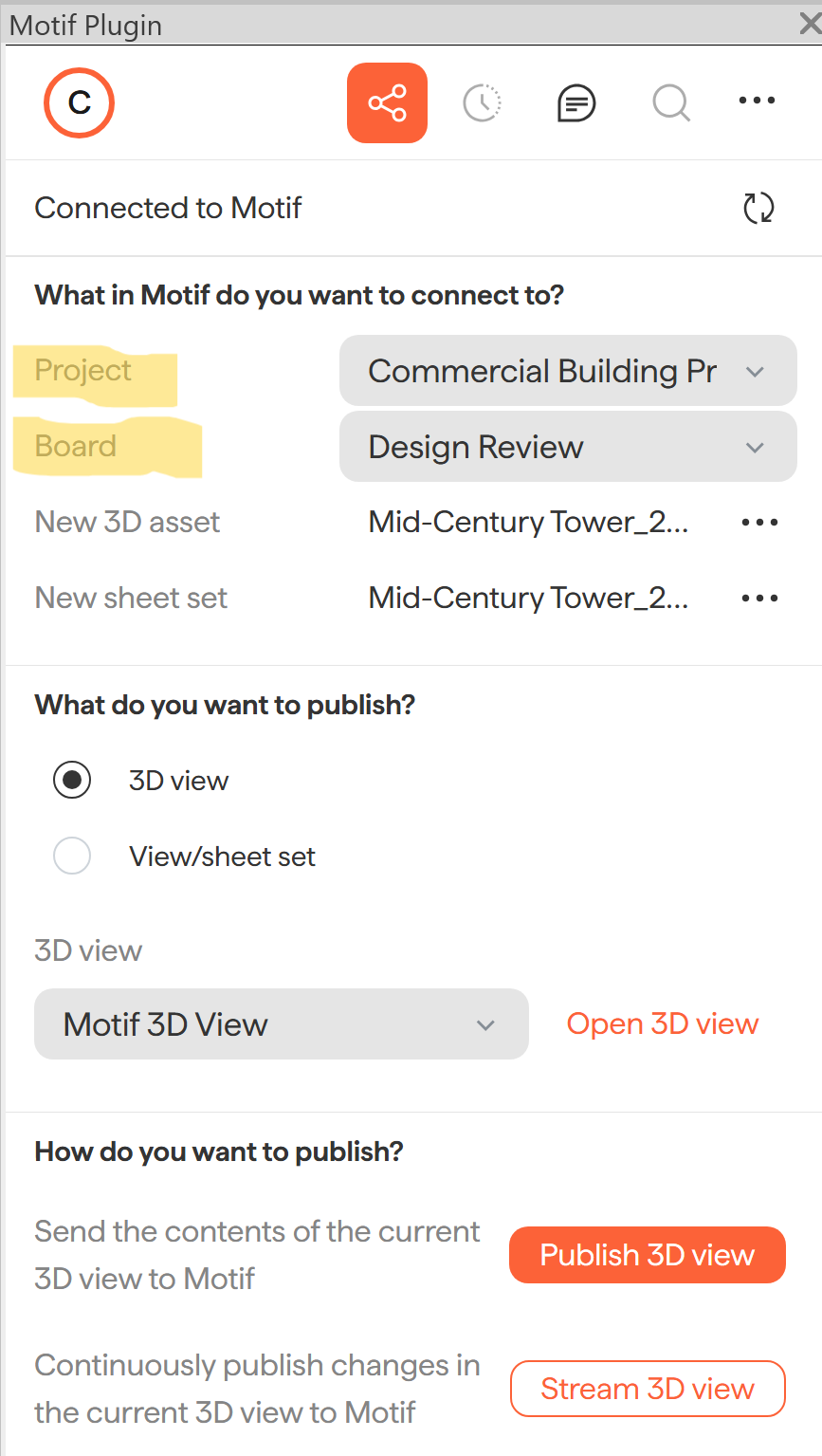
In the plugin panel, use the dropdowns to choose:
The Project you want to publish to
The Board within that project
💡Choose "none" from the project picker to automatically publish to a new project and board.
2. Select what you'd like to send to Motif Review:
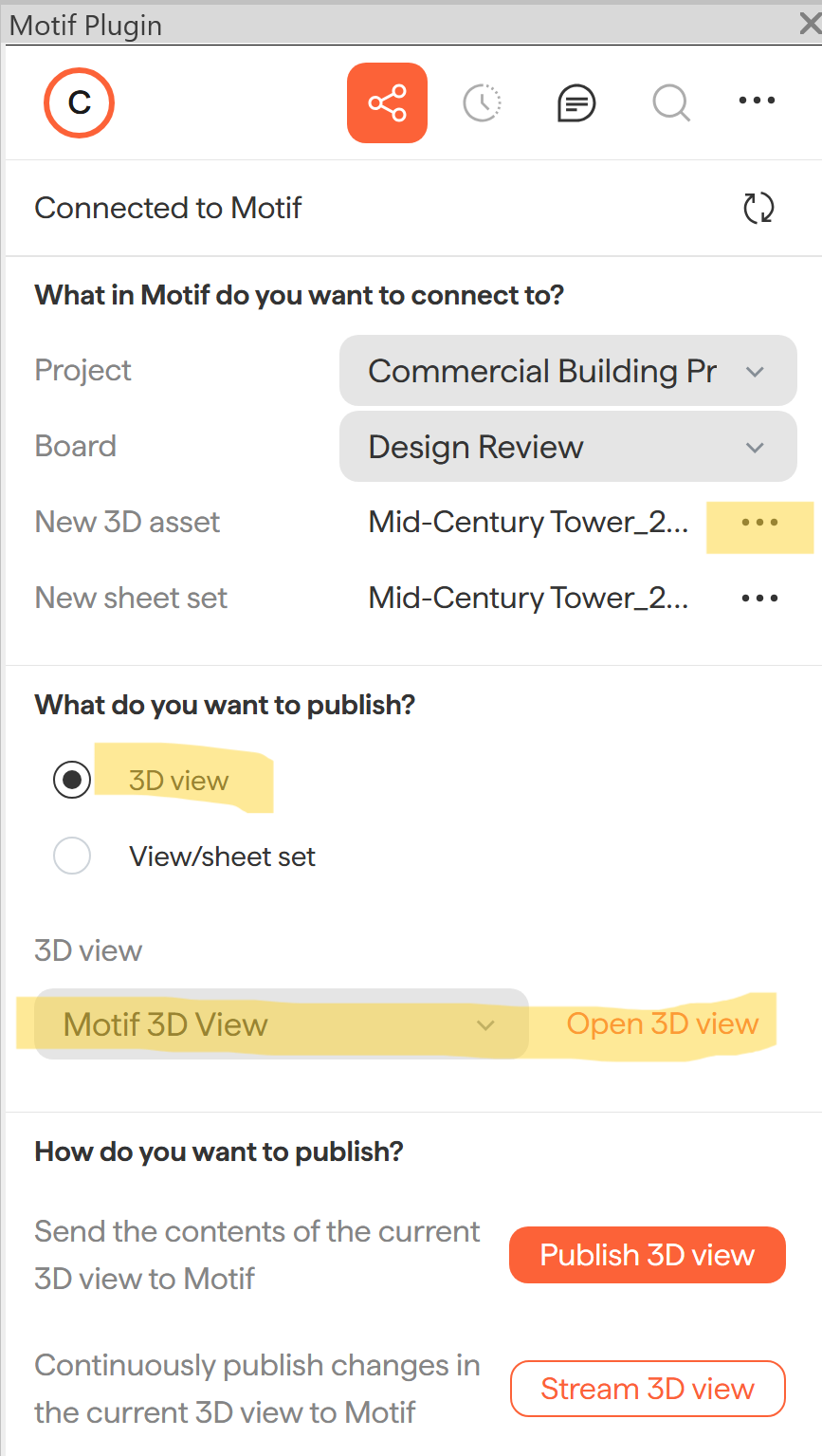
3D model — Choose an existing Revit 3D view from the dropdown, or click Open Motif 3D View to set up a new view.
Sheets or views (Revit Only) — Select View/Sheet Set, then pick an existing set or click Edit Sets to define one. A resolution of 150 DPI is recommended.
💡 Want to rename your asset? Use the three-dot menu next to the asset name to rename it now. You won't be able to rename it after it's been published.
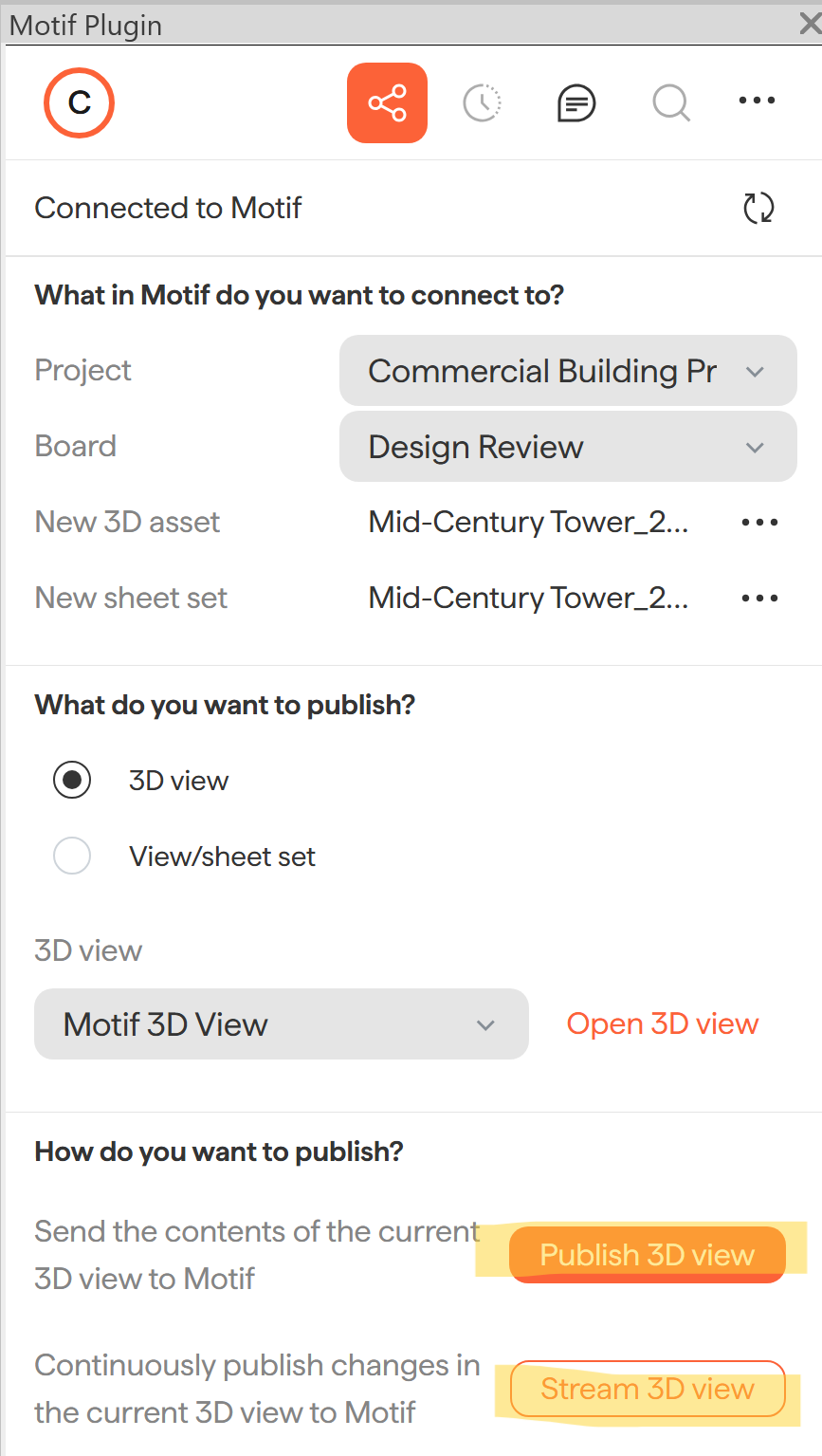
Choose your publishing method and
Publish — Sends a static snapshot of your model or sheets at this point in time.
Stream — Sends a live, continuously updating connection of your 3D model to your board. Available for 3D models only.
Click Publish (or Stream) to send your asset to the board.
You're in Motif Review! What's next?
Your model is now live on your board. Here's what you can do next:
📄 Navigate your boardand inspect your model in 3D directly in the browser
📄 Invite others to your organization or projectto review and comment
📄 Get Started with AI Renderingto quickly visualize design options
Need help? Reach out to us at community.motif.io