Learn the Motif Review board interface
Last updated: September 14, 2026
Motif Review boards have a clean layout with a few key UI elements you'll use constantly. This article introduces each one.
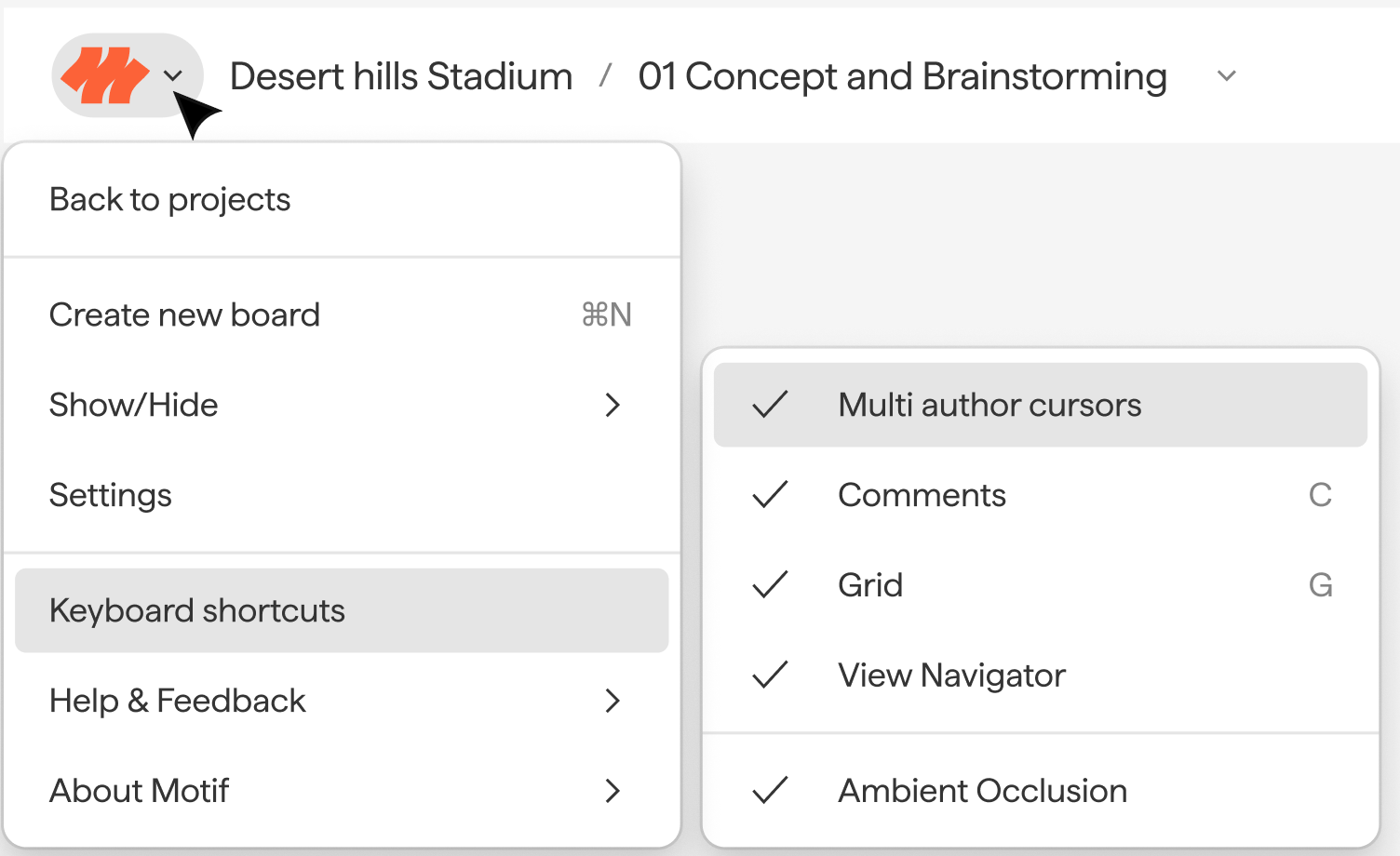
The Logo Menu + Project Name
Click the Motif logo in the top-left corner to access:
Navigate back to All Projects
Show / hide comments and the grid
Open the full Keyboard shortcuts reference
💡 Click the project name in the breadcrumb to return to the Project page. Click the board name to rename it.
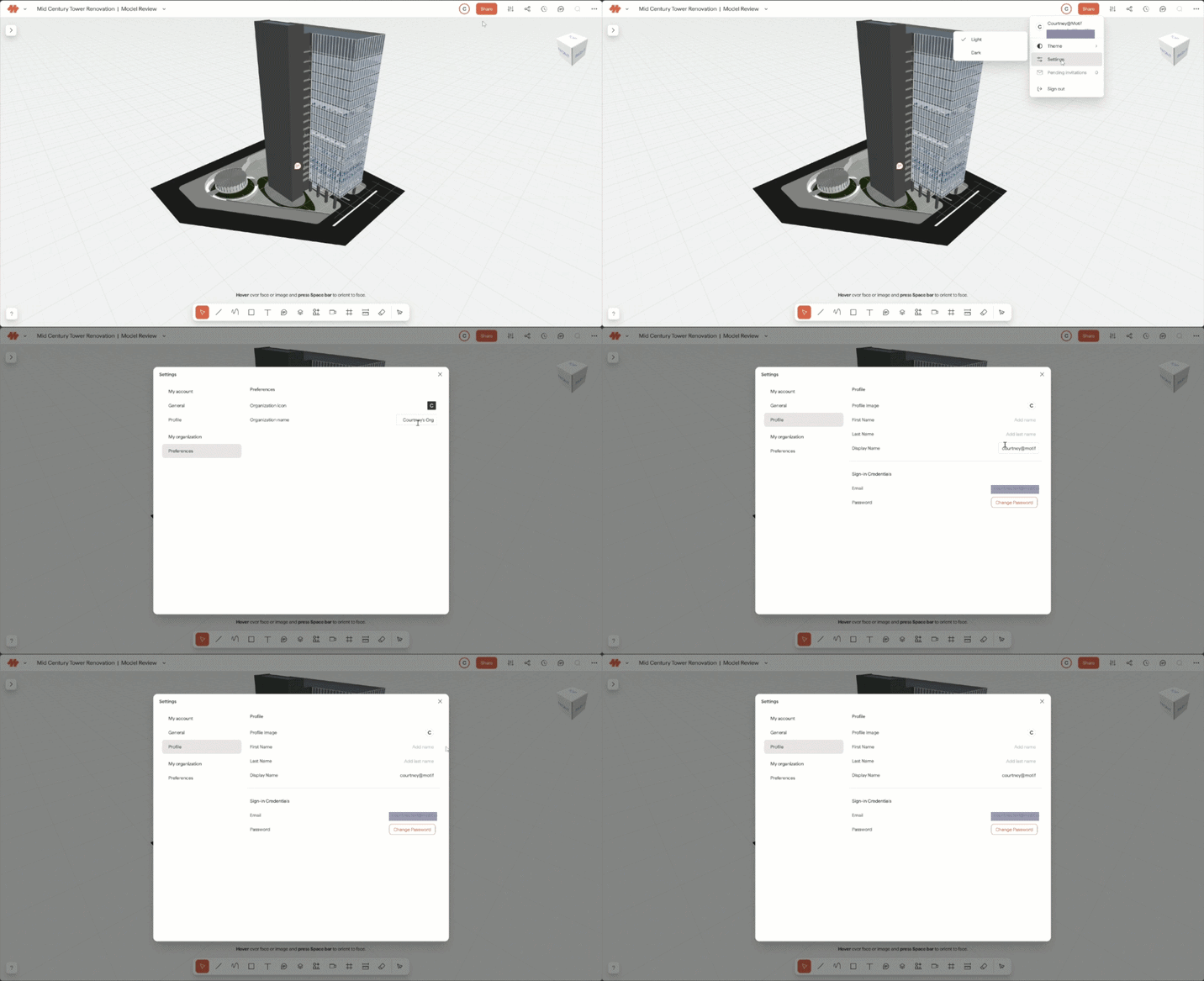
Avatars + Share Button
Click the Avatar to see your user settings and to set your display name
Click the Share button to invite users to your project. See📄 Invite others to your organization or project for full details
The Noodle
The Noodle is located in the top-right corner of every board and project page. It's also available inside the Revit and Rhino plugin panels.

Click any button to expand a panel with more detail:
Properties — When nothing is selected, shows board settings: Home View, snapping, grid size, and fly mode speed. When an object is selected, shows its position, size, and orientation.
Publish / Receive — Shows help information for streaming and publishing from plugin apps.
History — Browse all changes made across the project by any user. Projects can be rolled back to a previous state.
Comments — View and place comments anywhere on the board, or attach them to objects, images, and frames.
More / Overflow menu — Access the plugins installer and sample 3D models.
⚠ Caution: Rolling back a project via History is a project-level change. All work across all boards newer than the selected event will be permanently removed.
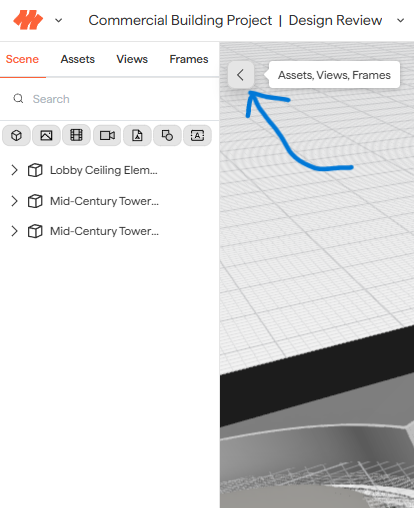
The left flyout menu
Click the left facing arrow on the left edge to open panels for:
Scene Browser — view and manage all objects on the board. See📄 Use the Scene Browser for full details
Asset Library — browse assets that have been imported into the project and/or on to the board. See📄 Manage assets in the Asset Library for full details
Views gallery — View and manage saved camera positions. See📄 Create Views for navigation and renders for full details
Frames gallery — View and manage Frames created on the board. See📄 Organize ideas and present with Frames for full details
The View Navigator
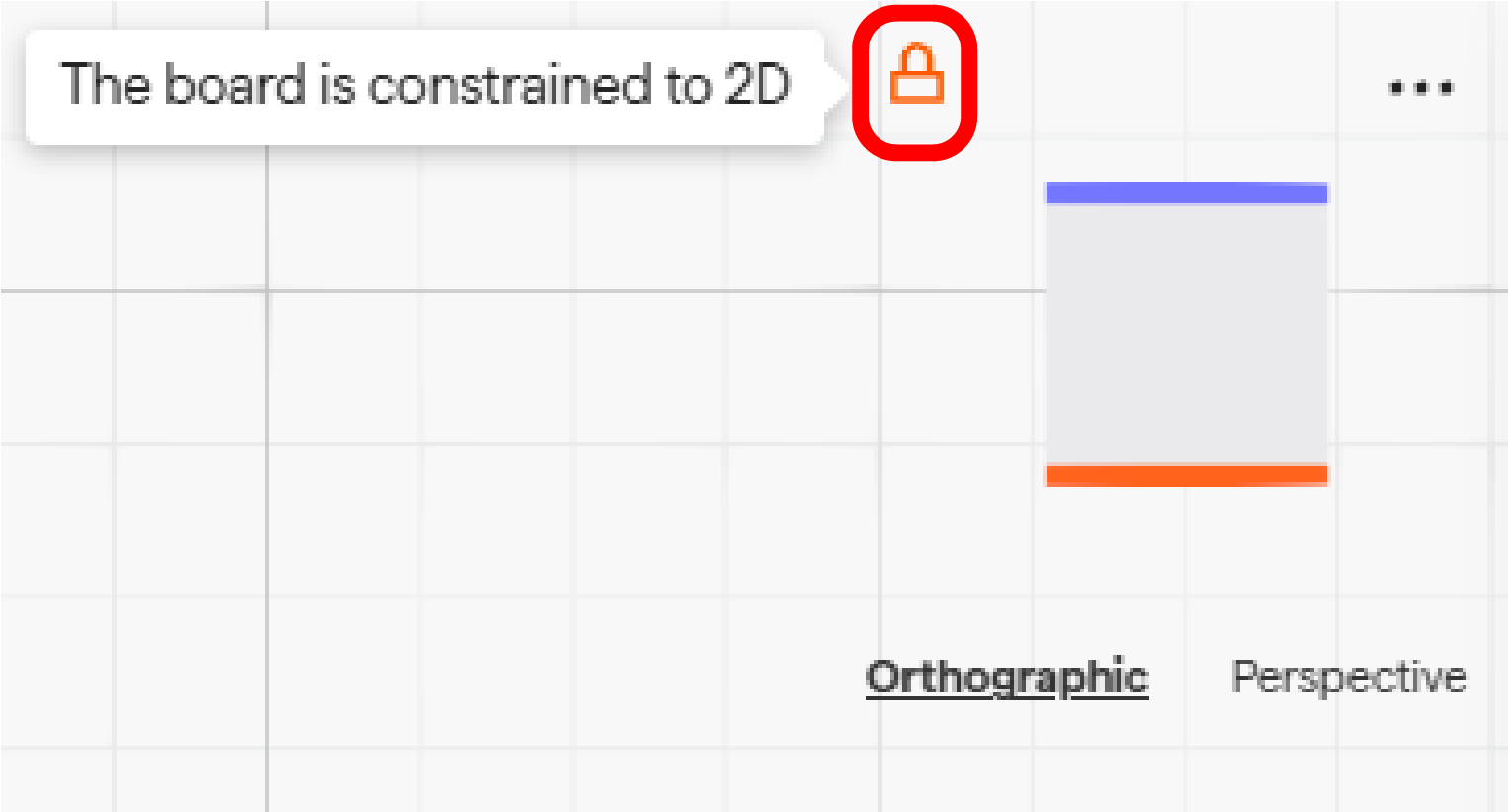
The View Navigator (the 3D cube in the top right corner of the board) lets you quickly reorient the camera to standard views: Top, Front, Left, Right, etc.
Click any face, edge, or corner of the cube to jump to that view.
Hover over the cube to toggle between Perspective and Orthographic projection.
Click the lock icon to constrain the camera to a view.
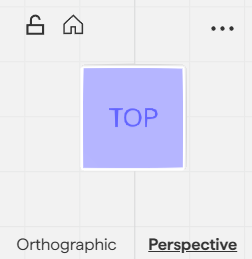
💡 You can swap the cube style (Cube, Barn, or Classic Cube) from the overflow menu on the View Navigator.
The toolbar
The toolbar runs horizontally on the board. Use it to access markup tools, place text and comments, create sketch/clip planes, import files, save Views, create Frames, measure objects, generate images/videos from text, and to access fly mode.
💡 Grab the top of the toolbar to drag it to a different position on the board.
