Create your first project and board
Last updated: September 8, 2026
Get from sign-in to a working board in a few steps.
Create a Project
A project is a collection within Motif Review used to organize assets, boards, and related data. It serves as a workspace for managing the design and collaboration through all phases of an architectural project.
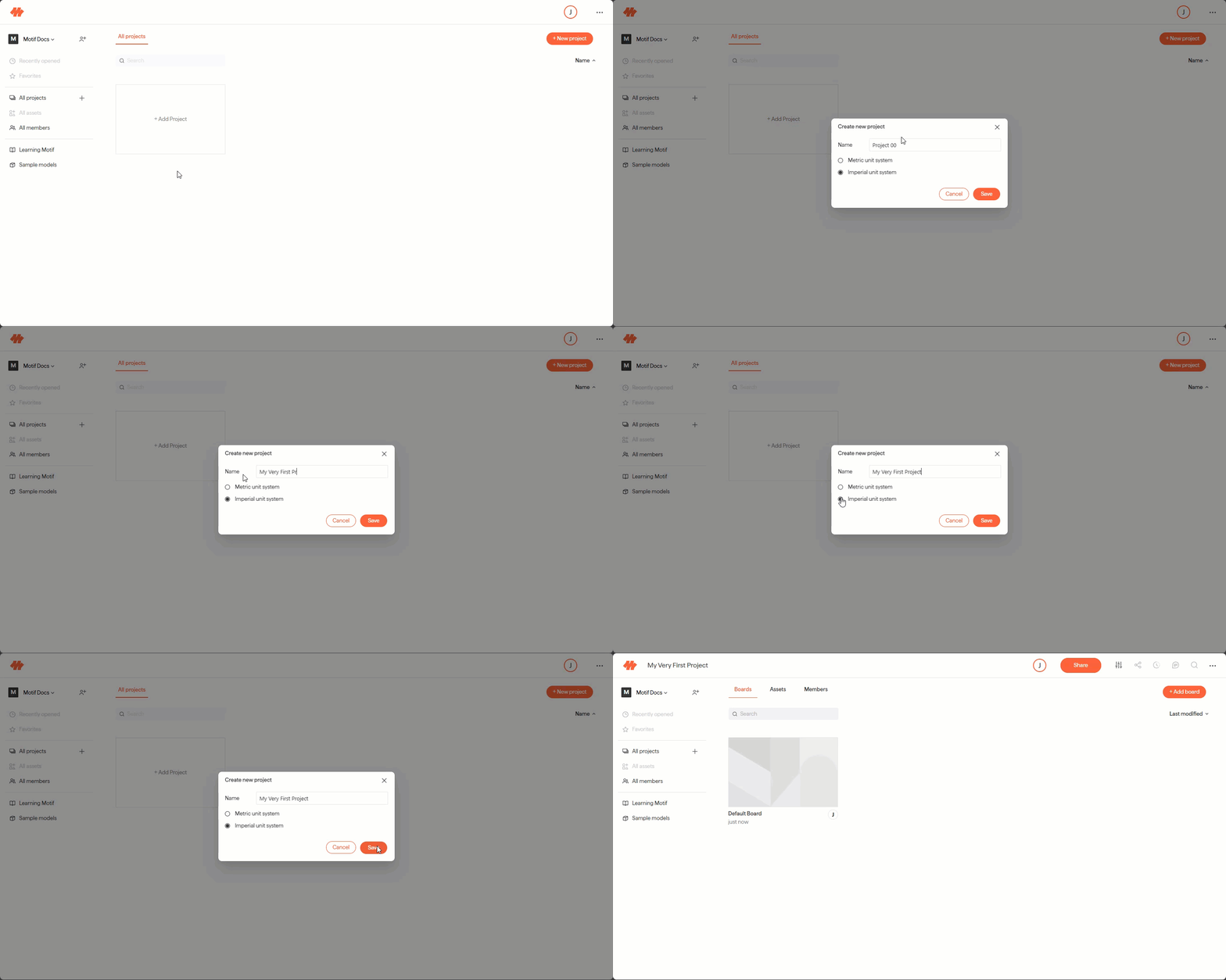
On the All Projects page, click Add Project.
Enter a project name and select your unit system (Imperial or Metric).
⚠ Units are set at the project level and apply to all boards in that project.
Click Create.
Create a Board
A board is a workspace in a project where you can organize and display assets, images, or views for rendering, presentation, or collaboration purposes. It can be 2D or 3D, and you can add, organize, and manage content on it. You can have multiple boards within a project and they will all share the same library of assets.
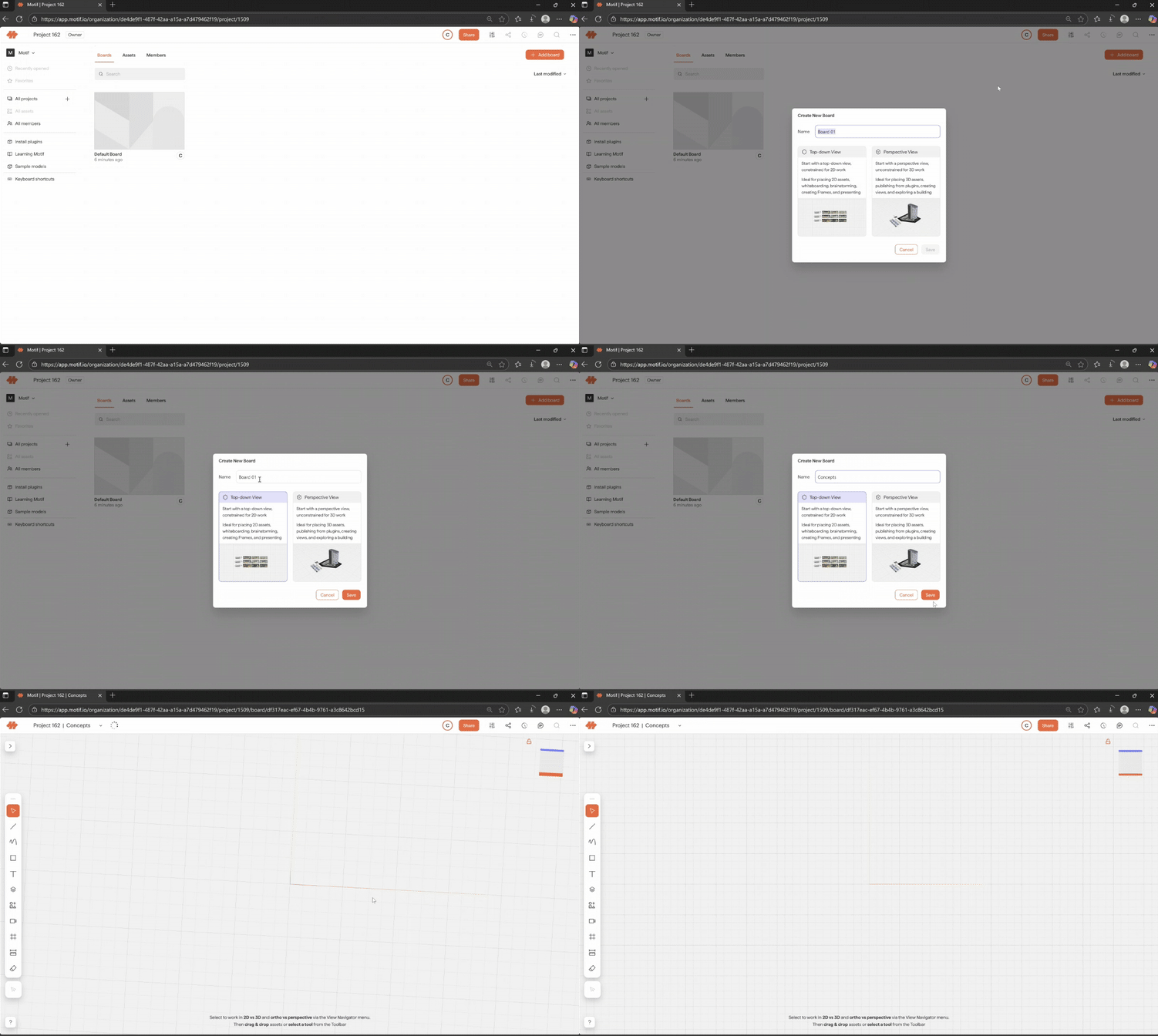
Inside your project, click Add Board.
Set the default orientation to top-down view for a 2D board or perspective view for a 3D board. You can change orientation any time from the properties panel.
Each project comes with a Default Board — rename it by hovering over its thumbnail and clicking the overflow menu (...) → Rename.
Sort Boards and Projects
Sort the Boards or Projects by Last Modified or Alphabetical. Click on the Sort By drop-down and pick your sorting option.


Next steps
Need help? Reach out to us at community.motif.io