Quick Start: Publish your first sheet set
Last updated: September 16, 2026
Publish your Revit sheets to Motif Review in minutes. This guide walks you through installing the plugin and sending your first sheet set to a board — the starting point for sheet review, markup, and real-time collaboration with your team.
Install the Motif plugin and sign in
Download the latest Motif Plugins Installer from motif.io/plugins-installer.
Locate the downloaded file
MotifPluginsSetupand double-click it to run the installer.The installer automatically detects your installed versions of Revit and Rhino. Click Next to proceed.
Once installed, open (or relaunch) Revit or Rhino.
Open your Revit or Rhino project.
Open the Motif Plugin panel
In Revit, navigate to the Motif tab in the top ribbon, then click Show Motif to open the plugin panel.
In Rhino, activate the Motif plugin using the command “MotifPlugin”.
In the Motif plugin panel, click Sign In. A browser tab will open with sign-in instructions. Complete sign-in and return to Revit — the panel will confirm you're logged in.
Publish your sheet set
In the plugin panel, use the dropdowns to choose:
The Project you want to publish to
The Board within that project
💡Choose "none" from the project picker to automatically publish to a new project and board.
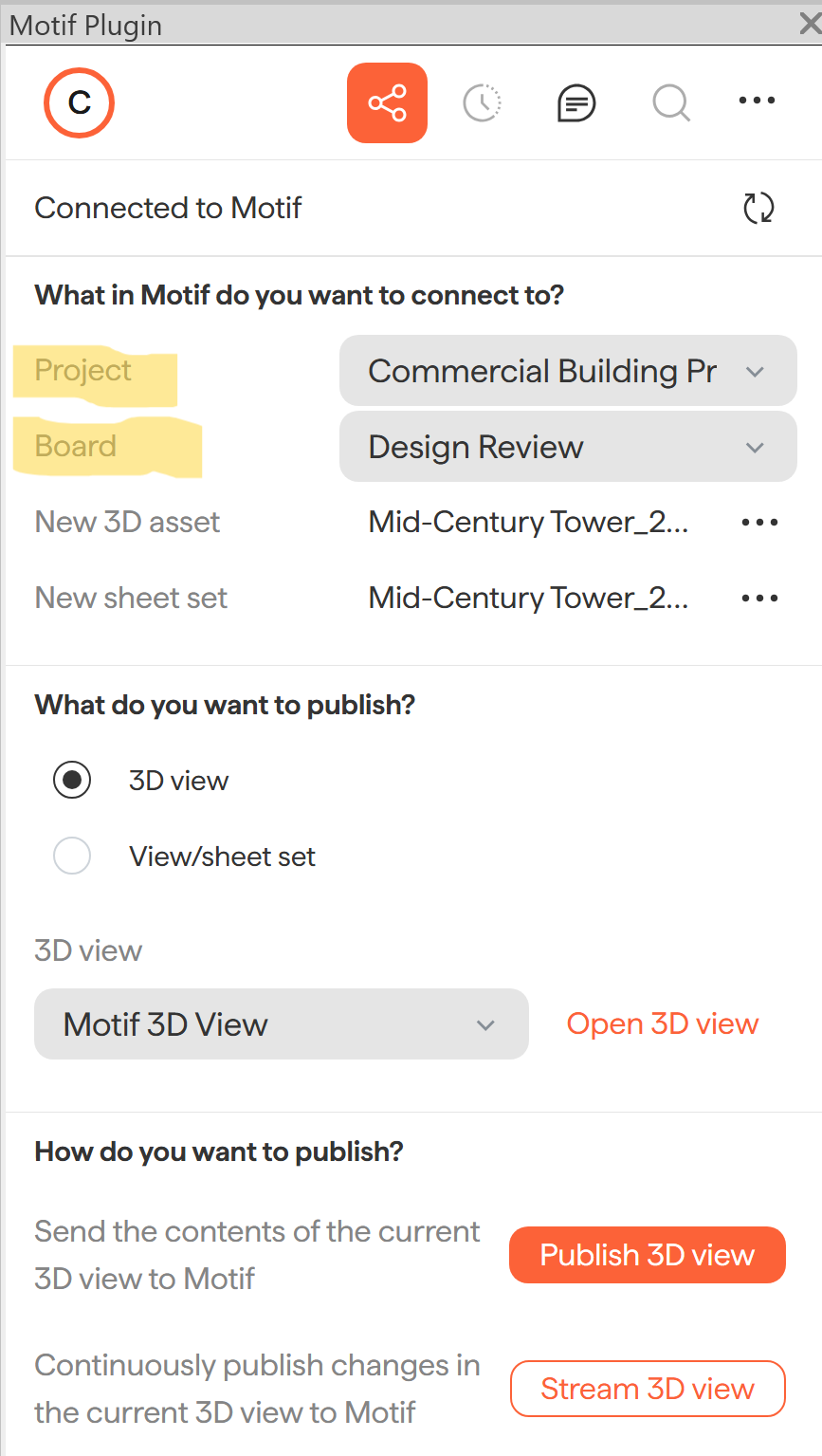
Choose what to publish
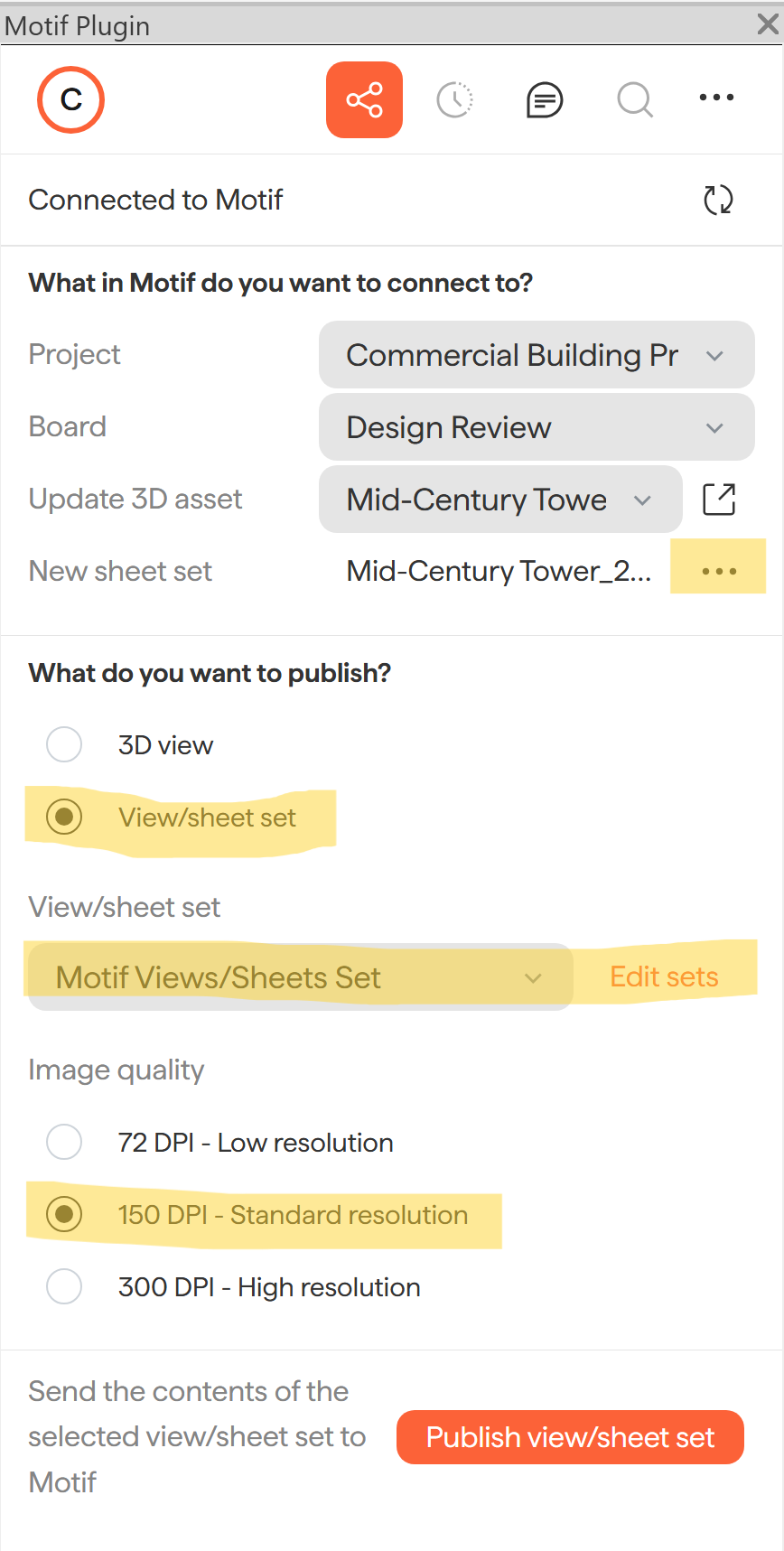
Select View/Sheet Set as your content type.
From the dropdown, choose an existing sheet set, or click Edit Sets to define a new one.
In the Edit Sets dialog, give your set a name and add the sheets and views you want to include.
Choose a resolution for your sheets:
Resolution
Best for
75 DPI
Quick reviews and early-stage feedback
150 DPI
General use — recommended
300 DPI
High-detail reviews and final documentation
💡 Want to rename your asset? Use the three-dot menu next to the asset name to rename it now. You won't be able to rename it after it's been published.
Click Publish to send your sheet set to the board
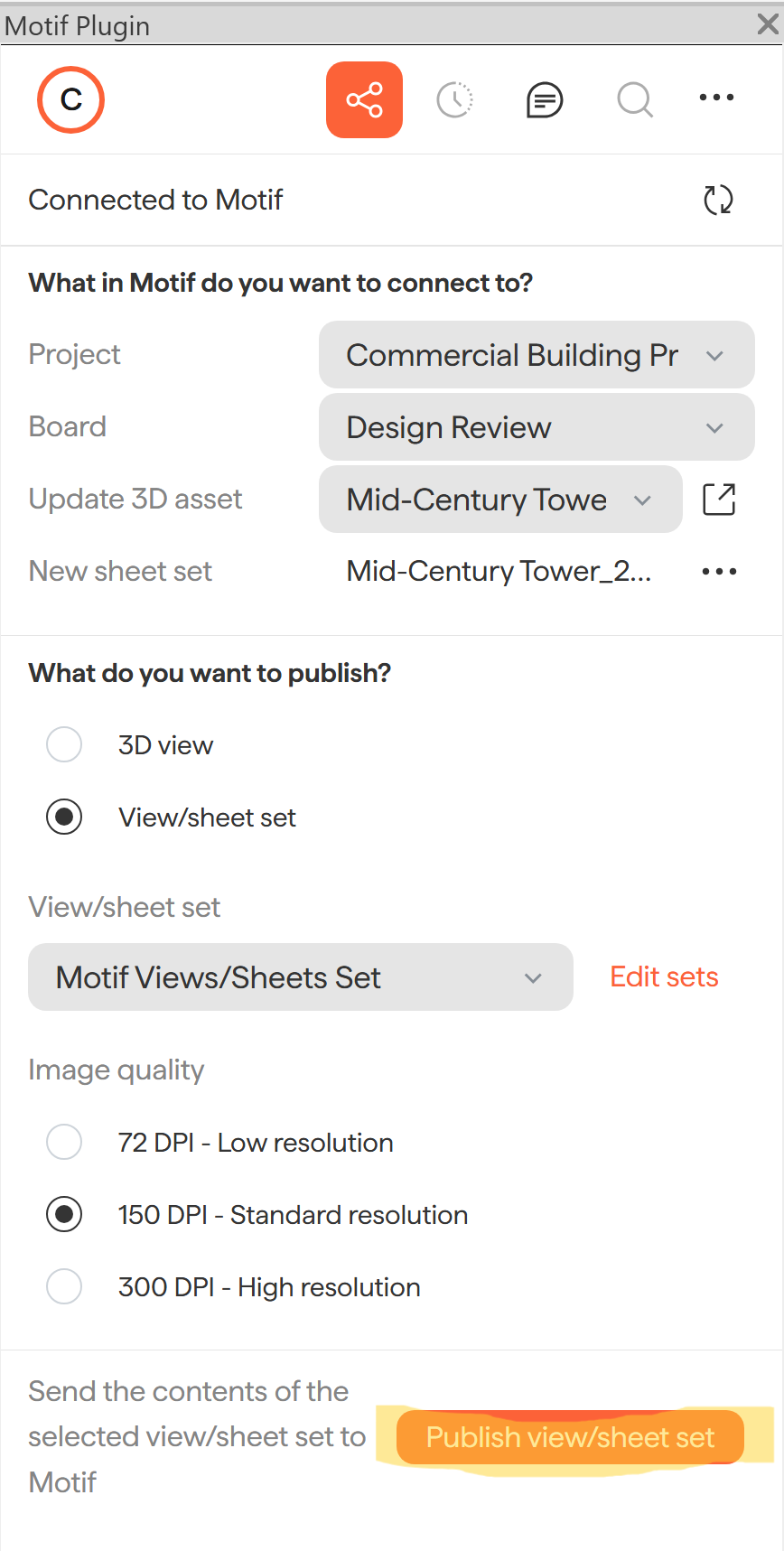
You will be prompted to place your sheet set on the board (see below), and you sheet set will also be added to your asset library.

⚠Streaming is available for 3D models only. Sheet sets are always published as a static snapshot. To update sheets on the board, re-publish from the plugin using the Update Sheet Set dropdown.
You're in Motif Review! What's next?
Your sheets are now live on your board. Here's what you can do next:
📄 Navigate your boardand inspect your sheet set directly in the browser
📄 Invite others to your organization or projectto review and comment
📄 Sketch, markup, and commenton sheets — comments sync back to Revit via the plugin
Need help? Reach out to us at community.motif.io