Navigate your board
Last updated: September 14, 2026
Motif Review's infinite canvas works in both 2D and 3D. This article covers how to move around it using your mouse, touchscreen, keyboard, or touchpad.
Zoom
Scroll wheel — zoom in and out
Keyboard — press
+/-orCtrl +/Ctrl -(Mac:Cmd +/Cmd -)Touchpad — pinch in or out
Pan
Mac — right-click and drag (in 2D view)
Windows — middle mouse button and drag, or
Shift+ right-click and drag
Orbit (3D only)
Right-click and drag to freely rotate around the scene
Orient to a surface
To snap your camera perpendicular to any face of a model or image:
Hover your cursor over the surface.
Press Space on the keyboard.
The view will zoom and reorient to face that surface directly.
Use the View Navigator
The View Navigator (the cube in the top right corner of the board) lets you jump to standard camera orientations.
Click any face, edge, or corner of the cube to set the camera to that view.
Hover over the cube to
toggle between Perspective and Orthographic projection.
lock the current view orientation
view the overflow menu to access the view keyboard shortcuts. Press number keys 1 through 0 for quick camera orientation shortcuts.
Lock a 2D view
For working in a 2D space (sheets, images, floor plans), you can constrain the camera to a 2D view.
Set the camera to a top view using the View Navigator or keyboard shortcuts.
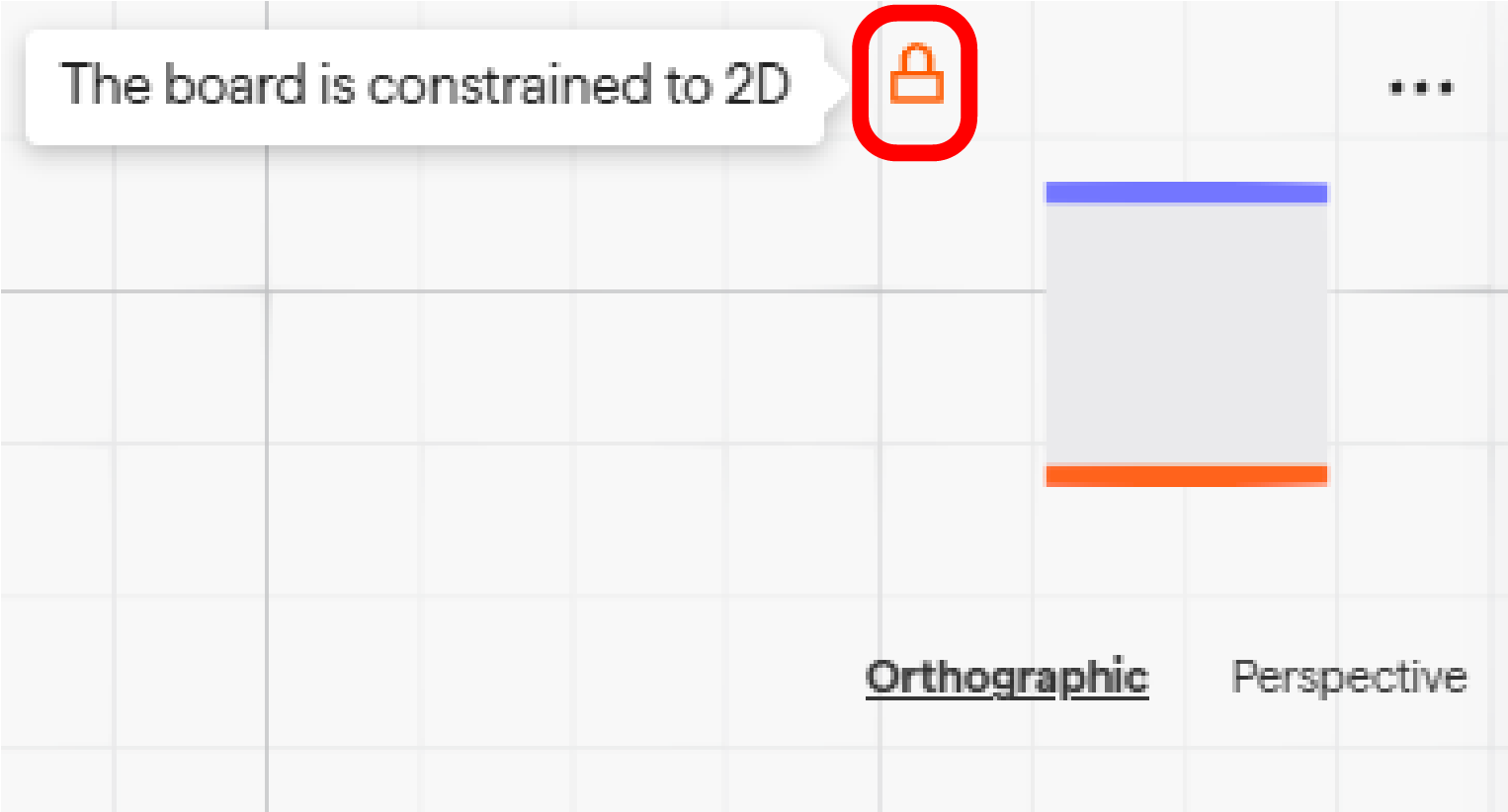
Hover over the View Navigator and click the lock icon (Constrain board).
The camera is now locked to that 2D plane. To pan within a locked 2D view, right-click and drag.
To unlock, hover over the View Navigator and click the lock icon again.
Fly mode
Fly mode lets you navigate large 3D scenes in a first-person style.
Click the airplane icon on the toolbar, or press
Shift + Fto toggle fly mode on.Use the following keys to move:
W— forwardS— backA— leftD— rightE— upQ— down
The scroll wheel also controls forward/backward movement.
To adjust fly speed, open the Properties panel in the Noodle with nothing selected.
Snapping
Snapping helps you align objects and markup precisely on the board.
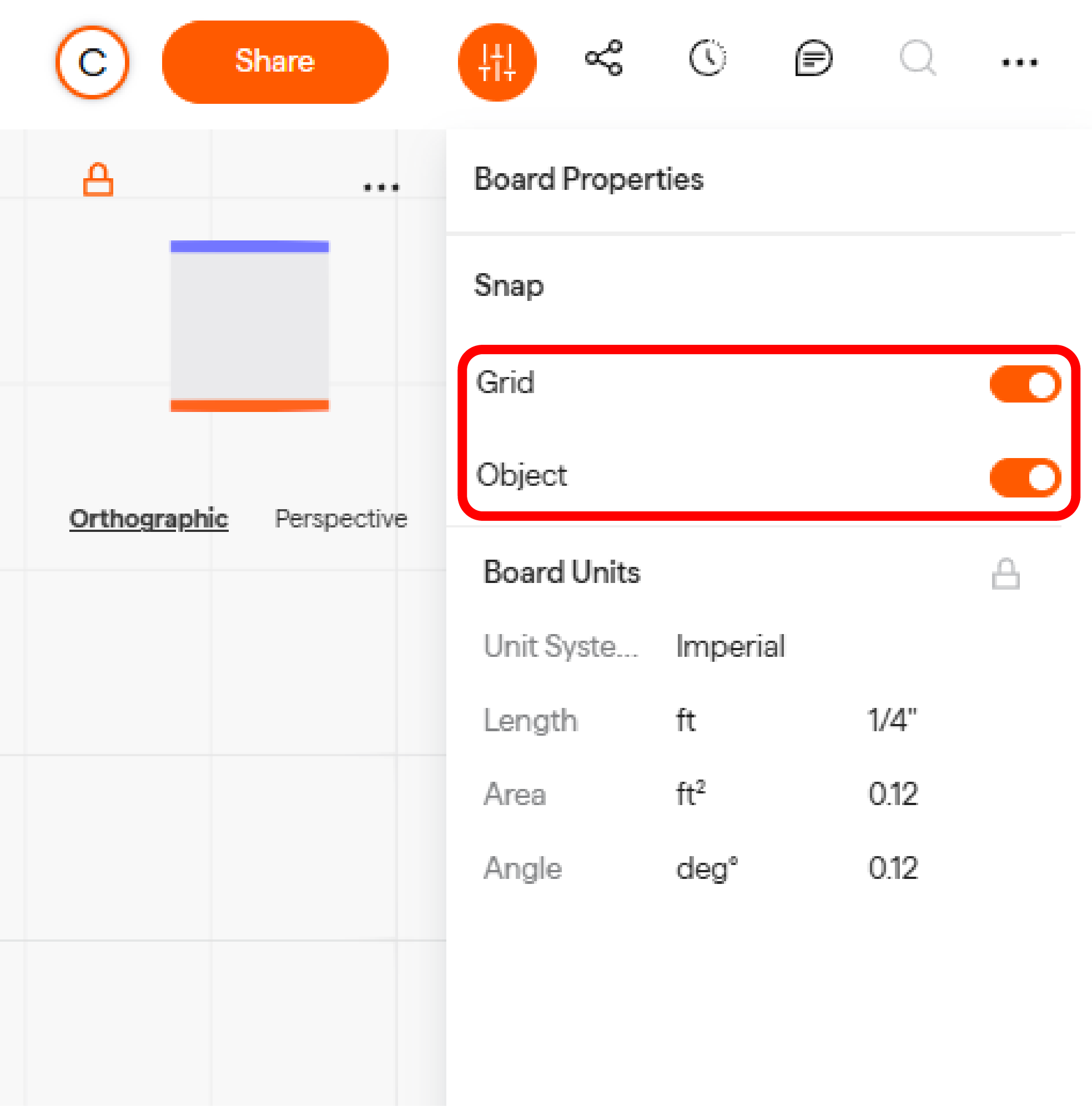
Toggle grid snapping or object snapping on/off from the Properties panel in the Noodle.
Hold Shift while drawing lines to snap to 45 or 90-degree angles.
Toggle the grid on/off with the
Gkey, or from the Logo menu > Show/Hide > Grid.
Keyboard shortcuts
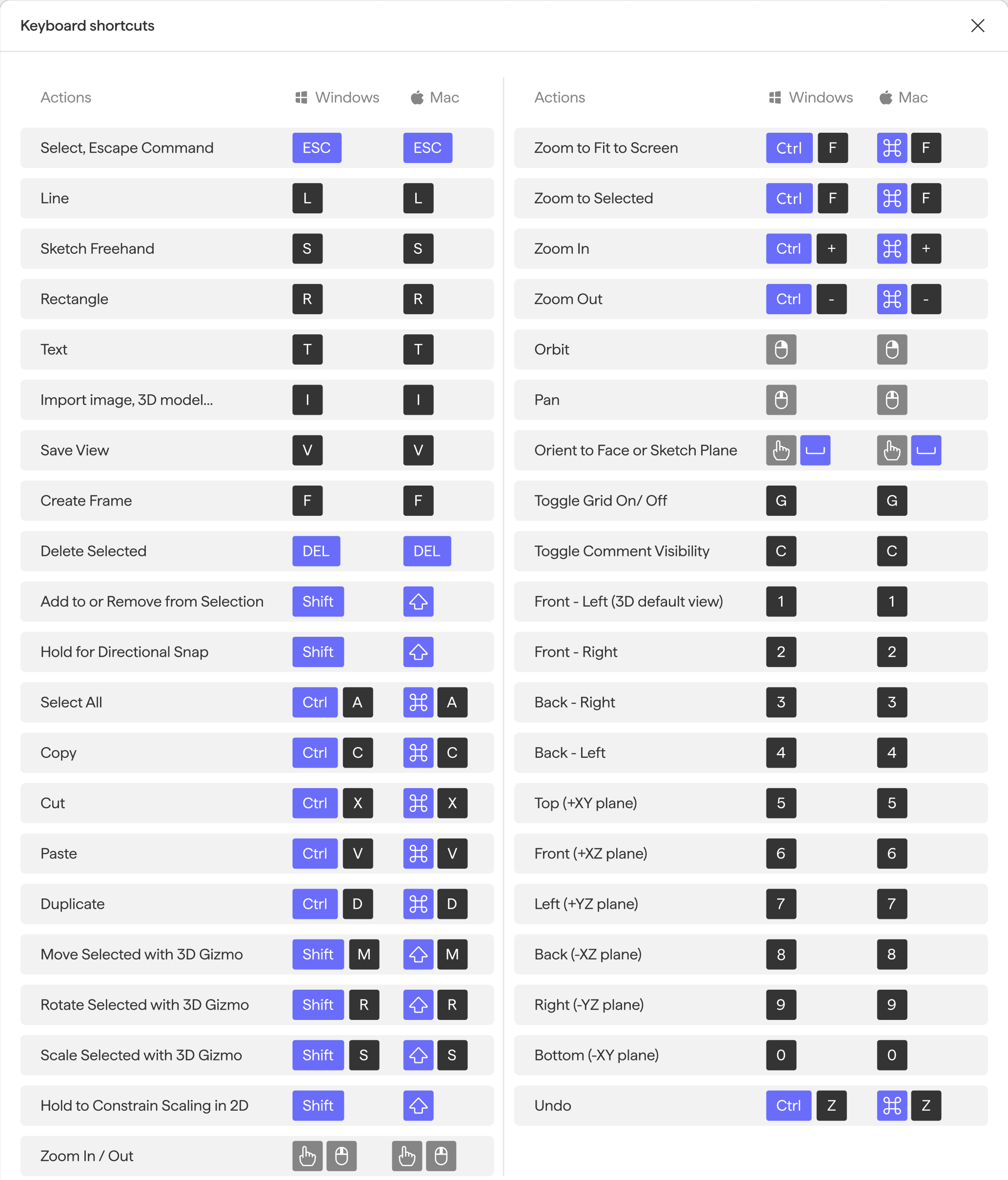
Access the full list of shortcuts via Logo menu → Keyboard shortcuts.
Next steps
Now that you know how to navigate the board, explore the following articles:
Need help? Reach out to us at community.motif.io