Invite others to your organization or project
Last updated: September 15, 2026
Collaborate with your team by inviting people into Motif Review at either the Organization level or the Project level — depending on how much access you want to give them.
Before you invite: understand access levels
Motif Review has two levels of access, each with its own set of roles. Knowing the difference helps you invite people with the right permissions from the start.
Organization roles
Organization-level access gives someone visibility across your Org — including view access to all projects.
Role | What they can do |
Admin | Add/remove organization members, assign roles, create and delete any projects |
Member | Create projects, delete their own projects, invite people to their projects (not to the organization) |
Guest | Have access to projects to which they are invited, at the permission level they are given within those projects. Guests can only be added at the project level but will still appear in your Org member list with a guest designation. |
Project roles
Anyone invited only at the project level (not to the Organization) is called a Guest. Guests are free and don't count toward your seat count.
Role | What they can do |
Owner | Assigned automatically to the project creator. Can delete the project and do everything Editors can do. |
Editor | Add/remove boards, import assets, stream or publish from plugins, invite others, comment and markup |
Reviewer | Comment and markup only |
Viewer | View boards only |
Invite someone to your Organization (Admins only):
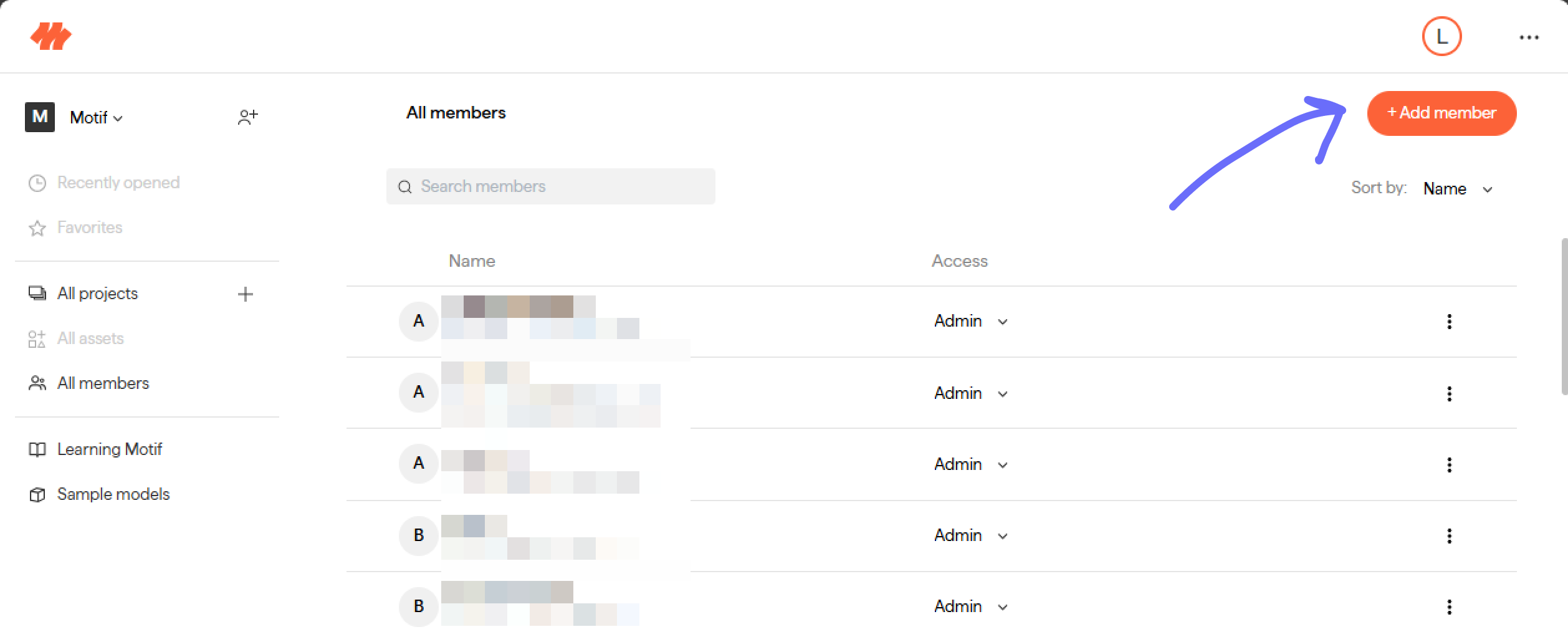
Go to the All Members page.
Click Add Member.
Choose whether to invite them as an Admin or Member.
Enter one or more email addresses. Separate multiple addresses with a semicolon.
Click Send Invite.
⚠Org members are added as Viewers to all projects by default.
⚠Invites expire after 14 days, and the user will need to be removed from the organization and re-added.
💡To give access to one specific project only, invite them at the project level — they'll appear as a "Guest" in your Org and won't have access to other projects.
Invite someone to a project:
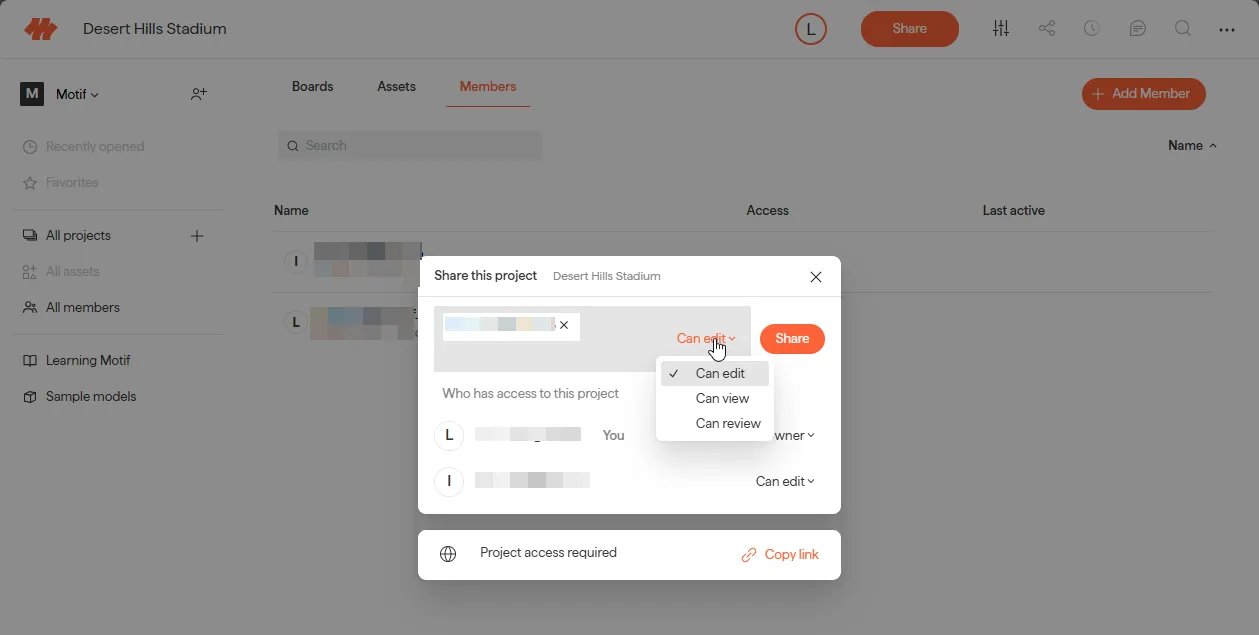
From the Project page or board, click Share.
Enter their email address and select a role.
Click Share.
⚠ Known issue: Org members who are currently inside a board when their permissions are updated will need to refresh their browser to see the new access level.
💡 Guests (users outside your Org) receive an email invitation. Org members are added silently — they won't receive an email notification.
Next steps
Need help? Reach out to us at community.motif.io