Manage board content in the Scene Browser
Last updated: September 16, 2026
The Scene Browser lists everything on your board — 3D models, 2D sheets, images, PDFs, and any markup or text you've created. Use it to find, select, hide, and lock content, especially on complex boards with many assets.
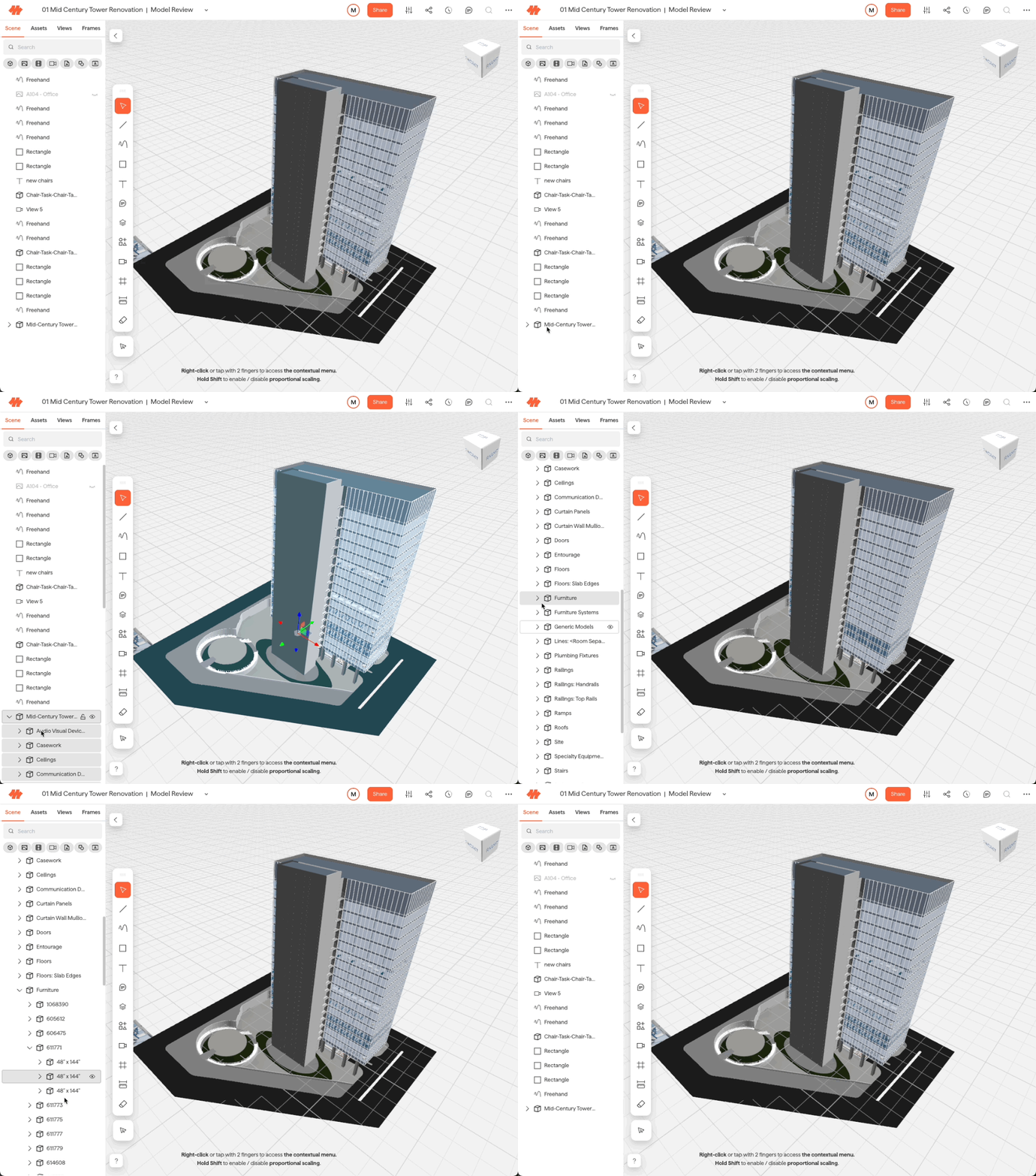
Open the Scene Browser from the left drawer on any board.
How content is organized
The Scene Browser mirrors the structure of your imported assets:
Revit models — organized by Category > Family > Type > Instance, matching Revit's native hierarchy.
Rhino models — organized by Layer > Objects, following Rhino's layer structure.
Sheet sets — organized by published set > individual sheets > viewports. Markups on sheets will be nested under that sheet or viewport.
Static 3D models (GLB, OBJ) — shown as a single top-level item with no sub-hierarchy.
2D content (images, PDFs, markup) — listed individually as top-level items.
Expand and collapse items to explore what's inside a model.
Select objects
Clicking any item in the Scene Browser selects it on the board — and vice versa: clicking an object on the board highlights it in the Scene Browser.
💡 To quickly zoom to a specific object on the board, right-click it in the Scene Browser and select Zoom to fit.
Search and filter
Use the search bar at the top of the Scene Browser to find a specific object or asset by name.
Use the filter controls to narrow the list by object type (e.g., show only 3D models, or only images).
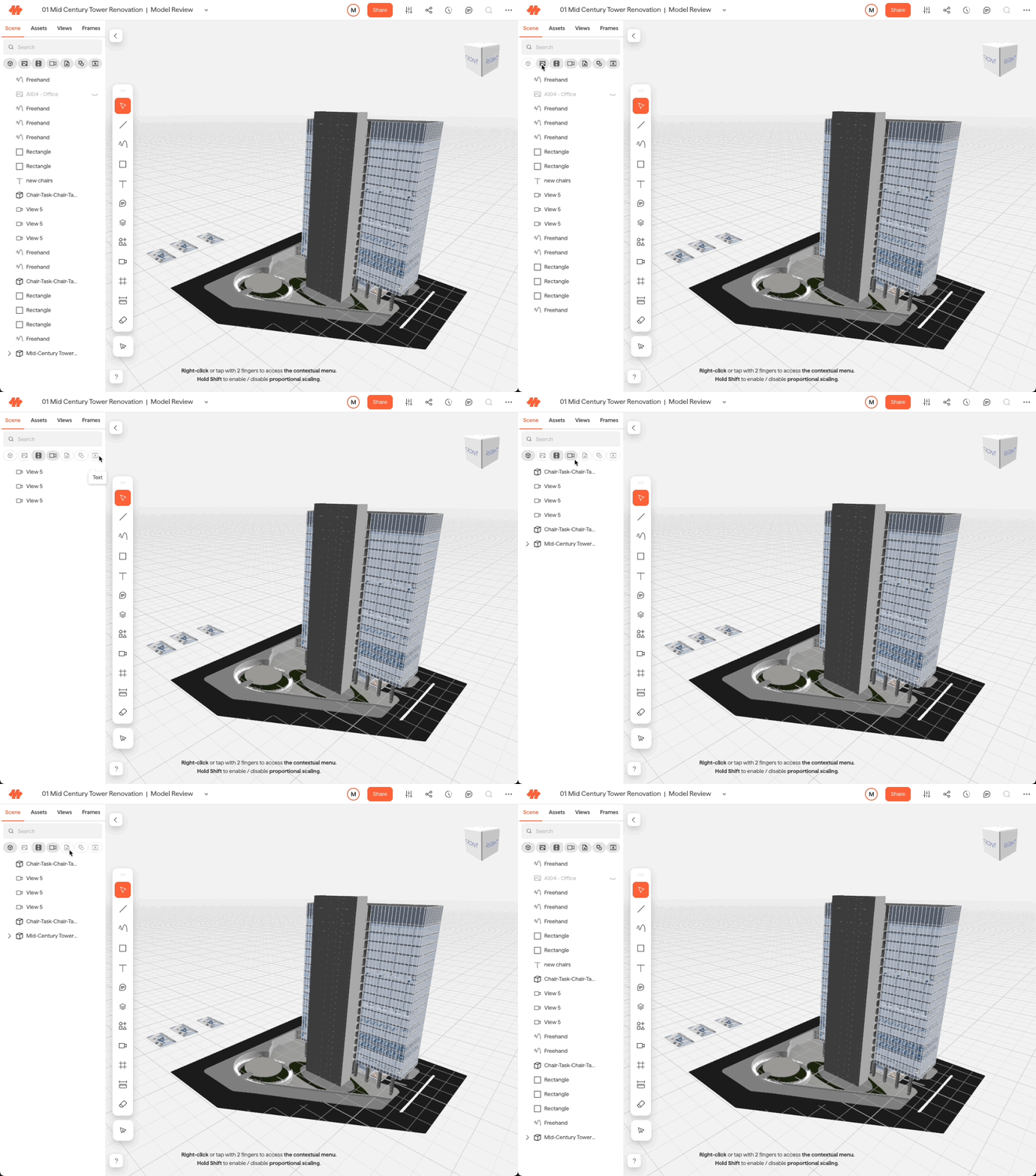
Hide and show objects
Click the eye icon to the right of any item to hide or show it on the board. You can hide entire Revit categories (e.g., Furniture), individual Rhino layers, or specific 2D assets.
⚠ Hiding and showing objects is local to your browser session only. Other users will not see your changes, and visibility will reset when you refresh the page.
Lock objects
Click the lock icon to the right of any item to prevent it from being selected or edited on the board. This is useful for keeping a base model stable while marking up on top of it.
⚠ Locking is also session-local and resets on refresh. For 3D models, only the top-level asset can be locked — individual categories and layers cannot be locked separately.
Need help? Reach out to us at community.motif.io