Manage assets in the Asset Library
Last updated: September 16, 2026
The Asset Library is the central store for every file, model, image, and View in your Motif Review project. Assets are shared across all boards in the project — upload once, place anywhere.
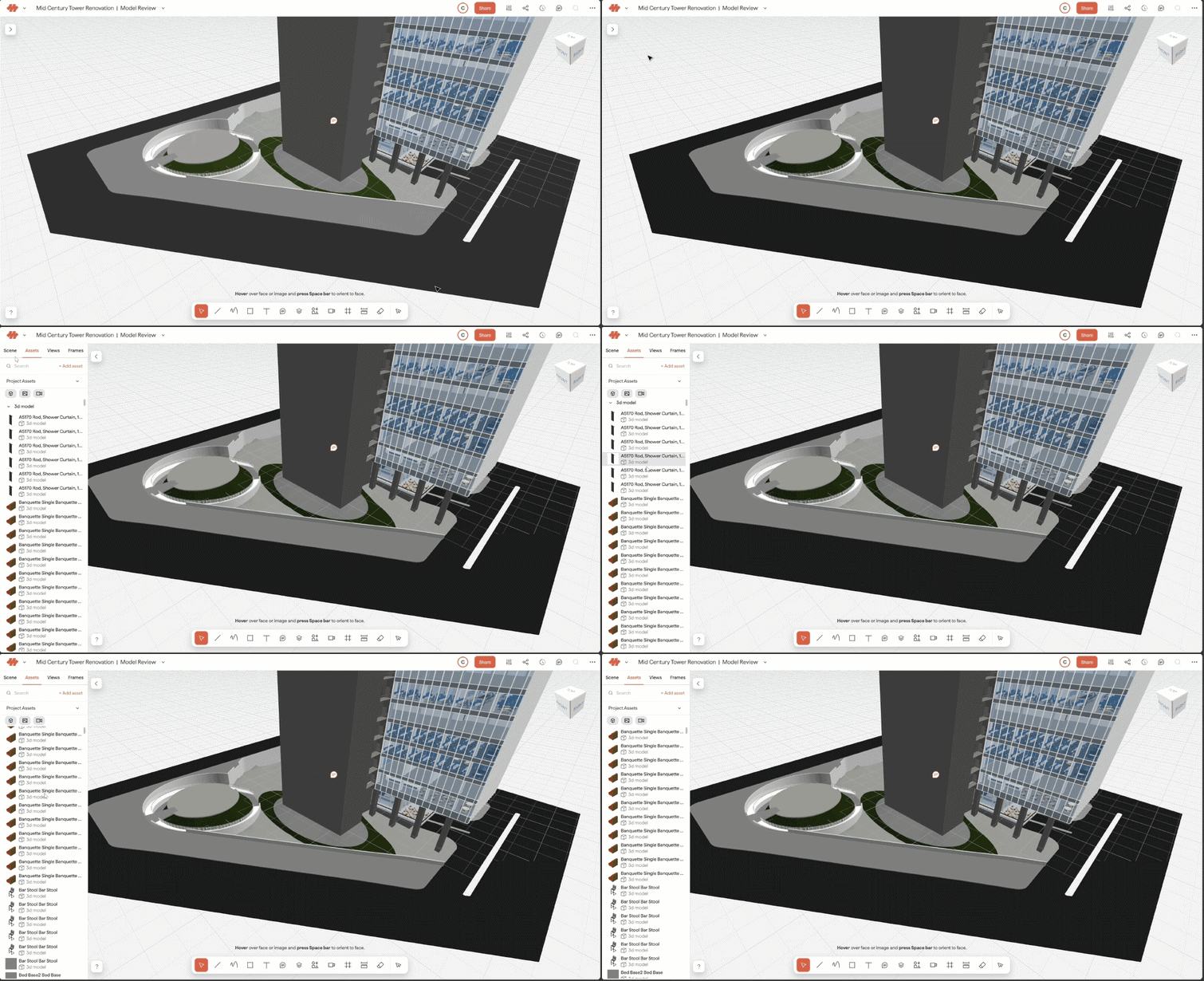
Open the Asset Library from the left drawer inside any board.
What’s in the Asset Library
The library holds these asset types:
3D Model — GLB, OBJ, and plugin-published Revit/Rhino models
Image — JPEG, PNG, and SVG
Video — MP4 files (generated with AI inside of Motif Review)
PDF — PDF documents
Sheet — Published Revit sheet sets
View — saved camera positions
Miscellaneous — other file types
Project assets vs. board assets
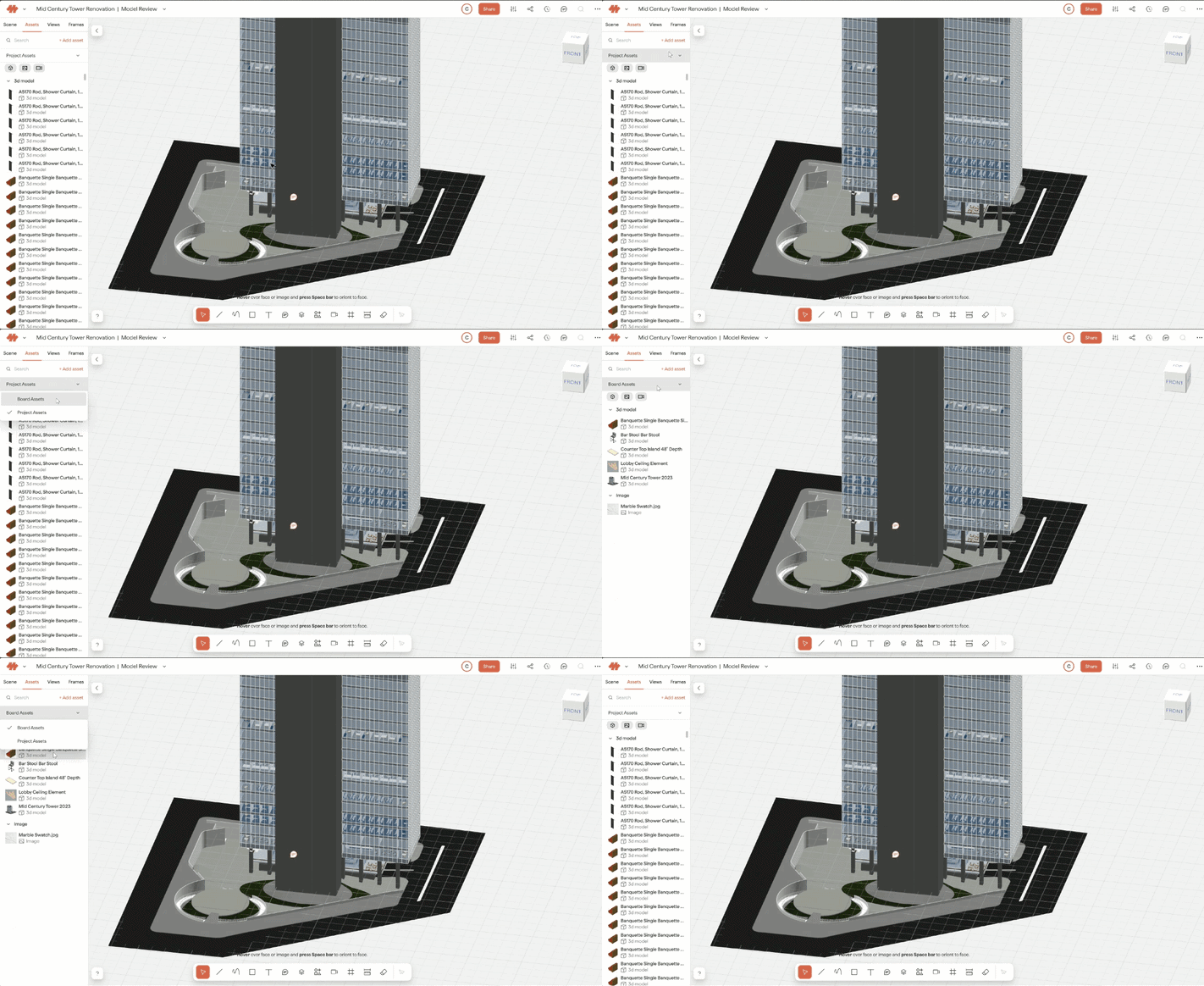
Use the toggle at the top of the Asset Library to switch between two views:
Project Assets — all assets across every board in the project
Board Assets — only assets that have been placed on the current board
This is useful when working on large projects where you want to focus on what’s relevant to the current board.
Search and filter
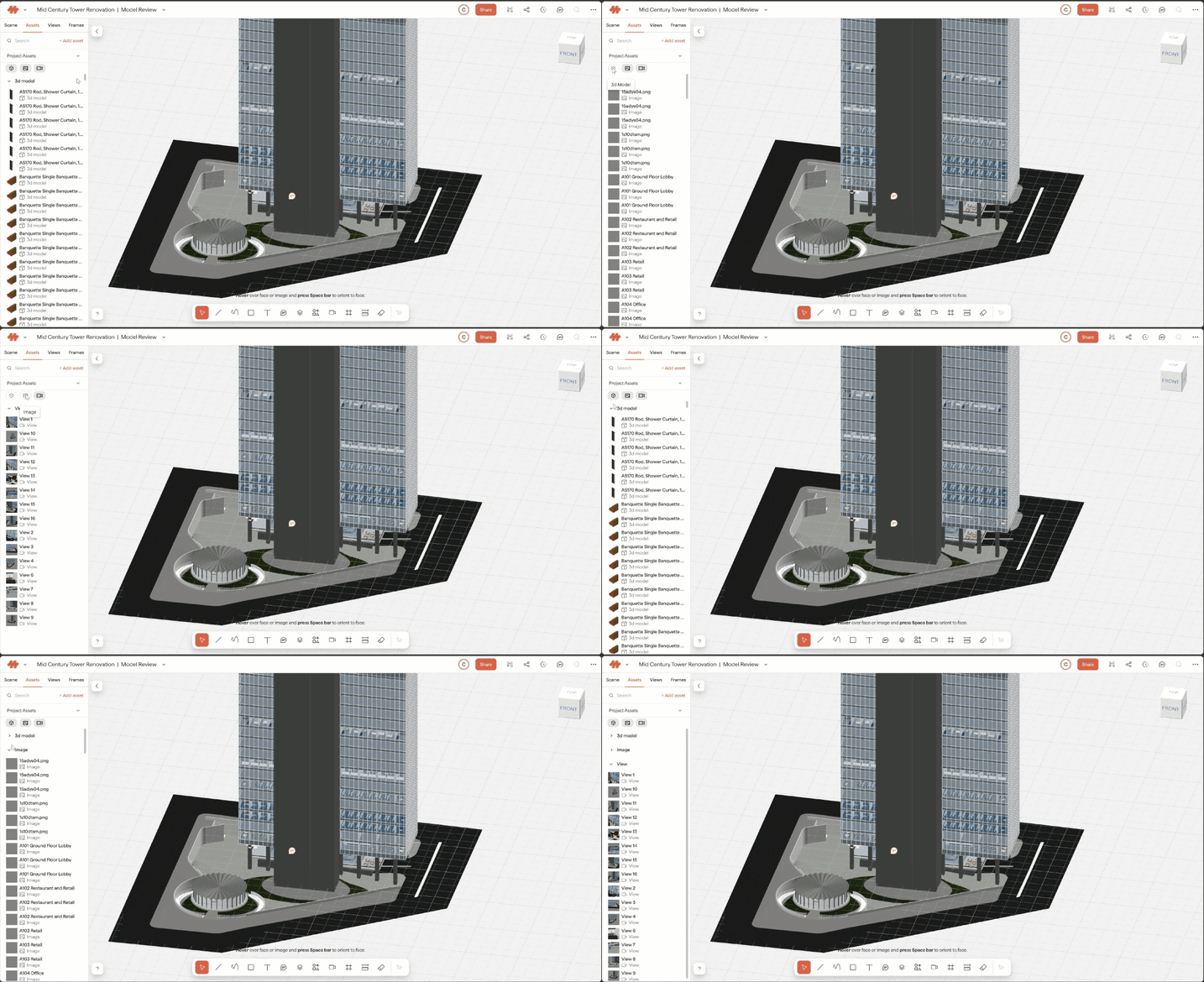
Use the search bar to find an asset by name. Results update as you type.
Use the category filter toggles to show or hide specific asset types (e.g., show only 3D Models). Only categories that contain assets are displayed. Filter selections persist per board.
View asset details
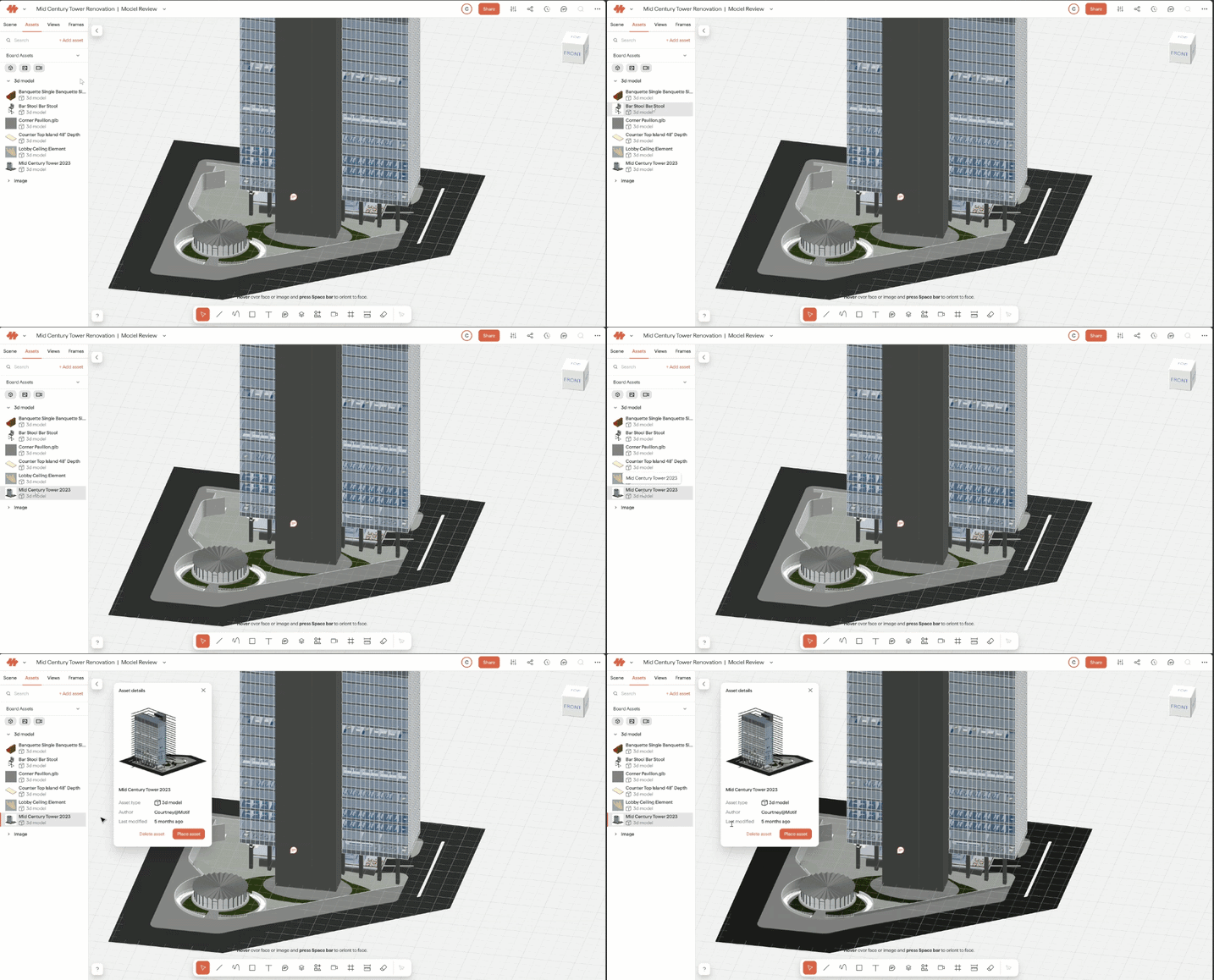
Click any asset in the library to open its detail panel, which shows:
A large preview or thumbnail
Asset name and type
Source (for AI-generated images)
Author and last modified timestamp
Place assets on the board
To place an asset from the library onto the board:
Find the asset(s) in the library. Hold Shift+click to select more than 1 asset.
Click and drag it from the library panel onto the board.
Each time you place an asset, it creates a new instance on the board. The original asset stays in the library and can be placed again on any board in the project.
Delete assets
Find the asset(s) in the library. Hold Shift+click to select more than 1 asset.
Right-click the selection and choose Delete.
⚠ Before anything is removed, Motif shows you which boards each asset is currently placed on. Deleting an asset removes it from the library and from every board in the project, not just the one you're working in. Deleting an asset is project-wide and cannot be undone. If you only want an asset off the current board, delete the instance on the board instead of the asset in the library.
Rename an asset
Right-click the asset in the library.
Choose Rename.
Type the new name and confirm.
Renaming changes the asset everywhere it appears in the project. Instances already placed on boards pick up the new name.
Replace an asset
Replace swaps the underlying file while keeping the asset in place — so instances stay on their boards and Views stay pointed at them.
Right-click the asset in the library.
Choose Replace.
Select the new file.
This is most useful for GLB and OBJ models, which aren't linked to their source files.
⚠Streamed and published models work differently. Models sent from the Revit or Rhino plugins update from the source — push a new stream or publish over the existing asset instead of using Replace.
Need help? Reach out to us at community.motif.io