How to configure graphics acceleration
Last updated: April 7, 2026
Motif can make use of graphics acceleration on your system if the PC has a dedicated GPU (Example - NVIDIA). If it's not already enabled you can enable it manually as follows.
How to enable graphics acceleration for a specific browser
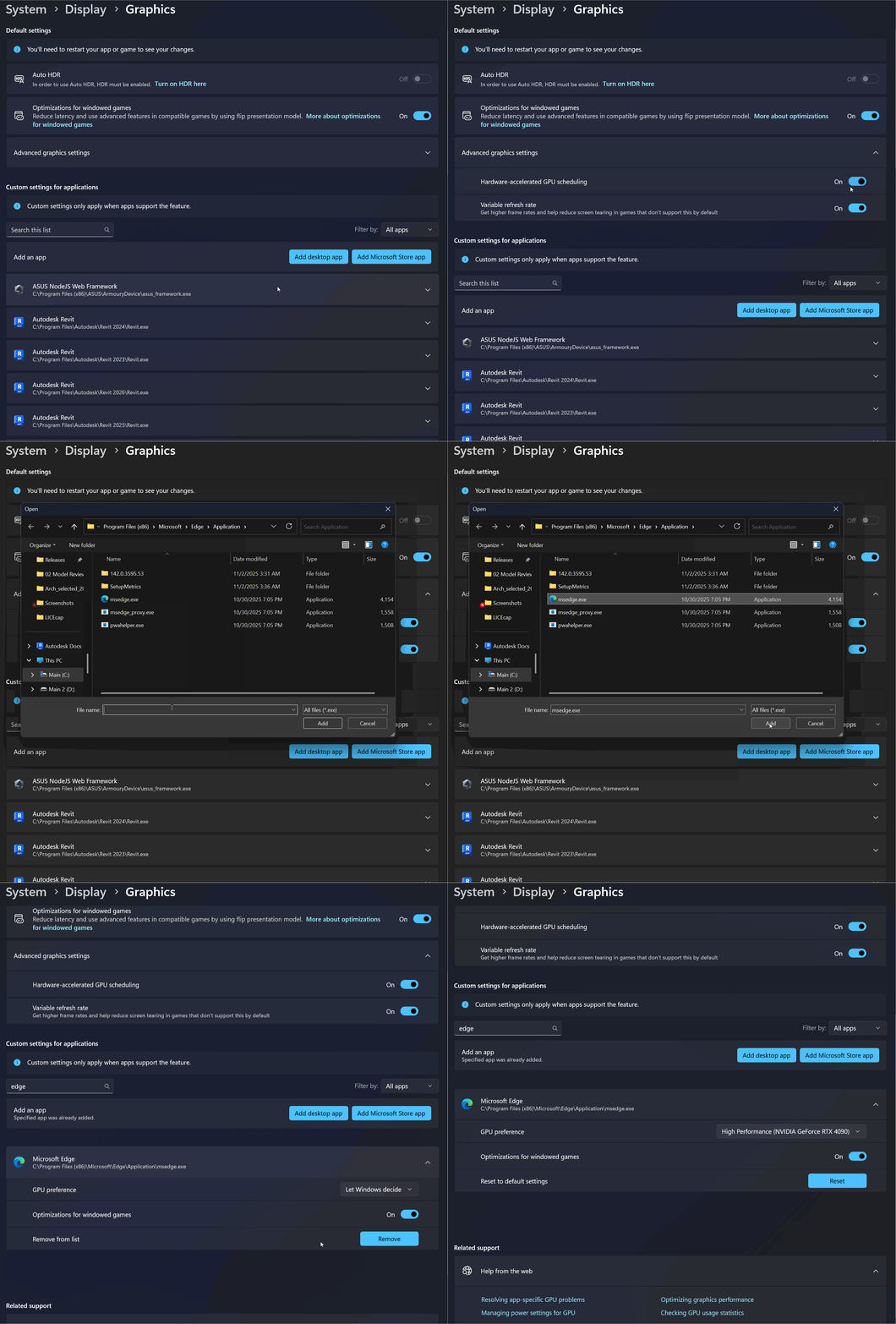
Open Graphics Settings
Press
Win + Ito open SettingsNavigate to:
System → Display → Graphics
Verify Hardware acceleration is enabled
Open Advanced graphics settings
Ensure toggle is set to On
Add Microsoft Edge (or Chrome)
Click Add desktop app and navigate to the browser's exe file. Typically, it will be one of these:
C:\Program Files (x86)\Microsoft\Edge\Application\msedge.exeC:\Program Files\Google\Chrome\Application\chrome.exe
Select the exe and click Add.
Set Graphics Preference
Now that the target browser(s) have been added, search for the browser name in the list (e.g. Edge)
The list will update, click Microsoft Edge (or other searched name)
Click GPU Preference drop down and select:
High performance (NVIDIA GPU or your graphics device)
Exit Settings
Restart the browser application to apply the changes.
Related Articles
Need help? Reach out to us at community.motif.io