Image Referencing
Last updated: September 16, 2026
You can use images as references to render or edit your images.
Render with image references
You can use external images as references to guide material, texture, or atmosphere changes in your renders. This is particularly useful for exploring wall treatments, finishes, or ambient moods. Image Reference editing is best applied to already-rendered images, not original model views.
Steps:
Group your images with the rendered image you want to modify
Shift-select (or window-select) the reference image(s) along with the rendered image. You can select up to 14 total reference images
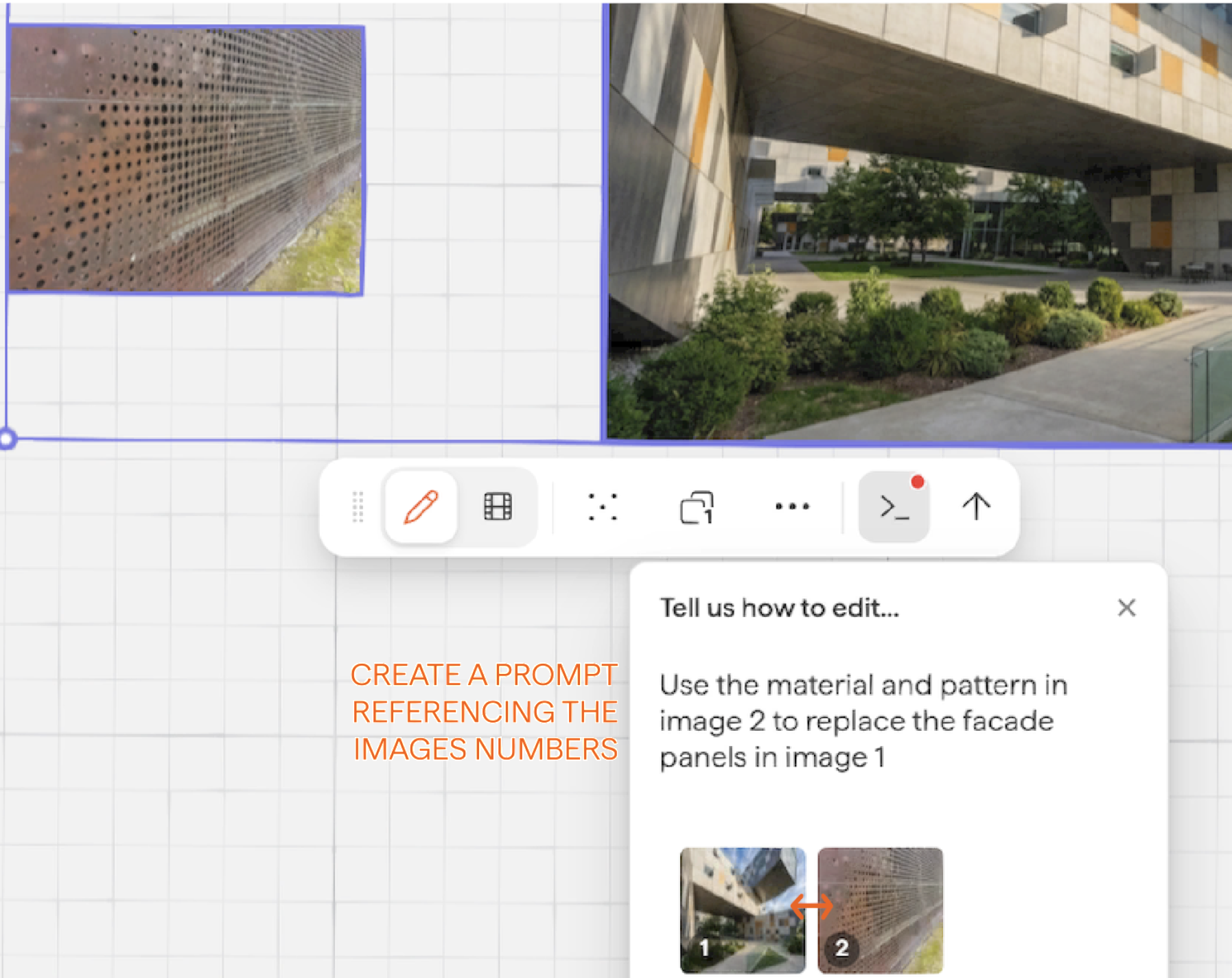
The prompt toolbar will appear, and the target and reference images will be displayed.
You can change the order of the images, which can help when you are prioritizing. Have your primary output image as image reference 1
Write a prompt describing what you want to happen:
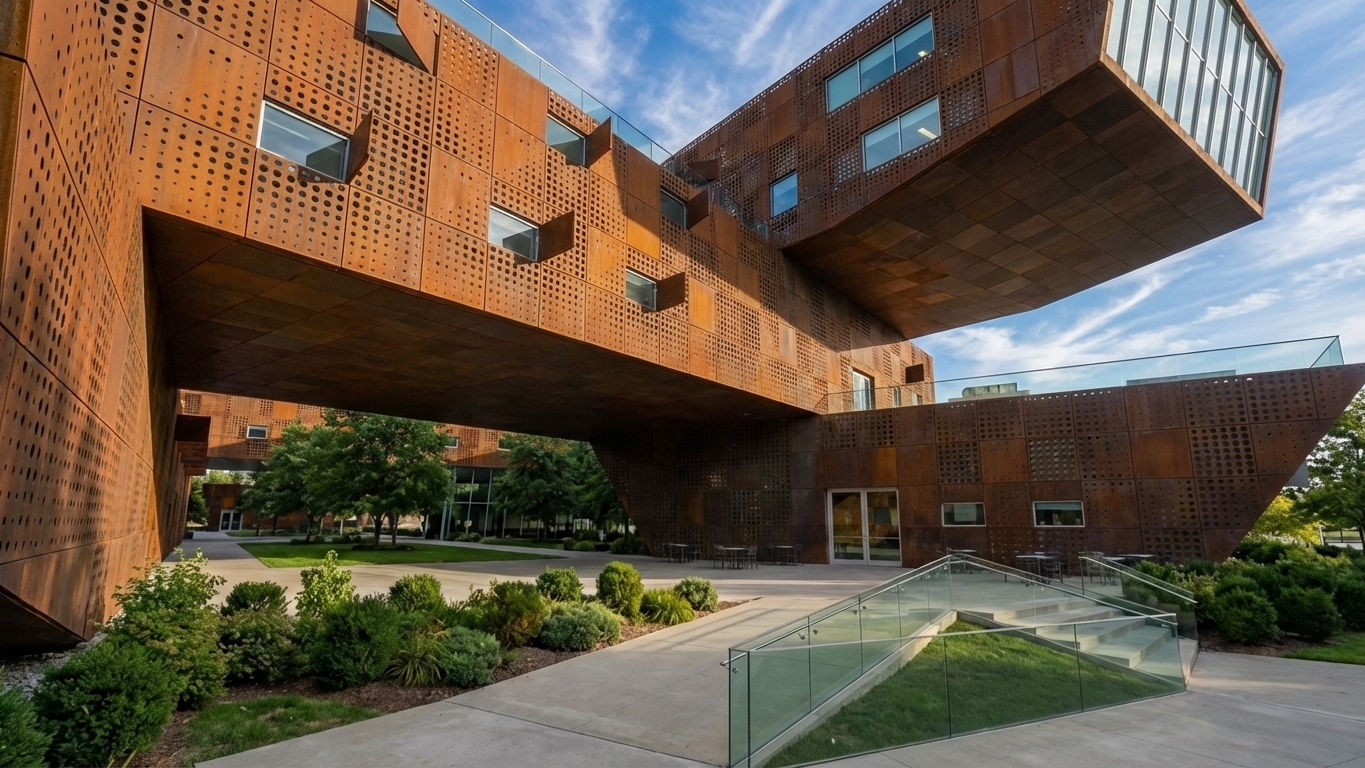
Apply the texture from image2 to the wall on the right in image1
Result from the above example:
Referencing by sketching location
You can use sketching to specifically guide the reference image location in your render. Use the markup tools to sketch your intent.
In this example, a rectangle:
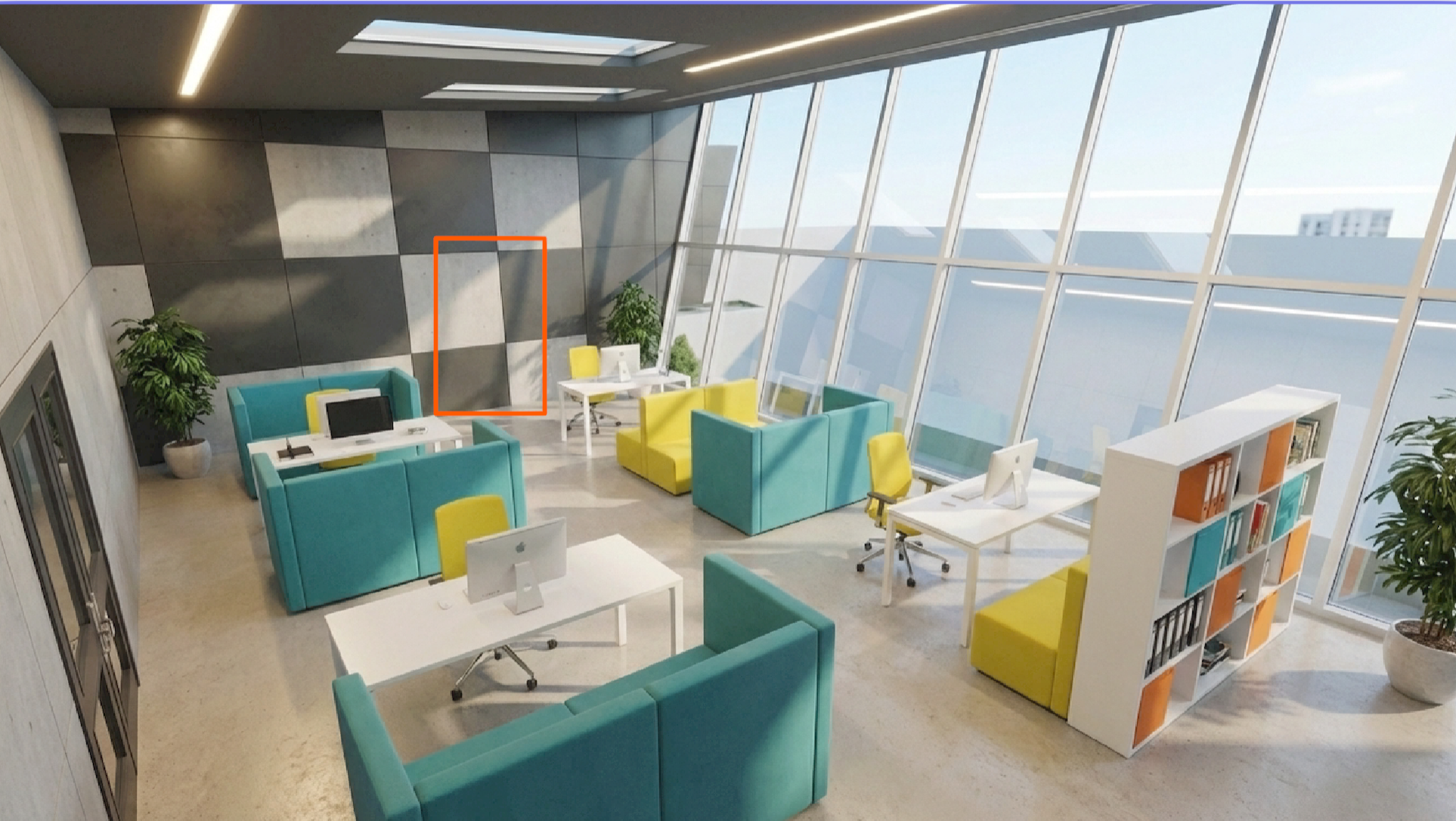
Take a screen-grab of the image with the sketch and paste it next to your reference image, then use the reference image prompt as described above.
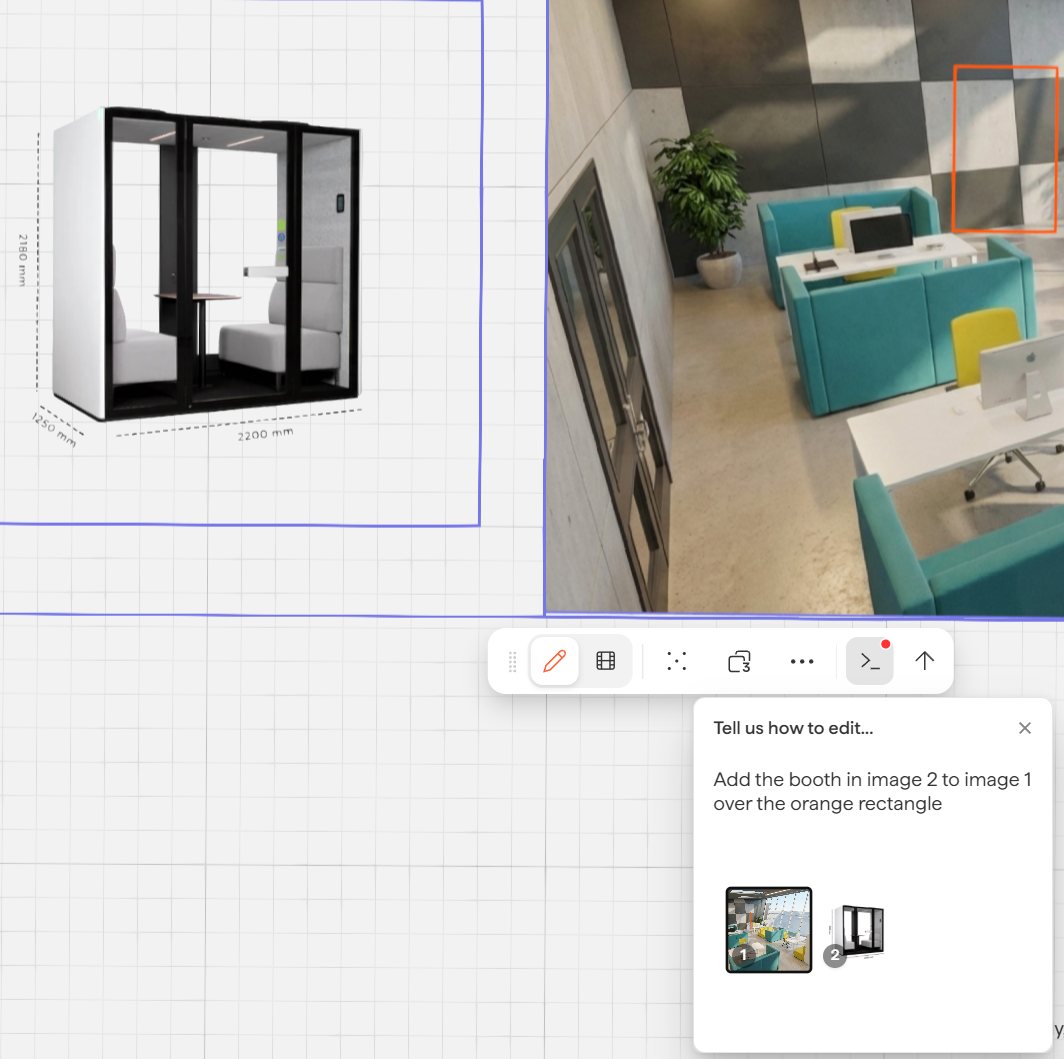
Result from the above example:
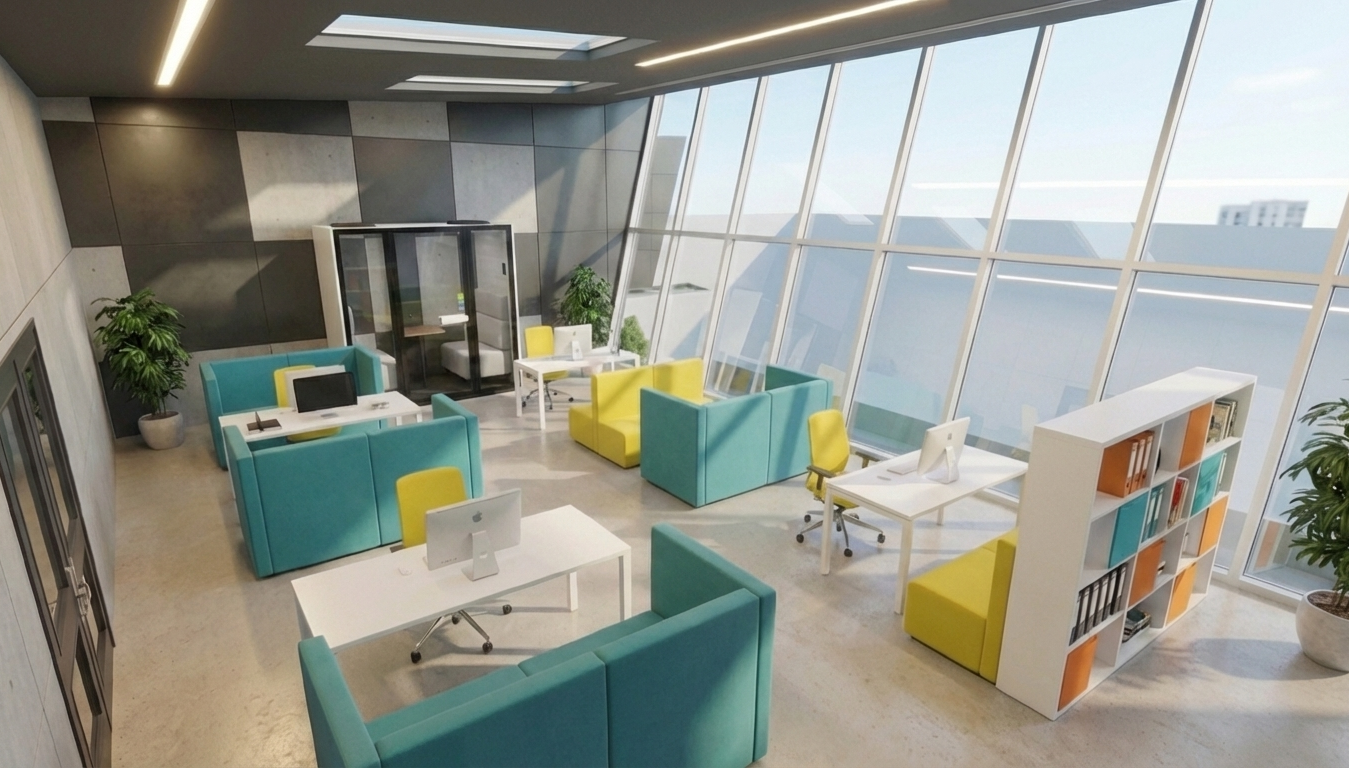
Example of using multiple reference images and indicating their placement with lines, and then screen-grab the sketch and paste it next to the primary image:
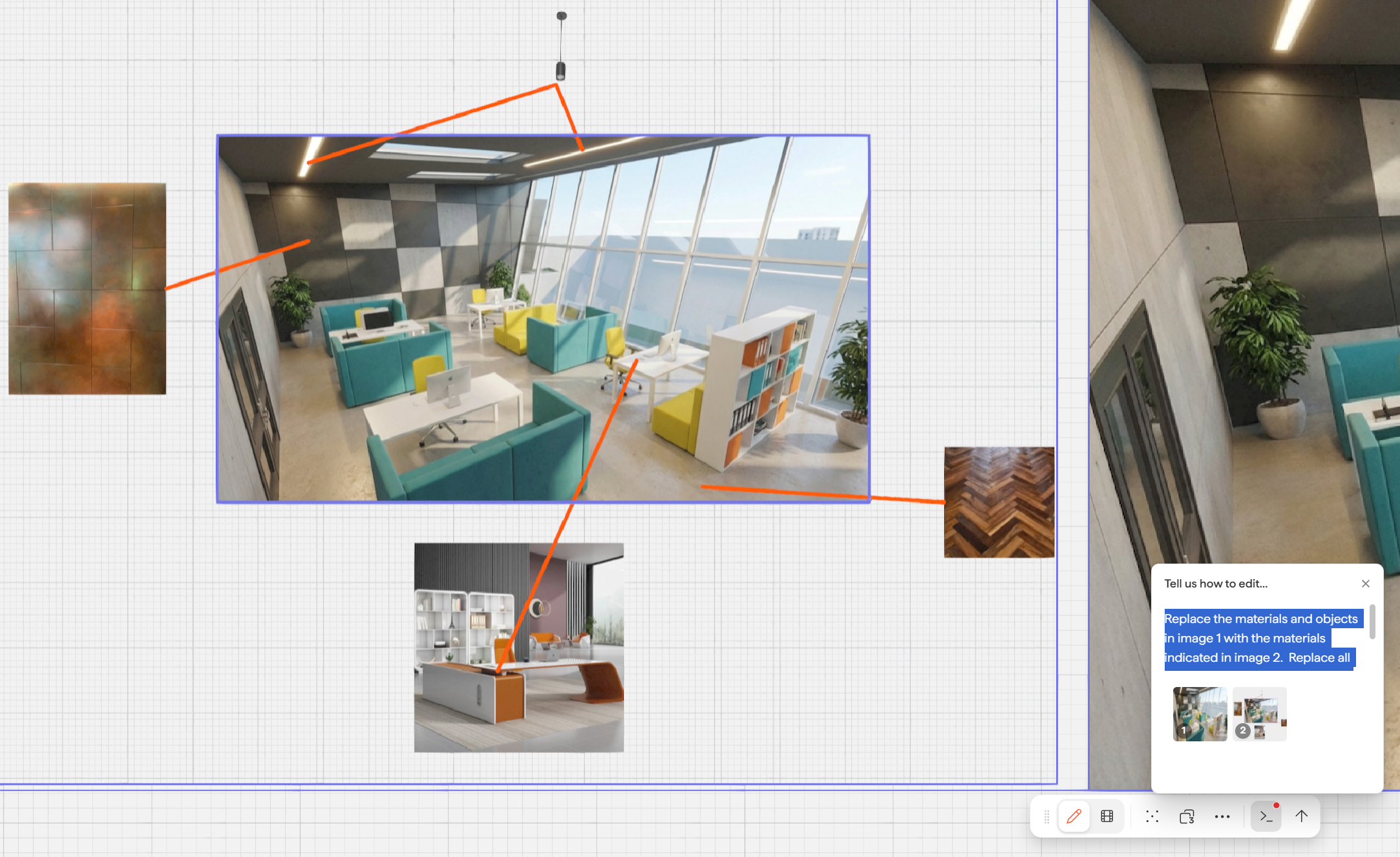
Replace the materials and objects in image 1 with the materials indicated in image 2. Replace all the desks and furniture and add two rows of pendant lights, as indicated.
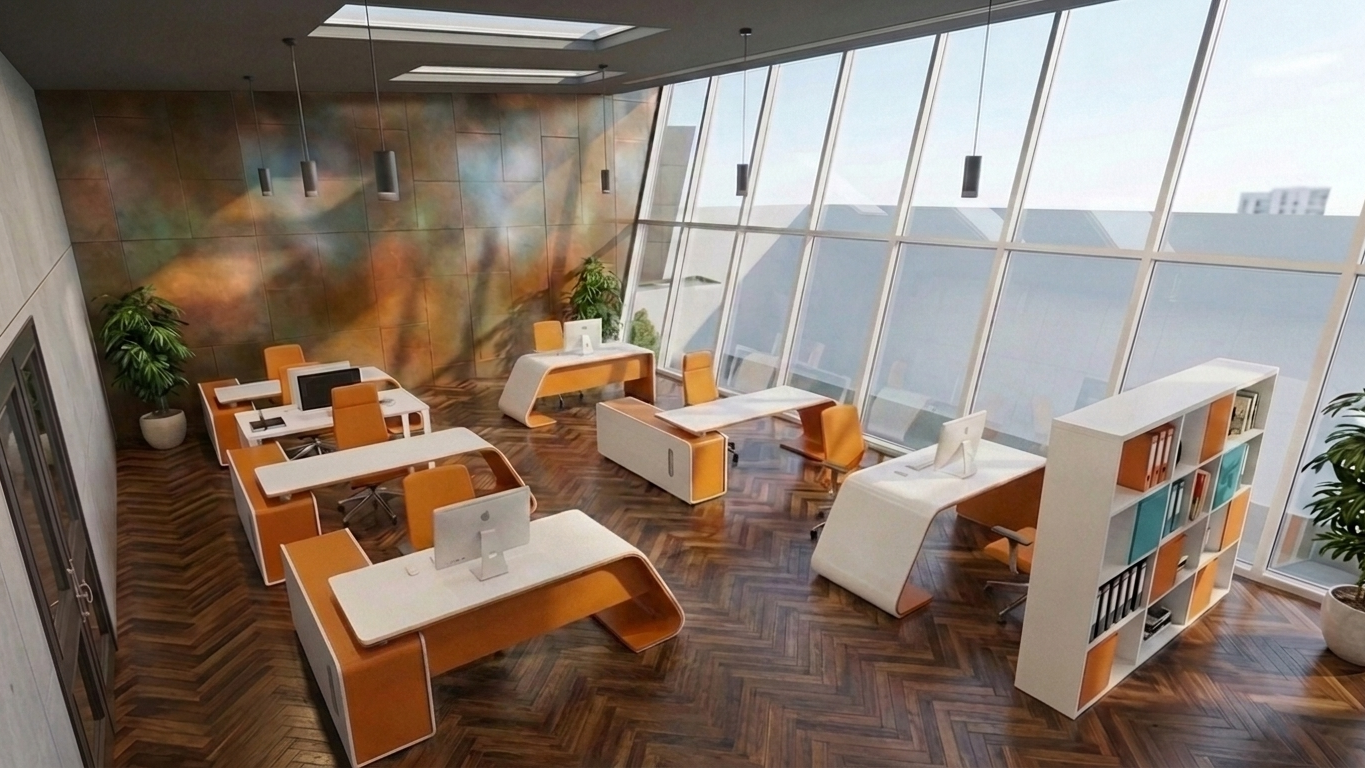
Result of the example above:
Other things you can do with image references
Add ethnically specific people to a scene
Add specific foliage or landscape elements
Replicate an atmosphere or lighting from another photo
Apply specific colors or fabric textures
Next steps
Need help? Reach out to us at community.motif.io