Stream and publish from Rhino
Last updated: September 16, 2026
Send your Rhino model to a board. Models can be streamed live or published as a static snapshot.
Before you start: The Motif plugin must be installed. See📄 Install the Motif Plugin (Revit & Rhino). NOTE: Right now, the Motif Rhino plugin is Windows-only, so it can’t be used directly on a Mac.
Workarounds for Mac users:
Use the Motif Grasshopper plugin (from Rhino’s package manager).
Export from Rhino and upload a .glb to your board (note: this may lose layer structure).
Steps to publish or stream
Open your Rhino project.
Type
MotifPluginin the Rhino command line and press Enter to open the plugin panel.Click Sign in if prompted. A browser tab will open for authentication.
In the Motif plugin panel, select the Project and Board you want to publish to.
Define what gets published: select an existing asset from the dropdown, or click + Publish New Asset.
Use Rhino's Hide command or toggle layer visibility to control what appears in Motif Review.
Optionally rename the asset using the three-dot menu. You cannot rename it after publishing.
Choose your method:
Publish — sends a static snapshot at that point in time.
Stream — sends a live, continuously updating connection (3D models only).
Click Publish or Stream. The model will appear on your selected board in Motif Review.
⚠ Refresh your browser after publishing for the asset to appear on the board.
💡 You can publish directly to the Project Asset Library instead of placing the asset on a board immediately. This is useful when publishing sheets alongside a 3D model.
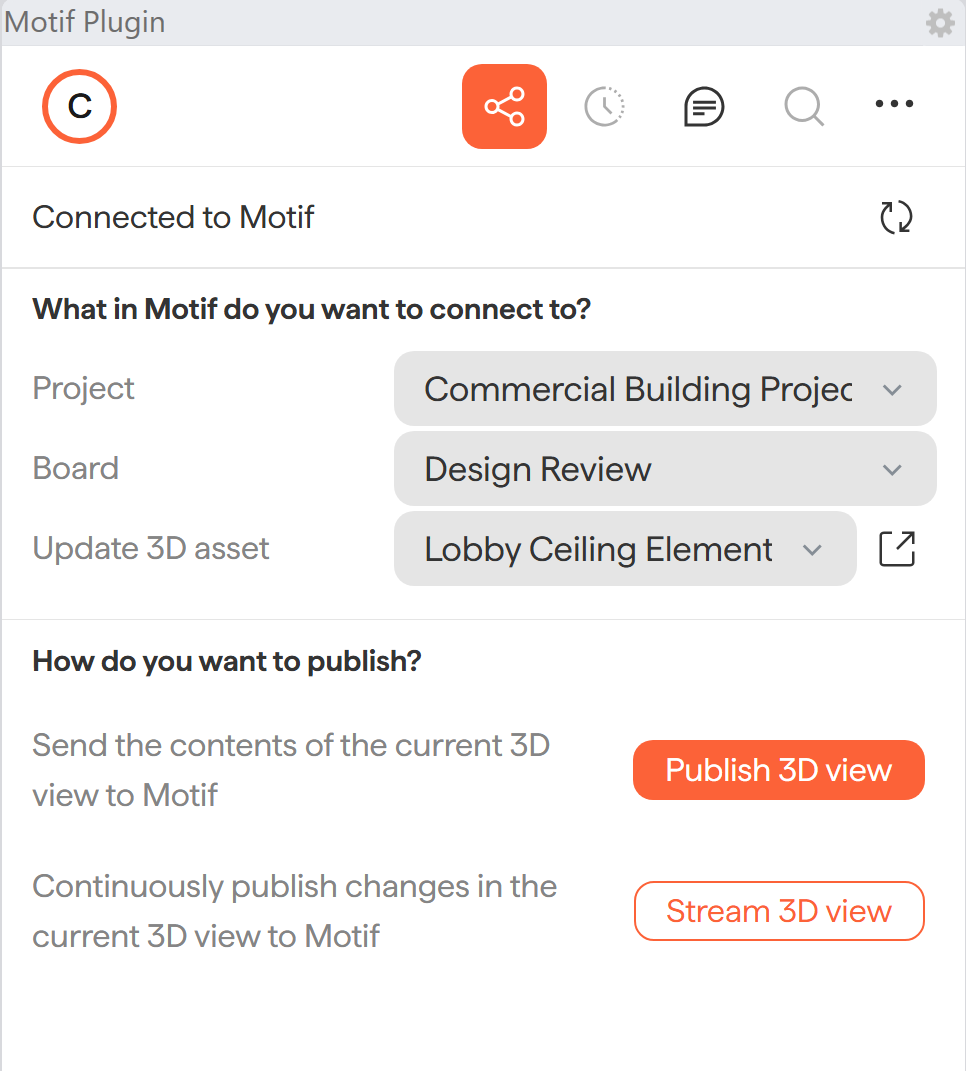
Update an existing asset or publish a new one
Use the dropdown under Update 3D Asset to either overwrite an existing published asset or create a new one. The three-dot menu lets you rename the asset before publishing.
What streams from Rhino
Rhino models stream based on their layer hierarchy. Colors and materials are included.
What does not stream:
Textures in materials (will display the color/tint only)
2D text
Non-solid hatch patterns (appear as solid fills)
Clipping planes
Cameras
💡 Rhino models with black object colors may appear as light grey in Motif Review. Change the object color to light grey in Rhino to avoid this.
Need help? Reach out to us at community.motif.io