Create Views for navigation and renders
Last updated: September 16, 2026
A View is a saved camera position. Use Views to quickly jump between angles during a design review, build a sequence of shots for a client presentation, or keep a record of key perspectives on your model — and because Views are live, they always reflect the current state of the board. If a model is updated via a plugin sync, or new content is added to the board within the View's camera angle, the View updates automatically. Views are also saved as images, making them a ready-made source for AI rendering.
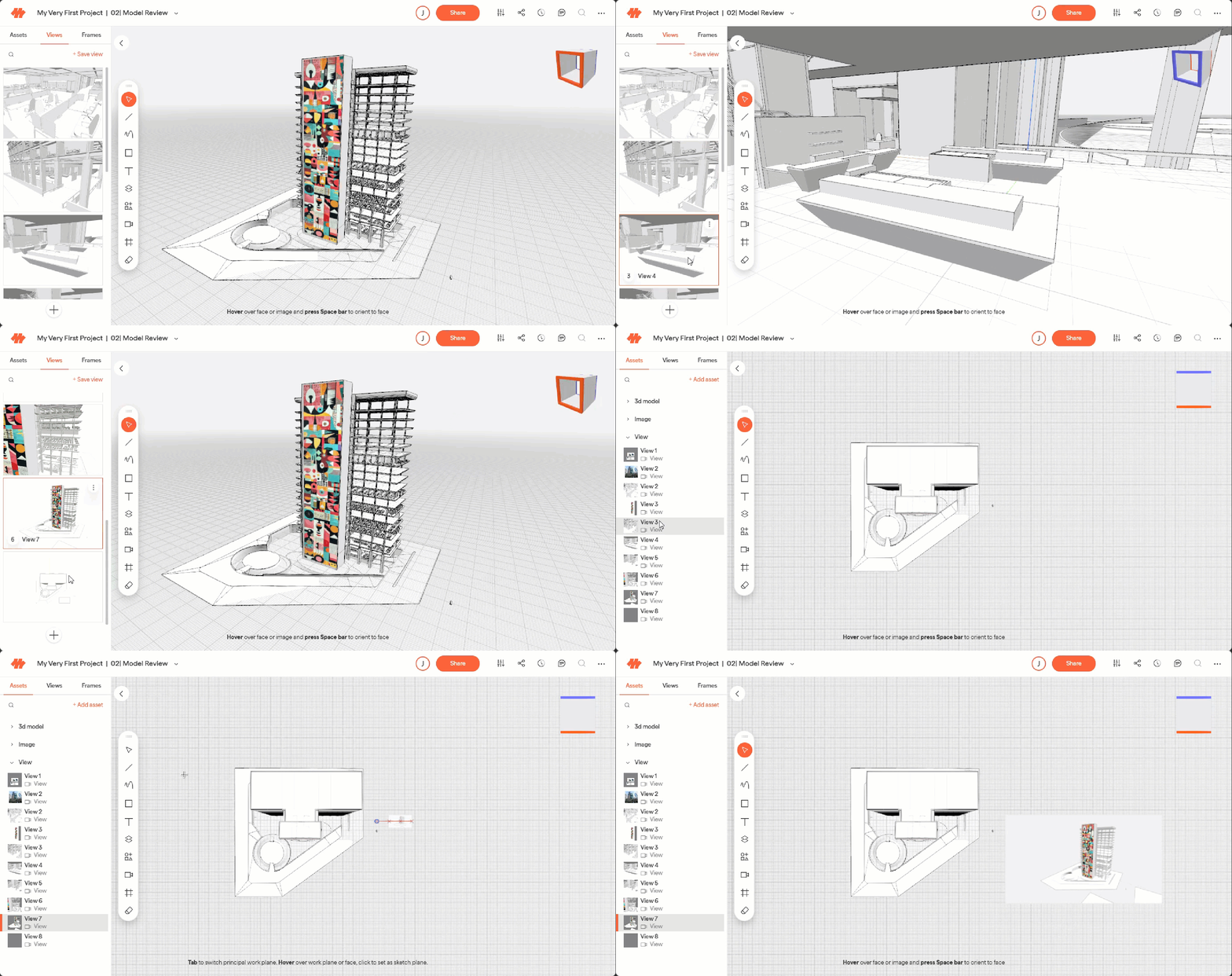
Save a View
Position the camera where you want it.
Open the Views gallery in the left drawer and click + Save View. You cab also click the View tool in the toolbar, or press
Von the keyboard.The View is added to the Views gallery as a thumbnail.
💡Views in the View Gallery can be reordered by clicking and dragging the view thumbnails
Navigate between Views
Click any thumbnail in the Views gallery to jump the camera to that position.
Manage Views
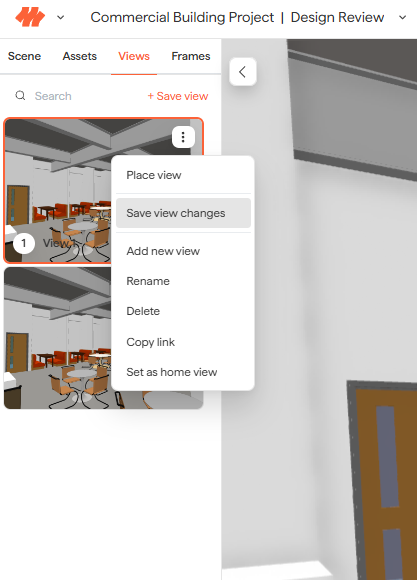
In the View Gallery, there is a overflow menu (...). From there you can:
Place view - You can also click and drag the View from the View Gallery, to place on the board.
💡Views are also saved in the Asset Library as a live 2D image. This is where you can access your saved views if you are in another board, where the view was not created.
Save view changes - Update the positioning of a saved view by orienting the model on the scene differently first
Rename - Its helpful to give your view a unique name, otherwise it will default to View 1, View 2, and so on, making it difficult to distinguish from each other
Delete - Remove views that are no longer needed. This can help speed up your board performance and keep an organized gallery
Copy link - Send a colleague to a specific view (make sure to add them to your project first)
Set as home view - This will set the view that your board opens to every time you come back. It will also update the board thumbnail on the project page.
Next steps
Once you have some views saved, explore the following articles:
Need help? Reach out to us at community.motif.io