Organize ideas and present with Frames
Last updated: September 16, 2026
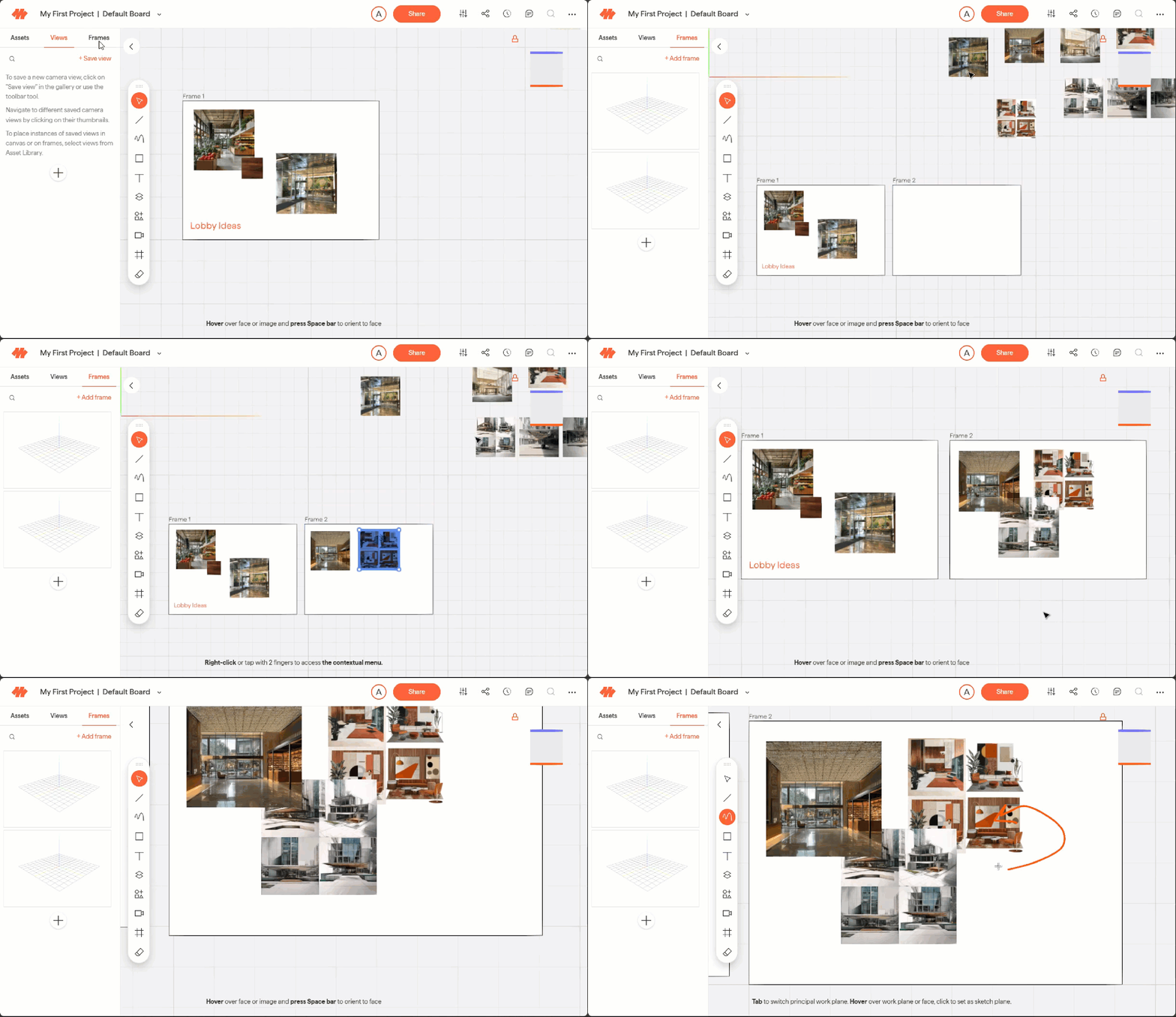
A Frame is a fixed 2D container for organizing and presenting content on a board. Use Frames to build slide-like presentation layouts, group related assets together, or structure a design review with a client.
Create a Frame
Open the Frames gallery in the left drawer and click + Add Frame. You can also click the Frame tool in the toolbar, or press
F.Click to place a Frame at a default size, or click and drag to define its exact dimensions. You can define the dimensions in the properties panel once the frame is placed.
⚠ Click and drag option is only available from the toolbar icon or shortcut
F
Add content to a Frame
Content placed inside a Frame becomes a child of that Frame. Moving the Frame moves everything inside it together. You can add content to a frame by doing the following:
Place a frame over existing content
Drag existing content onto a Frame
Navigate between Frames
Click any thumbnail in the Frames gallery to jump the camera to that position.
Manage Frames
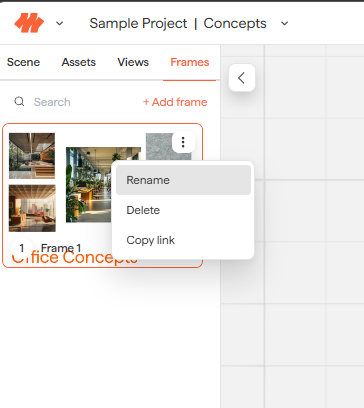
In the Frame Gallery, there is a overflow menu (...). From there you can:
Rename - give your Frame a name
Delete - Remove frames that are no longer needed. This can help keep an organized gallery
Copy link - Send a colleague to a specific frame (make sure to add them to your project first)
💡You can export your frames to PNG or JPG files by right clicking on the frame > save as
⚠ Frames cannot be reordered in the gallery
Need help? Reach out to us at community.motif.io