Sharing and collaborating in Motif Review
Last updated: September 16, 2026
Motif Review is built for working together in the browser. When you want to bring someone in — a teammate, a consultant, or a client — you can share the whole board or point them straight to a specific view or frame. This article covers each option and how people work together once they're in.
Ways to bring people in
You can direct collaborators to specific areas of your project. First, you will need to:
Invite people to a project — add people to a project from the members page of the project for ongoing collaboration. You control what people can do in a project when you share it — from viewing only, to leaving comments, to full editing. Set this when you invite someone or share a link, and adjust it later as needed.
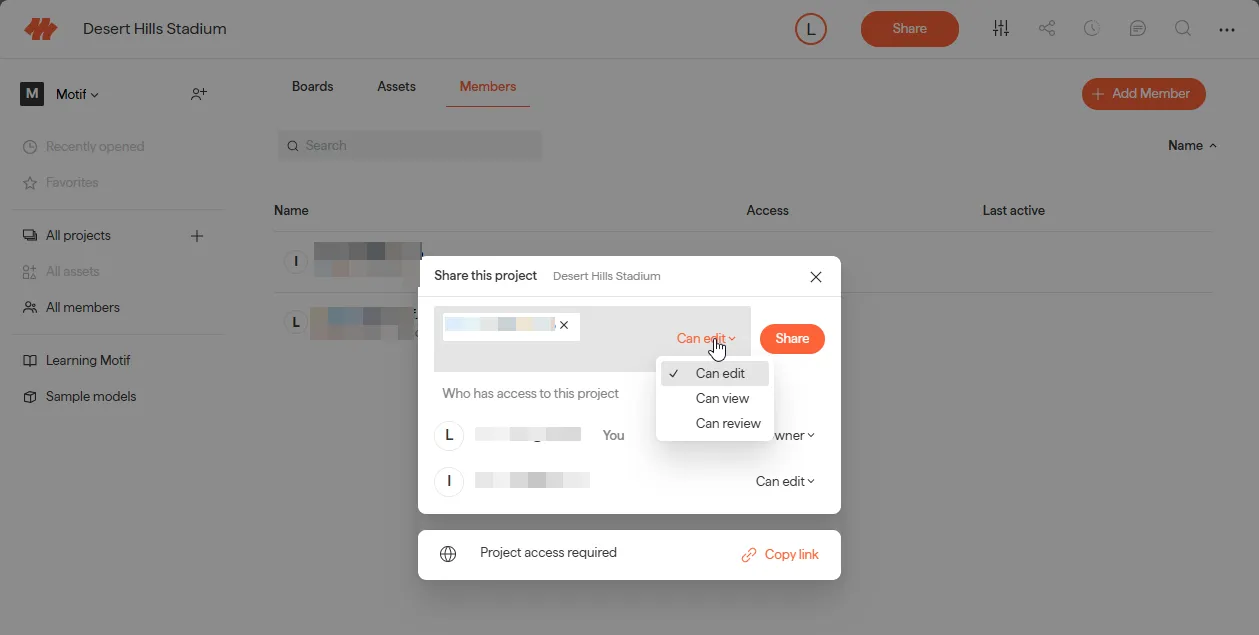
Then, you can share parts of the project more directly,
Share a link to a board — drop someone directly in your board
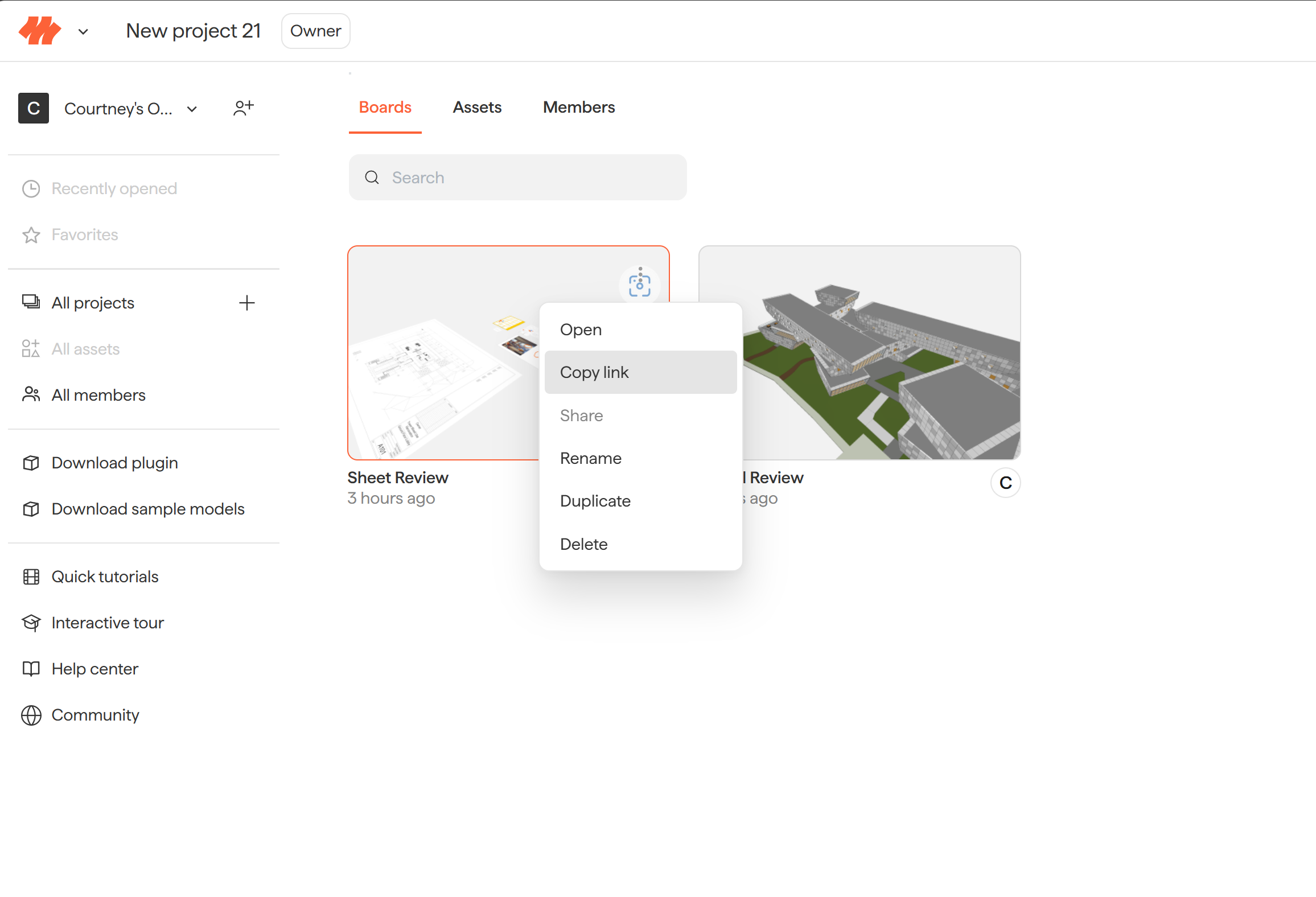
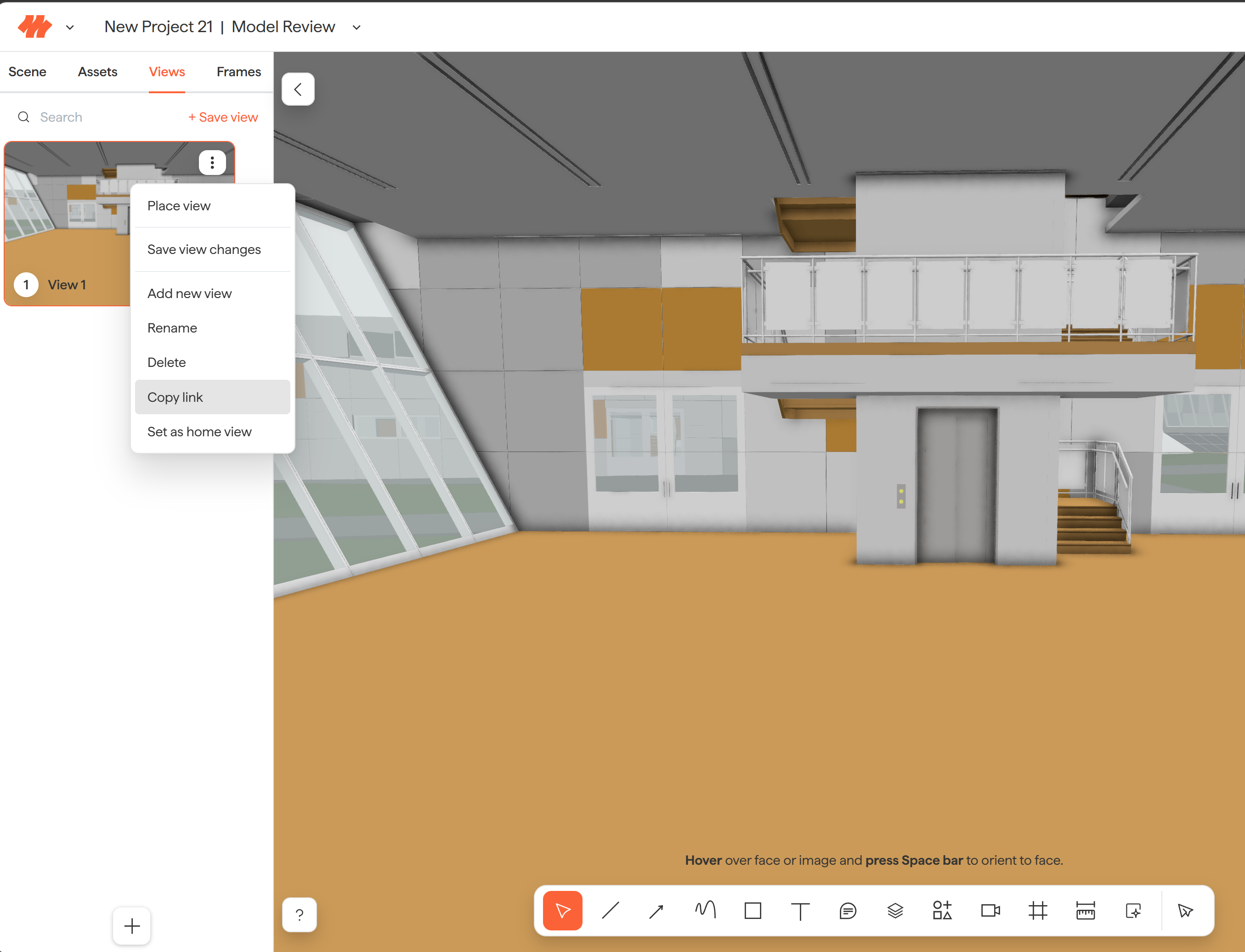
Share a link to a view — drop someone into a specific saved View
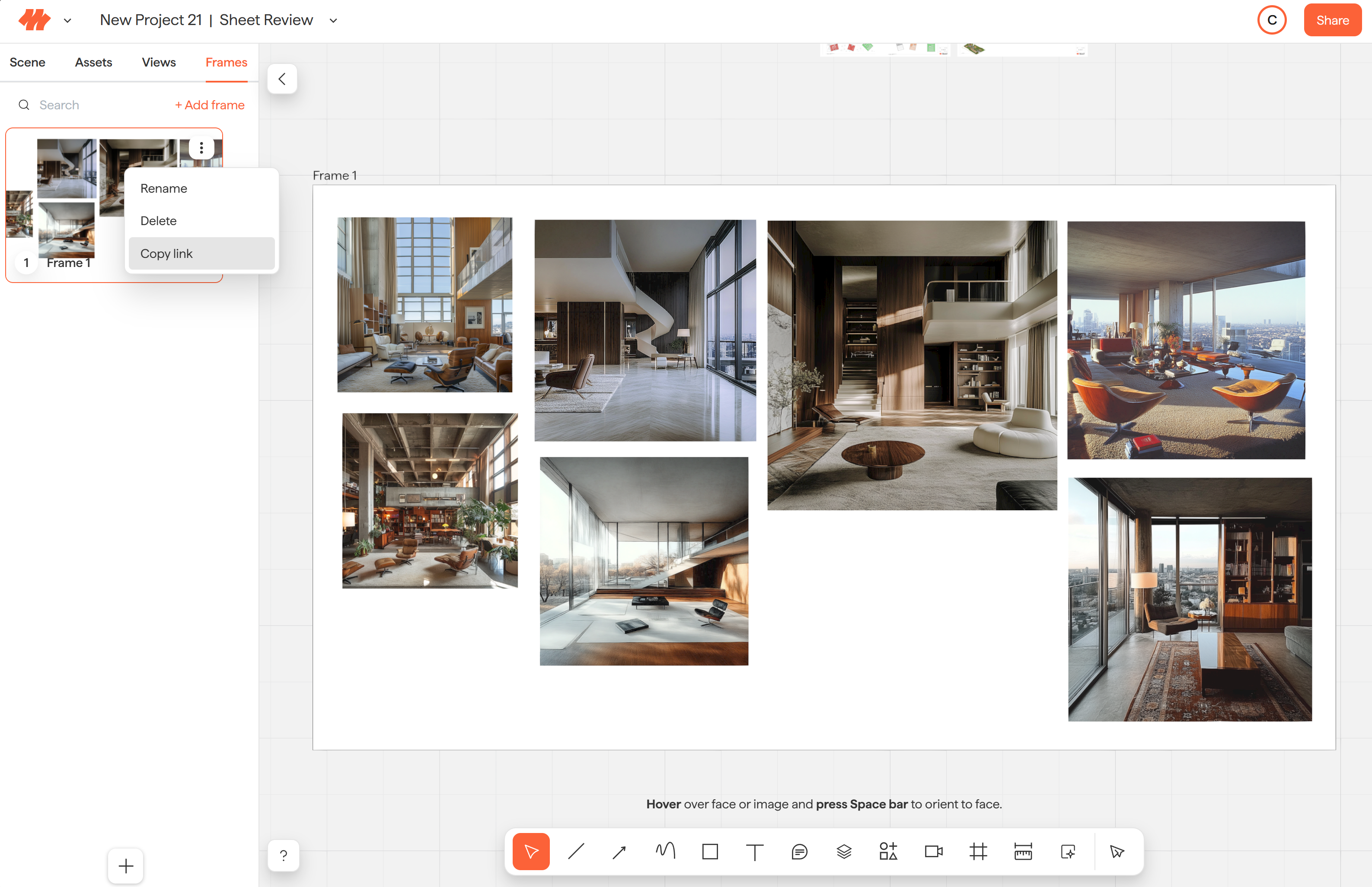
Share a link to a frame — drop someone onto a specific Frame
All four open in the browser — there's nothing for the other person to install.
Working together in real time
However people join, they work with you live. Everyone on a board sees the same content at the same time, and changes appear as they happen — so reviews and working sessions happen together, in one place, instead of over exported files and screenshots.
Related
Need help? Reach out to us at community.motif.io