Grasshopper for Motif
Last updated: April 28, 2026
The Motif Grasshopper package lets you create and manage Motif projects, publish assets, and retrieve board data — all from within a Grasshopper script. It's useful for automating repetitive setup tasks and for programmatic design-to-Motif workflows.
⚠Compatibility: Requires Rhino 7 or 8
Install the Motif Grasshopper package
Open Rhino 7 or 8 and confirm Grasshopper is working: type
grasshopperin the Rhino command line and press Enter. Close Grasshopper once confirmed.Type
PackageManagerin the Rhino command line.Go to the Online tab and search for Motif.
Click Install.
Restart Rhino and launch Grasshopper. Motif tools will appear on their own toolbar.
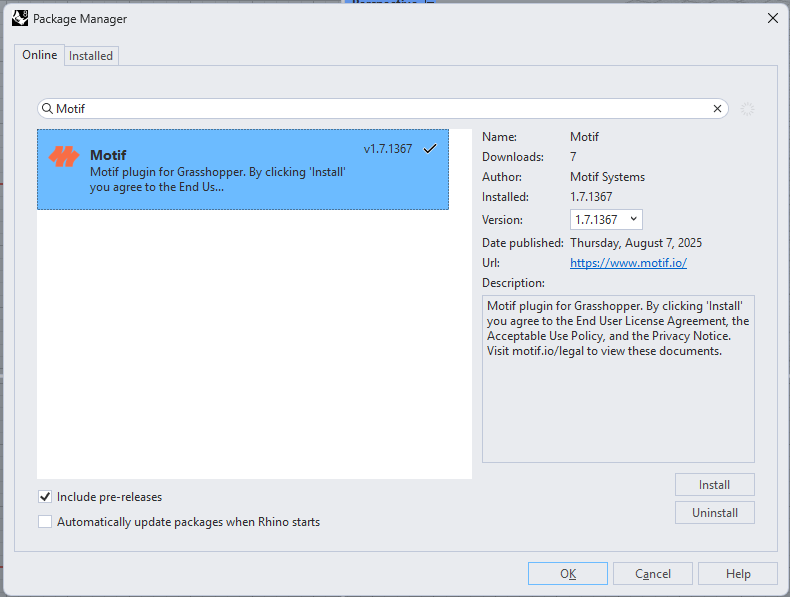
To verify the installation: Type PackageManager → click the Installed tab → search for Motif. You'll see the package name and version number.
Sign in to Motif from Grasshopper
If you see a Login Error when placing a Motif node, right-click the node title and select Login. Grasshopper will open a browser window for you to sign in. If you're already logged into Motif in your browser, the login will complete automatically.
What you can do with the Motif Grasshopper tools
Create and manage
Create Project — creates a new Motif project from a given Organization and Name.
Create Board — creates a new board in a specified project.
Add Member to Project — adds a user to a project with a specified role.
Publish assets
Create Geometry Asset — publishes Grasshopper geometry as an asset in a Motif project.
Create File Asset — publishes a file (3D model, image, or PDF) from a local path.
Create Asset Instance — places an asset on a board at a specified location.
Read data
Get Projects / Boards / Organizations / Members — retrieves lists from your Motif account.
Get Board Contents — returns all objects on a board.
Get Assets — returns assets in a project, with optional type filtering.
Get Comments — returns comments attached to an asset or board.
Running components
Motif nodes don't run automatically — they only execute when the Run input is set to true. Connect a Button to run once per click, or a Boolean Toggle (set to true) to run whenever any input changes.
Need help? Reach out to us at community.motif.io