Publish from Rhino
Last updated: September 30, 2026
Send your Rhino model to a project in Motif Design.
Before you start: The Motif plugin must be installed. See 📄 Design: Install the Motif Plugin (Revit & Rhino)
Steps to publish
Open your Rhino project.
Type
MotifPluginin the Rhino command line and press Enter to open the plugin panel.Click Sign in if prompted. A browser tab will open for authentication.
In the Motif plugin panel, select the Project and Model you want to publish to.
The plugin should say "Connected to Motif Design".
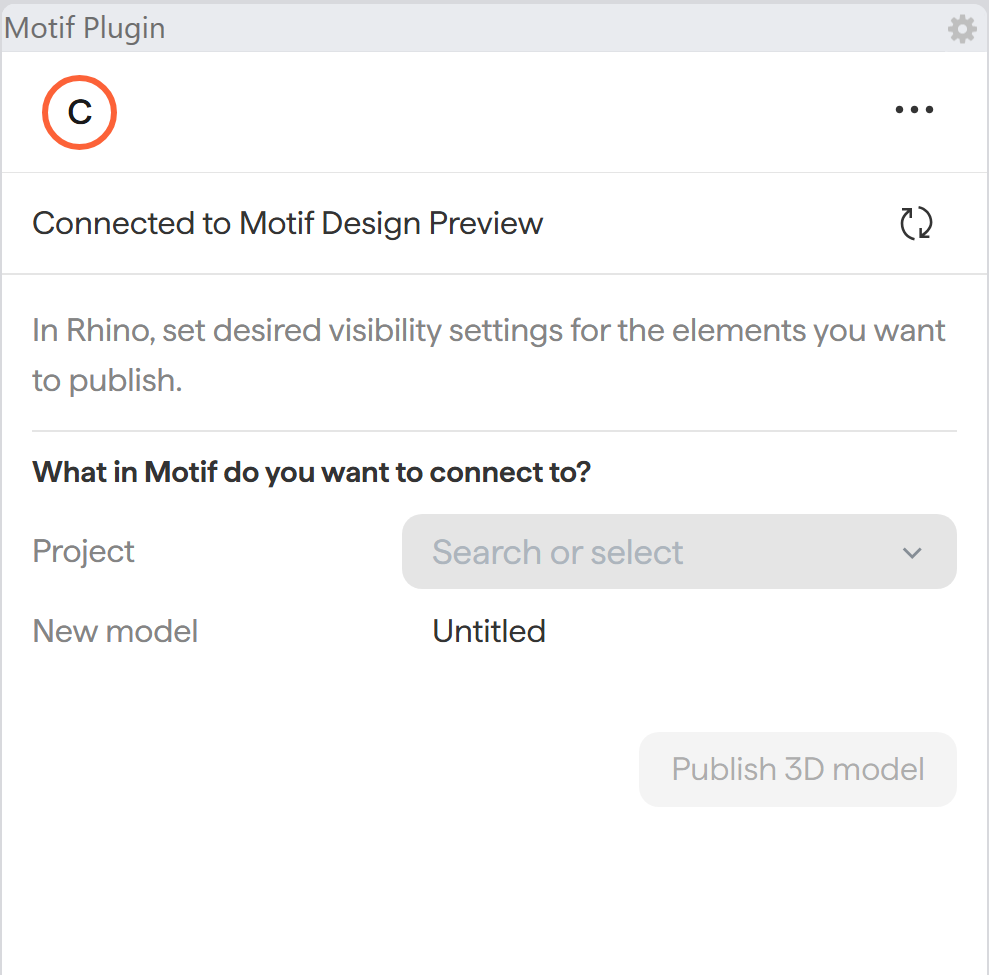
Note: If the plugin says "Connected to Motif Review", go to the command line and type
MotifPluginSwitchBackend. You can toggle between the 2 plugins with this command.In the Motif plugin panel, select the Project and Model you want to publish to. Give the model a name as it will be represented in Motif. You will not be able to rename the Model once it is published.
Define what gets published. Using the “Hide” command or placing objects on different layers and toggling off their visibility can change what is seen in Motif.
Click Publish 3D model. The model will appear in your project.
⚠ Refresh your browser after publishing for the model to appear.
Update an existing asset or publish a new one
Use the dropdown under Update Model to either overwrite an existing published asset or create a new one. Creating a new model lets you rename the asset before publishing.
⚠ Re-publishing from Revit replaces the model. Anything you've added in Motif to a Revit-published model is lost when it's re-published. If the model will keep getting updates, link it into your own model as a reference instead and do your work there. See 📄 Link another model into your modelfor full details.
What streams from Rhino
Rhino models publish based on their layer hierarchy. Colors and materials are included.
What does not publish:
Textures in materials (will display the color/tint only)
2D text
Non-solid hatch patterns (appear as solid fills)
Clipping planes
Cameras
💡 Rhino models with black object colors may appear as light grey in Motif Design. Change the object color to light grey in Rhino to avoid this.
Need help? Reach out to us at community.motif.io