Publish from Revit
Last updated: September 30, 2026
Send your Revit model to a project in Motif Design.
Before you start: The Motif plugin must be installed. See 📄 Design: Install the Motif Plugin (Revit & Rhino)
Steps to publish
Open your Revit project.
Navigate to the Motif tab in the top ribbon, then click Show Motif to open the plugin panel.
Click Sign in if prompted. A browser tab will open for authentication.
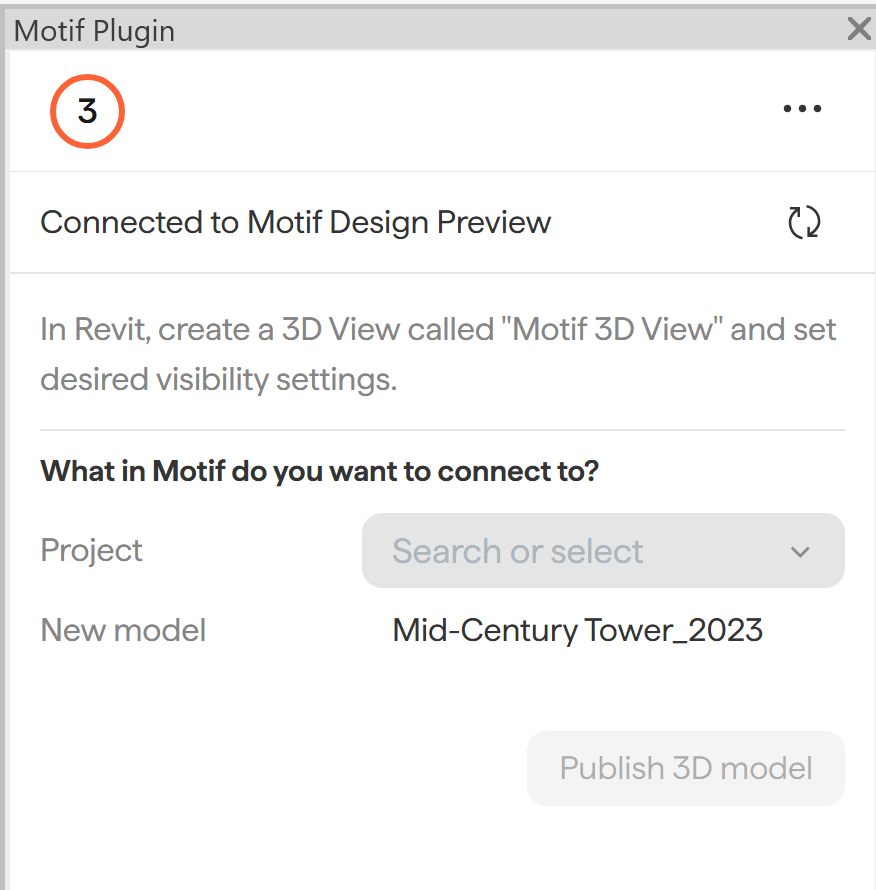
The plugin should say "Connected to Motif Design".
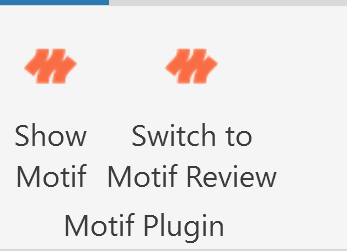
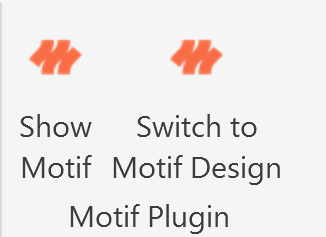
Note: If the plugin says "Connected to Motif Review", go to the ribbon for the Motif add-in and click "Switch to Motif Review". You can toggle between the 2 plugins in the ribbon.
In the Motif plugin panel, select the Project and Model you want to publish to. Give the model a name as it will be represented in Motif. You will not be able to rename the Model once it is published.
In Revit, create a 3D View called "Motif 3D View" and set desired visibility settings.
Click Publish 3D model. The model will appear in your project including geometry, rooms, and levels.
⚠ Refresh your browser after publishing for the model to appear.
Once published, all of the placed families that were placed and visible in the Motif 3D View will show up as Assets in the Content Library and can be placed in the scene. You can also see their properties on the properties panel.
Update an existing asset or publish a new one
Use the dropdown under Update Model to either overwrite an existing published asset or create a new one. Creating a new model lets you rename the asset before publishing.
⚠ Re-publishing from Revit replaces the model. Anything you've added in Motif to a Revit-published model is lost when it's re-published. If the model will keep getting updates, link it into your own model as a reference instead and do your work there. See 📄 Link another model into your modelfor full details.
What publishes from Revit
Most Revit categories publish to Motif Design, including walls, floors, ceilings, roofs, structural elements, furniture, stairs, railings, and more. Revit materials publish with their original colors and transparency.
What does not publish:
Textures in materials (will display color/tint only)
View cameras
RPC elements (plants, people) — use Entourage geometry instead
💡 If your model uses linked files, make sure to sync with central in Revit before publishing to ensure Motif Design receives the latest version.
⚠ If your Revit project references geometry from Rhino, STEP, or OBJ files, that linked geometry will also appear in Motif Design when published.
Need help? Reach out to us at community.motif.io