June 2026 releases
Last updated: September 14, 2026
Sheets, reimagined
Sheet review in Motif just got a major upgrade. Sheets are now first-class objects on the board — you can arrange them, mark them up, and measure on them at real scale. To get the new capabilities, re-publish your sheet sets from the latest Revit plugin. Sheets you published before still work and are labeled Legacy — re-publish them to unlock everything below.
Reshape a sheet set to fit your space
Want a sheet set to fill a different area of the board? Grab a corner handle and Shift + drag to resize the set — the sheets automatically reorder and reflow to fit the new shape. Go from a wide row to a compact grid (or anything in between) in one motion, without rearranging sheets by hand.
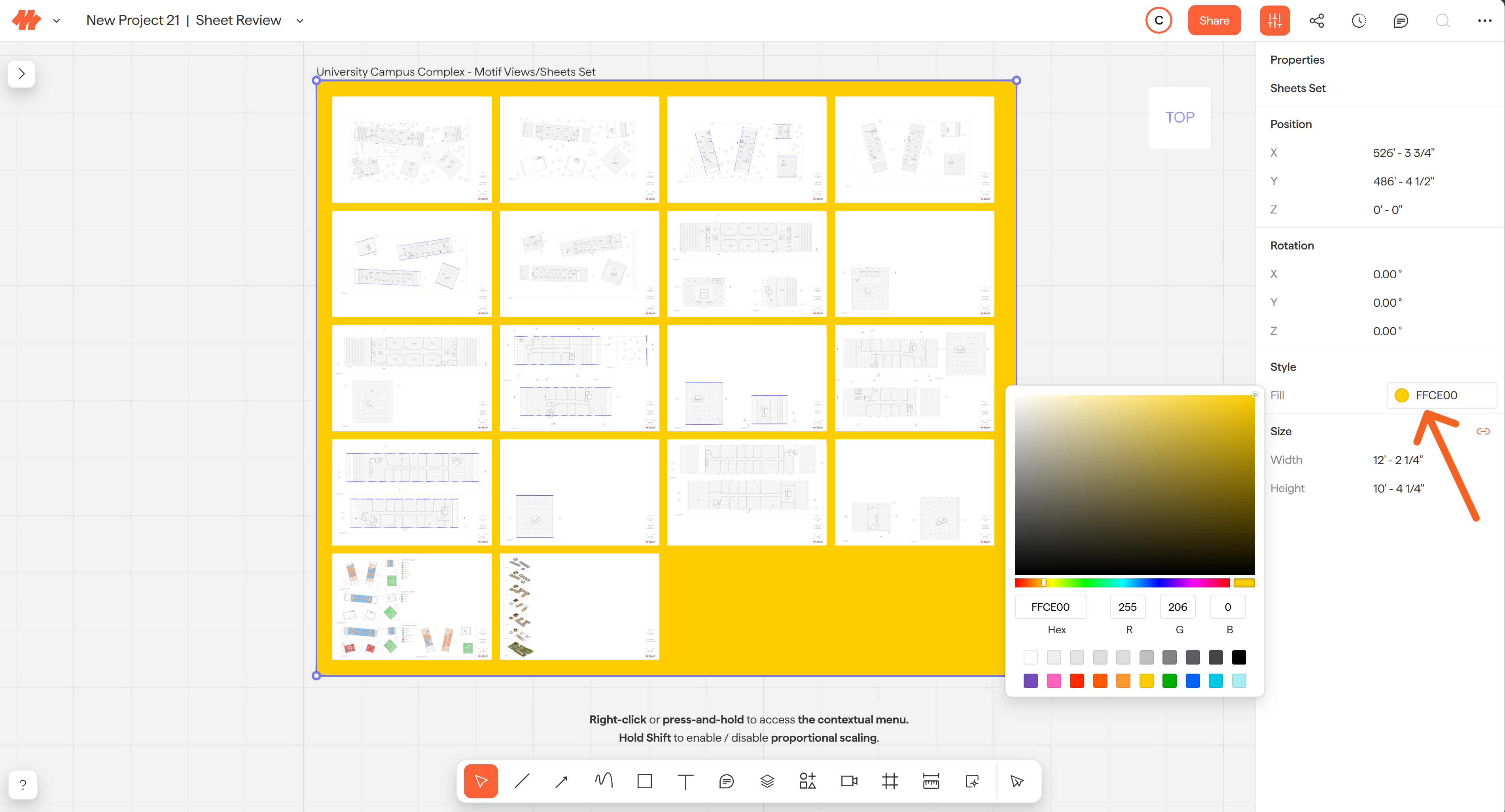
Give a sheet set its own background color
Set a background fill for a sheet set right from the properties panel. It's a simple way to tell your published sets apart on a busy board — color-code by discipline, design option, or review round so the sheets you need are easy to spot at a glance.
Sheet sets stay organized in the Asset Library and Scene Browser
Published sheet sets are now grouped in both the Asset Library and the Scene Browser, with each individual sheet nested under the set it belongs to. Expand a set to jump to the sheet you need, or collapse it to keep things tidy — no more scrolling past a flat list of loose sheets.
Ungroup sheet sets and work with individual sheets
You can now ungroup sheet sets so that you can select, move, and resize individual sheets. To ungroup - right click on a newly published sheet set, then select "ungroup". Note: You won't be able to re-group an ungrouped sheet set.Mark up sheets directly
Add sketches, lines, shapes, and text to sheets. Your markups stay attached to the sheet, so they move, rotate, and scale right along with it.Measure on sheets
Use the measure tool directly on a sheet and get real-world distances based on the drawing's scale. Motif shows the active scale (for example,1/8" = 1'-0") alongside your measurement.
Point things out with arrows
Arrows are now part of the markup toolbar, right alongside the line, sketch, rectangle, and text tools. Use them to call attention to a detail, direct the eye during a review, or annotate a change. Choose a filled or open arrowhead — or a dot — and add it to one end of the line or both (in the properties panel).
Copy and paste across boards
You can now copy objects from one board and paste them into another board open in a separate browser tab. Use Paste (Ctrl/Cmd+V) to drop items under your cursor, or Paste in place (Ctrl/Cmd+Shift+V) to keep their original position. Frames, markups, text, and images are all supported — and both options are available from the right-click menu and as keyboard shortcuts.
🛠 Bug fixes and usability improvements
Resizable, smarter AI prompt boxes
The prompt boxes for image and video generation can now be resized, making it much easier to write and review detailed prompts.Hidden images stay unselected
Box-selecting an area no longer grabs images you've hidden, so you won't accidentally move or delete something you can't see.Steadier top view
Clicking Top View in orthographic mode now simply reorients your view to top-down instead of jumping the camera far away.Tidier scene browser
The Scene Browser now only shows filters for the kinds of objects actually on your board, matching the Asset Library.
We're always listening to your feedback—thank you for helping us make Motif better! 🙌
Need help? Reach out to us at community.motif.io