Design: Install the Motif Plugin (Revit & Rhino)
Last updated: September 30, 2026
The Motif plugin lets you publish your design models directly from Revit or Rhino into a Motif project.
Before you start
⚠ If you already have the motif plugin installed for Motif Review, you will need to uninstall the plugin first. See 📄 How do I uninstall Motif plugins?
Steps
Download the latest Motif Plugins Installer here
(You can also find the download link in the Main Menu>Resources & Support inside Motif, or inside your plugin 3-dot menu)
⚠This is a different plugin install than for Motif Review. Once this plugin is installed, it will include both Motif Design and Motif Review plugins in one.
Locate the downloaded file
MotifPluginsSetupand double-click it to run the installer.The installer automatically detects your installed versions of Revit and Rhino. Click Next to proceed.
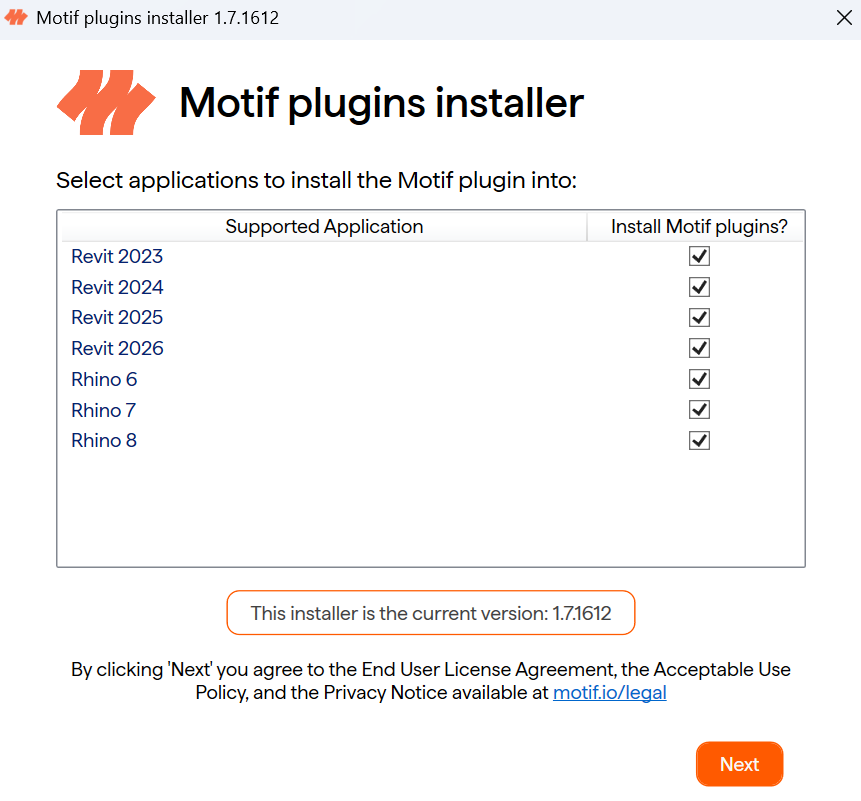
Once installed, open (or relaunch) Revit or Rhino.
Open your Revit or Rhino project.
Open the Motif Plugin panel
In Revit, navigate to the Motif tab in the top ribbon, then click Show Motif to open the plugin panel.
💡If you already have the motif plugin installed for Motif Review, you can switch between the 2 plugins in the Ribbon in Revit
In Rhino, activate the Motif plugin using the command
MotifPlugin.💡If you already have the motif plugin installed for Motif Review, you can switch between the 2 plugins with the command
MotifPluginSwitchBackend
In the Motif plugin panel, click Sign In. A browser tab will open with sign-in instructions. Complete sign-in and return to Revit or Rhino — the panel will confirm you're logged in.
💡 If you don't see the Motif Plugin in your Revit or Rhino, check that the install completed without errors and try restarting again.
💡When a plugin update is available, you'll see an orange dot in the Motif plugin menu. Keep your plugin updated to access the latest features.
Need help? Reach out to us at community.motif.io